BrightSign Setup
BrightSign devices can connect to Wi-Fi networks such as WPA2-Personal, OPEN, and WPA2-Enterprise. To connect to a WPA2-Enterprise network, you need to configure your BrightSign device's network settings. Below are the steps to set up a WPA2-Enterprise connection on a BrightSign device.
We have two options for connecting to a WPA2-Enterprise network on a BrightSign device:
Supported WPA2-Personal / WPA2-Enterprise authentication methods
| Core App Version | Front-Applet Version | OPEN | WPA2-Personal | EAP-TLS | EAP-TTLS | PEAP (MSCHAPv2) |
|---|---|---|---|---|---|---|
≤2.4.1 | ≤8.5.1 | ✅ | ✅ | ❌ | ❌ | ❌ |
≥2.5.0-beta.0 | ≥8.5.2 | ✅ | ✅ | ✅ | ✅ | ✅ |
Set up with OSD menu
To set up a WPA2-Enterprise connection using the OSD menu, it's necessary to have prepared a few things:
- Correct Core App version (at least
2.5.0-beta.0) installed on the device - Keyboard for controlling the OSD menu
- Certificates for the network you want to connect to.
Certificates on USB drive
Our Core App on BrightSign devices supports loading certificates from a USB drive. To do this, you need to prepare a USB drive with the necessary certificates for your WPA2-Enterprise network.
Folders on the USB drive should be structured as follows:
# Methods: PEAP or EAP-TTLS
System
└── /file-system
    └── /certificates
        └── ca.pem

# Method: EAP-TLS
System
└── /file-system
    └── /certificates
        ├── ca.pem
        ├── client.pem
        └── client.key
- All certificates should be formatted in PEM format (BrightSign requirement).
- All certificates must be placed in the "certificates" folder on the USB drive and named according to the above structure.
OSD menu configuration
Once the certificates are prepared on the USB drive, you can proceed with configuring the OSD menu. Follow these steps:
- Insert the USB drive into the BrightSign device.
- Use the keyboard to enter the OSD menu by pressing the PIN code from the Box or Device default screen.
- Navigate to the "Wi-Fi" settings (3rd section) in the OSD menu.
- Enable the Wi-Fi module and select search for available networks.
- Select your WPA2-Enterprise network from the list of available networks.
- In the menu, select the EAP method used by your network (PEAP, EAP-TTLS, or EAP-TLS).
- Fill in the required fields based on the selected EAP method:
- For PEAP and EAP-TTLS:
- Identity: Your network username or identity.
- Anonymous Identity: Your anonymous identity (if required).
- Identity Password: Your identity password (if required).
- Domain: Your network domain (if required).
- Note: CA Certificate is imported from USB drive.
- For EAP-TLS:
- Identity: Your network username or identity.
- Anonymous Identity: Your anonymous identity (if required).
- Private Key Password: Password for the client key (if required).
- Note: CA Certificate, Client Certificate, and Client Key are imported from the USB drive.
- For PEAP and EAP-TTLS:
- Finally, click on "Connect" to establish the connection to the WPA2-Enterprise network.
- OSD within a few seconds will show the connection status on top of the screen. If the connection is successful, you should see connected Wi-Fi with name on top.
Preview of OSD menu for WPA2-Enterprise configuration
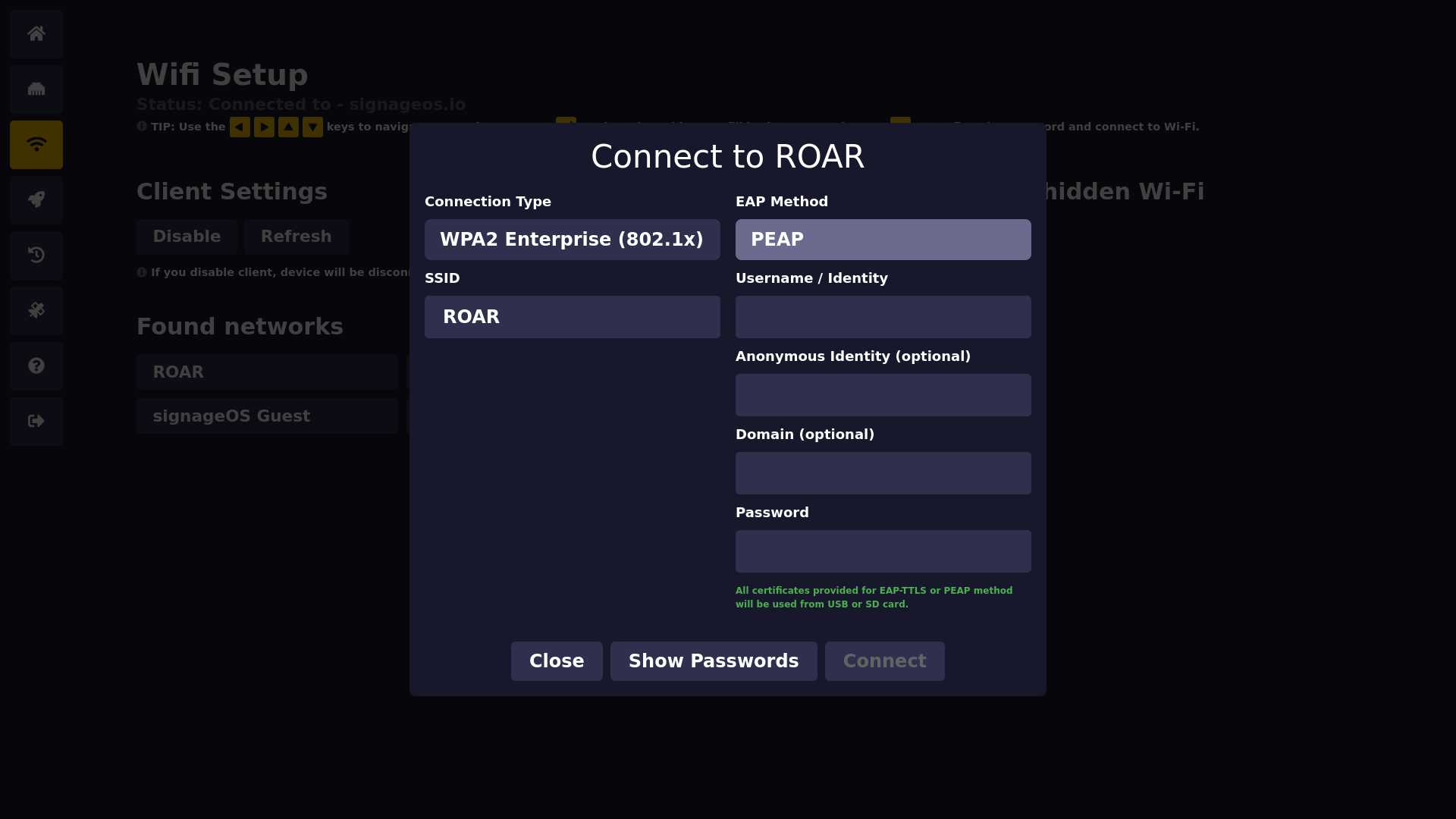 If certificates are correctly placed on the USB drive, you will see green text on bottom of menu as confirmation that certificates were loaded successfully. If there is an issue with loading certificates, you will see red text with error message.
Setup with JS SDK API in Applet
With the Wi-Fi JS API SDK, you can connect to a WPA2-Enterprise network directly from your applet without the need to use the OSD menu. This allows you to have more control over the connection process and handle it programmatically within your applet or scripts.
Our documentation page for Wi-FI connect function in JS API SDK.
You can set the username/identity password as the Wi-Fi password parameter in the connect function, but it's recommended to use EAP options for clarity.
import sos from '@signageos/front-applet';

// Connect to WPA2-Enterprise network with PEAP method
await sos.management.wifi.connect('MyEnterpriseNetwork', undefined, {
  securityType: '802.1X_EAP',
  eap: {
    method: 'PEAP',
    identity: 'my-username',
    anonymousIdentity: 'my-anonymous-identity',
    identityPassword: 'my-identity-password',
    phase2Auth: 'MSCHAPV2',
    domain: 'my-dymain',
    // CA Certificate is loaded from USB drive, so no need to provide it in options
  },
});

// Connect to WPA2-Enterprise network with EAP-TLS method
await sos.management.wifi.connect('MyEnterpriseNetwork', undefined, {
  securityType: '802.1X_EAP',
  eap: {
    method: 'EAP-TLS',
    identity: 'my-username',
    identityPassword: 'my-username-password',
    domain: 'my-dymain',
    // Certificates are loaded from the USB drive, so no need to provide them in options
  },
});