Applet/Timing Configuration - passing custom data and identifiers to the device
You can add a number of key-value pairs into the Applet in a form of config.
The config can be added while adding Timing or it can be bundled at the time you are building Core App with bundled Applet. This config can be device-specific and is widely used for passing your display identifiers (like displayId, DUID,...) into your Applet. These key-value pairs are then available within JS API under the sos object.
devSpace · Availability: DevSpace// Parsed JSON object passed for current applet & current device together
console.log(sos.config);
console.log(sos.config.identification);
console.log(sos.config.yourKey);
How to add config via Box on Device Detail
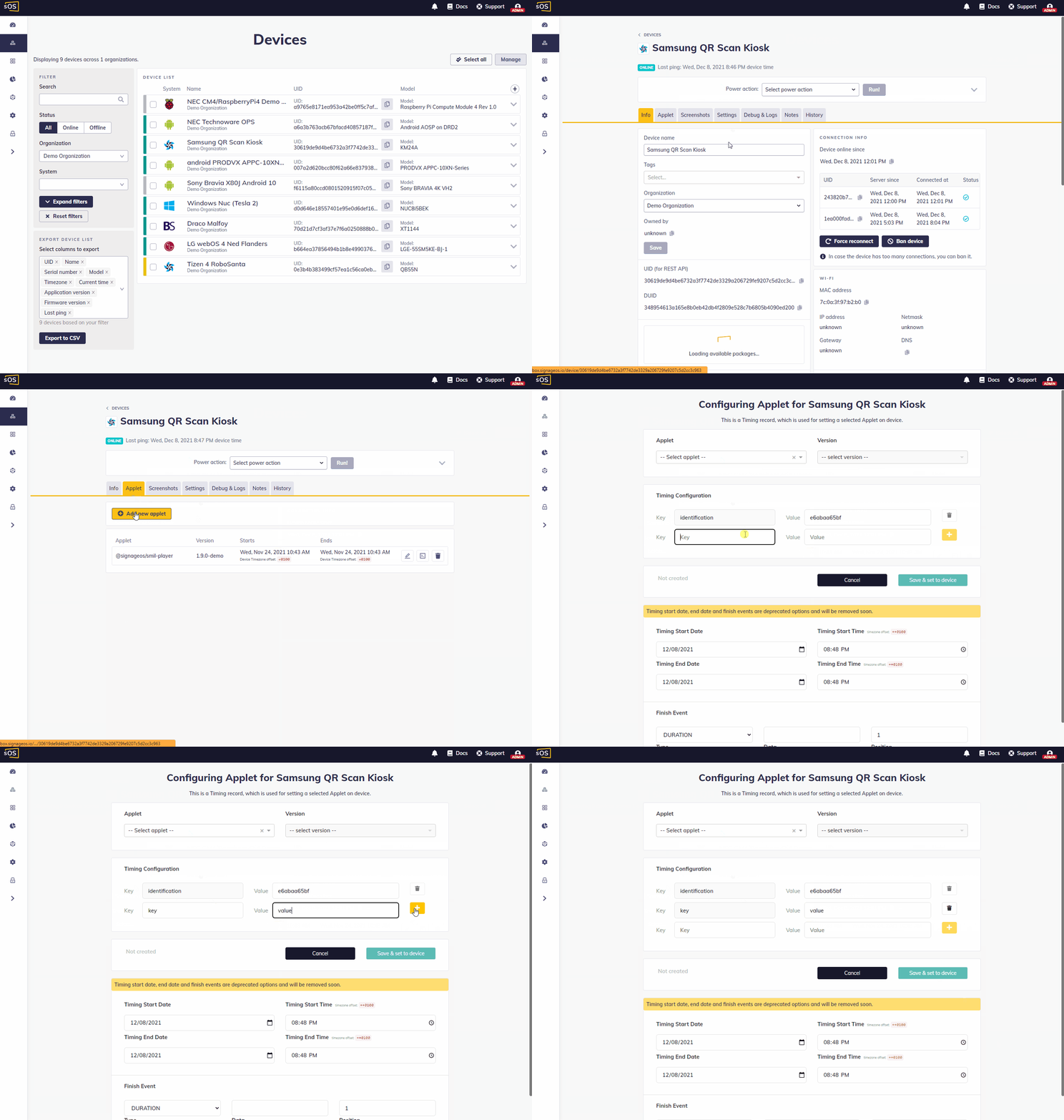
- Open Box
- Navigate to the Device detail of your selected device
- Go to the Timing section
- Add/modify a Timing
- Within the form find the Configuration section
- Add your key-value pairs
- Save Timing
How to add config to bundled Applet with Core App
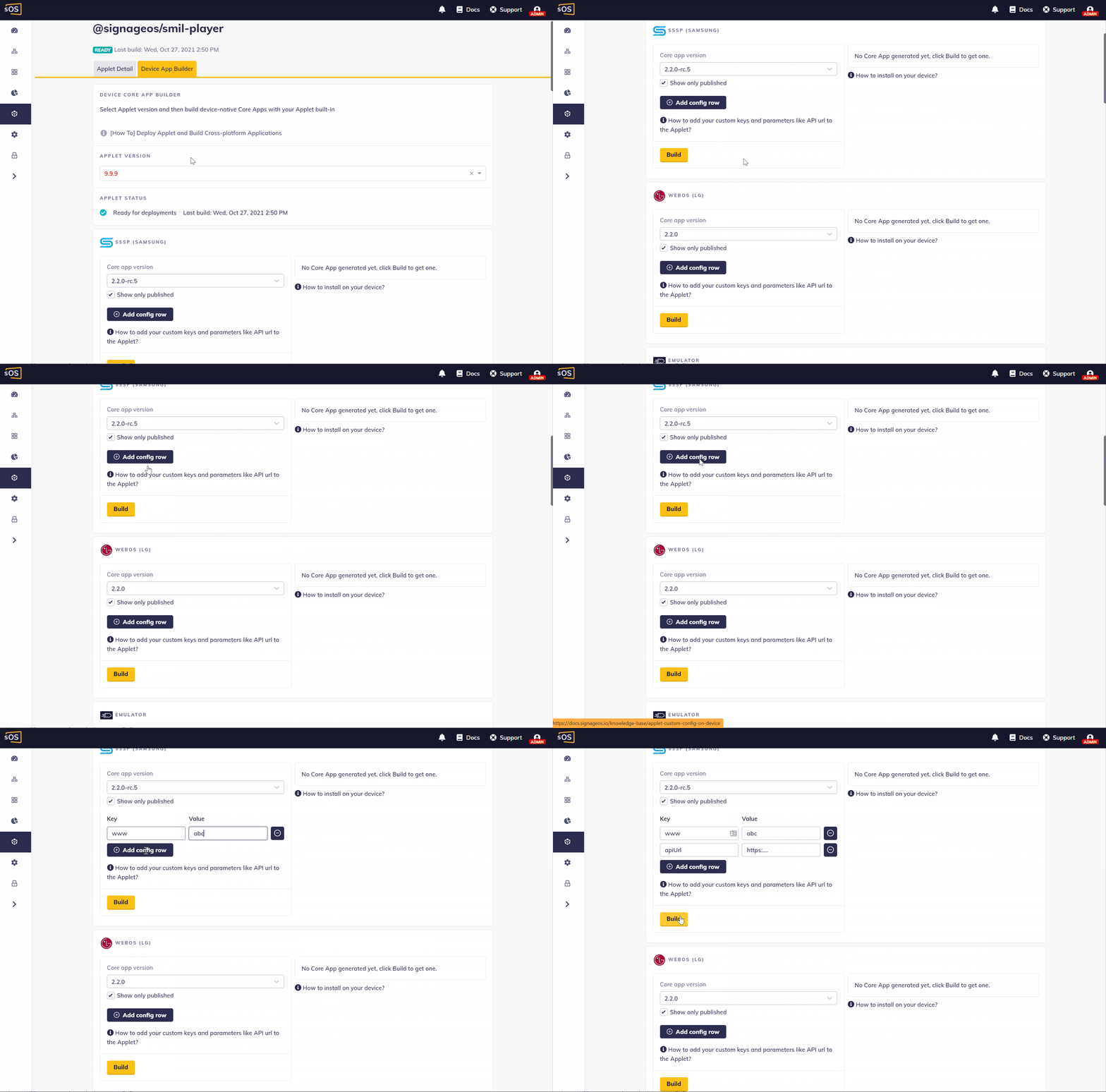
- Open Applet Detail
- Navigate to the App Builder tab
- Find your target platform
- Click on Add config row and add as many rows as you need
- Click Build
Once the building is done, you can see your bundled config below the download link.
How to add config via REST API
Use Timing REST API endpoint with proper values in BODY - configuration.
Applet deployed over Timing API is prioritized over bundled one. With this mechanism, you can smoothly deploy updates.
{
	"deviceUid": "3ca8a8XXX589b",
	"appletUid": "ca212XXXee88c",
	"appletVersion": "1.0.0",
	"startsAt": "2018-09-12T10:02:21.123",
	"endsAt": "2018-09-12T11:02:21.123",
	"configuration": { "identification": "d157bcd63a" },
	"position": 1,
	"finishEventType": "IDLE_TIMEOUT",
	"finishEventData": "DURATION"
}
How to define mandatory and optional configuration
While building your Applet you can define mandatory and optional configuration in your package.json file. If you do so, the configuration will be rendered in the Box:
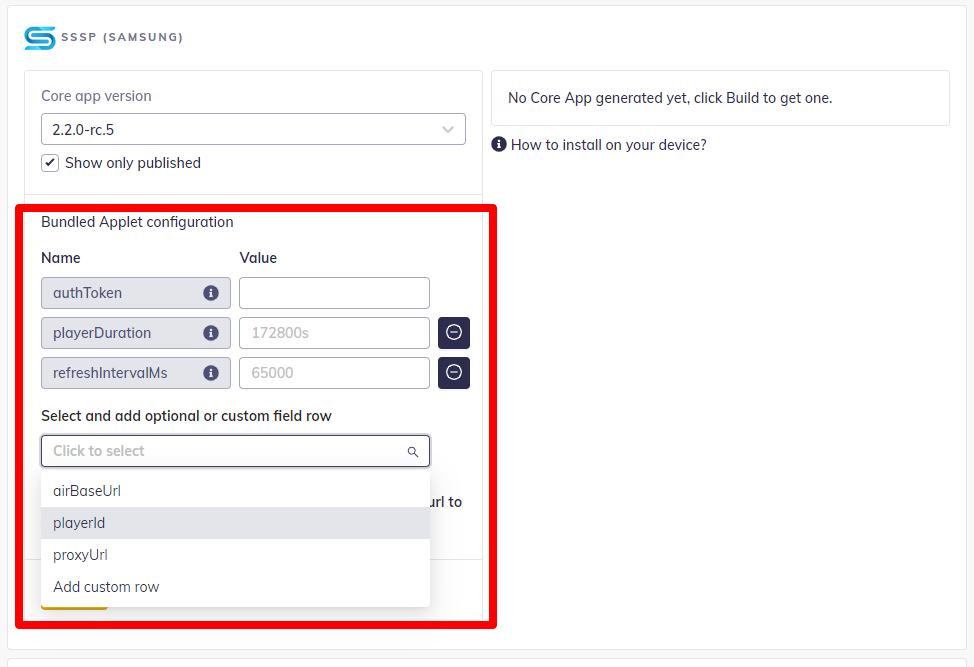
You can define multiple configurations in a config array. Each configuration item has the following definition:
| Key | Value type | Description |
|---|---|---|
| name | string | name of the configuration |
| valueType | string/URL/enum/number/secret | expected value type |
| list | array of strings | numbers |
| mandatory | boolean | required to be filled before building the applet or assigning the applet |
| description | string | the description is shown in the UI to guide the user |
| placeholder | string | field placeholder in the UI to guide the user; placeholder is never used as a default value |
| min | number | minimum value the user can input into the field |
| max | number | maximum value the user can input into the field |
Secret type in configuration
Applet/Timing configuration is often used for passing sensitive data - e.g.: tokens, credentials, and passwords. To keep these values protected, use Applet configuration with valueType: secret.
Any values with valueType: secret will be protected from being seen in the Box.
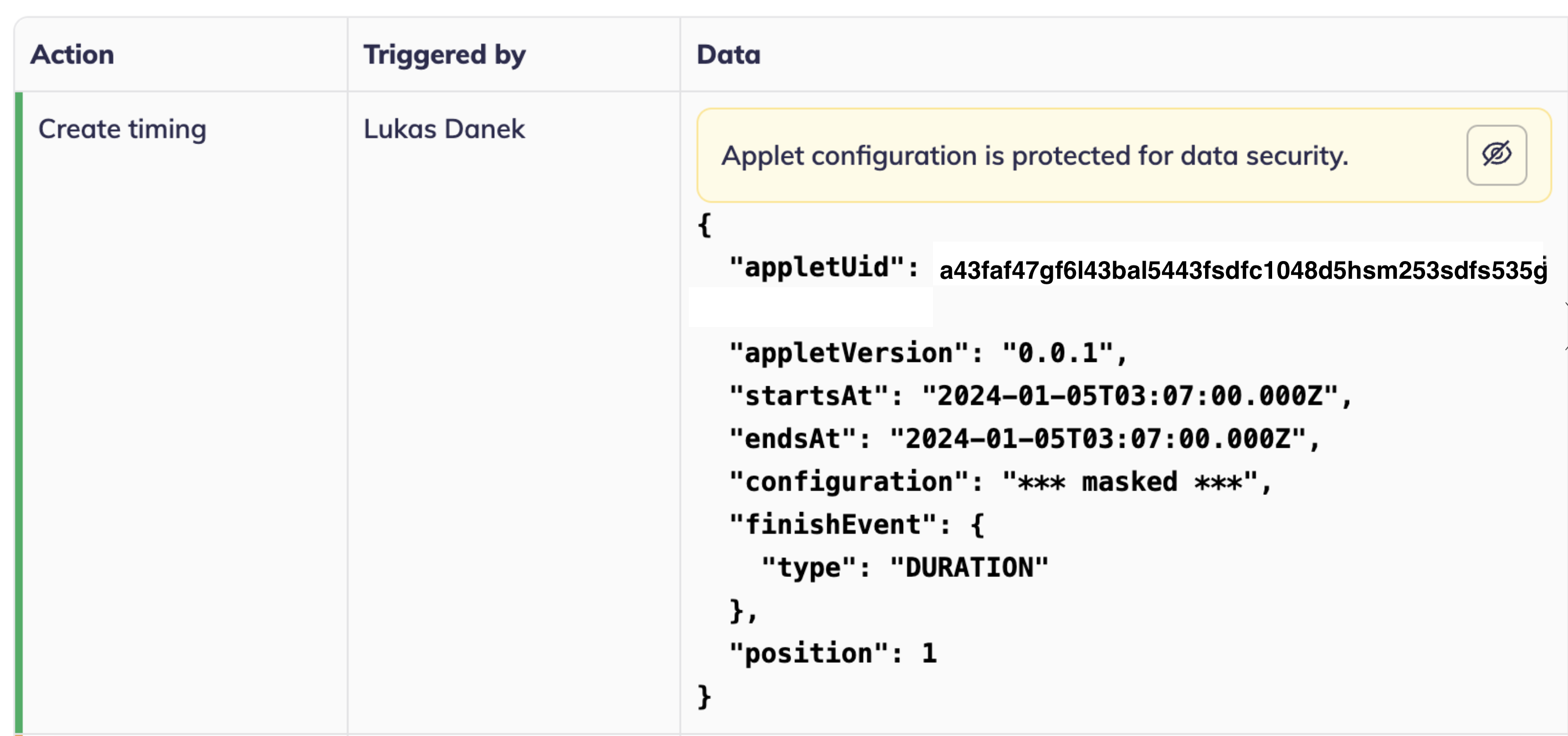
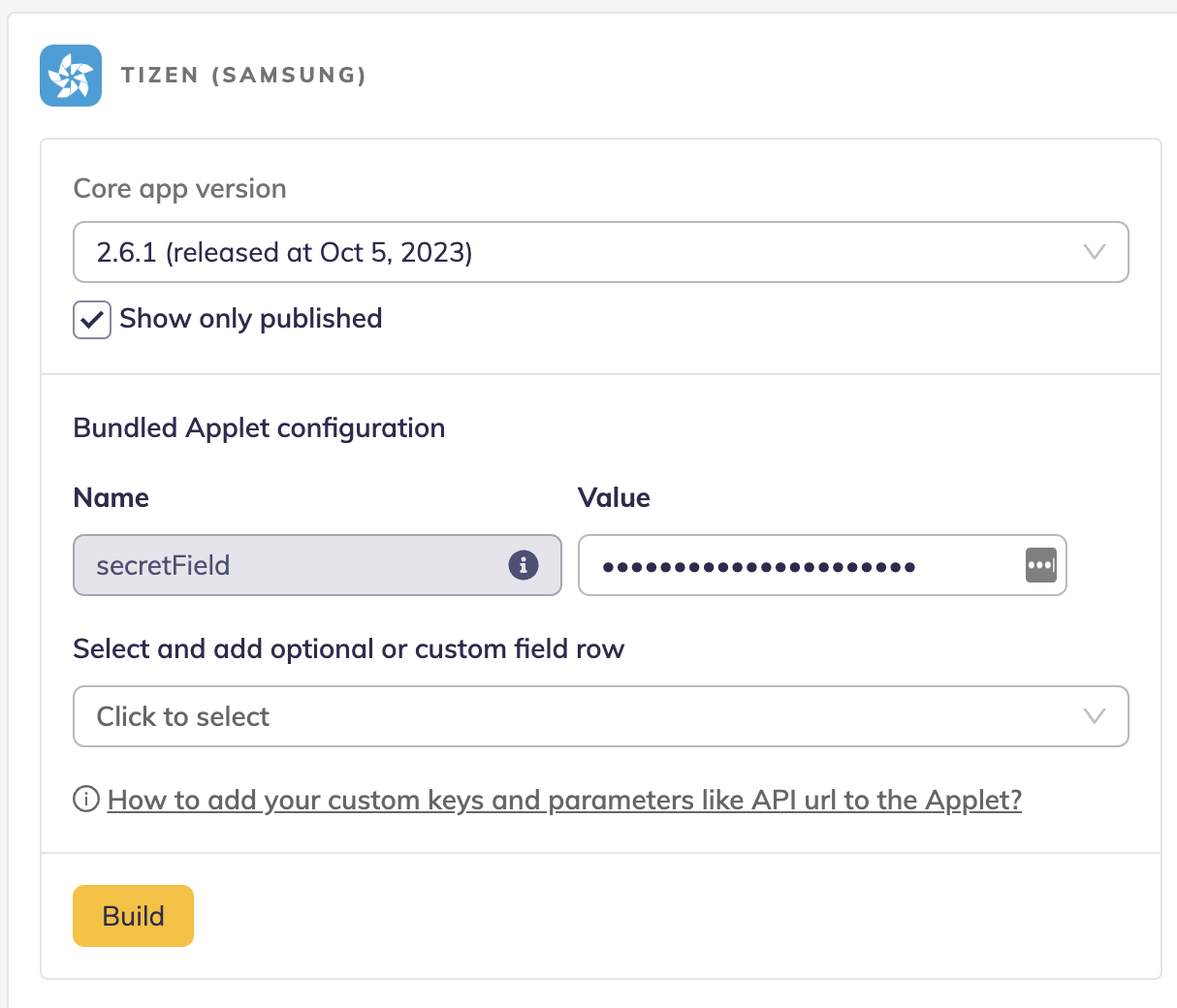
Example:
// package.json
"sos": {
    "config": [
      {
        "name": "authToken",
        "valueType": "secret",
        "mandatory": true,
        "description": "A token generated by My Control used for authentication against My cloud."
      },
      {
        "name": "myBaseUrl",
        "valueType": "url",
        "description": "A base URL to My cloud. No slash at the end required.",
        "placeholder": "https://air.broadsign.com"
      },
      {
        "name": "playerDuration",
        "valueType": "string",
        "description": "A length of generated playlist in '##s' format (seconds).",
        "placeholder": "172800s"
      },
      {
        "name": "refreshIntervalMs",
        "valueType": "number",
        "description": "Frequency of trying to generate new playlist from My cloud in milliseconds.",
        "placeholder": "65000",
        "min": 60000,        "max": 70000
      },
      {
        "name": "playerId",
        "valueType": "string",
        "description": "An identifier for the device used to identifying against AIR cloud. E.g. platform: SSSP, WEBOS, BRIGHTSIGN, ANDROID, WINDOWS, LINUX",
        "placeholder": "{PLATFORM}_{SERIAL_NUMBER}"
      },
      {
        "name": "proxyUrl",
        "valueType": "url",
        "description": "A prefix for all HTTP(s) requests done by My player to My cloud. Default is no proxy.",
        "placeholder": "https://cors-anywhere.herokuapp.com/"
      }
    ],
    "appletUid": "967daxxxxxxx58e27376a5596028"
  },
Typescript Interface:
interface GeneralConfigDefinition {
	placeholder?: string;
	description?: string;
	mandatory?: boolean;
}

interface StringConfigDefinition extends GeneralConfigDefinition {
	name: string;
	valueType: 'string';
}

interface SecretConfigDefinition extends GeneralConfigDefinition {
        name: string;
        valueType: 'string';
}

interface UrlConfigDefinition extends GeneralConfigDefinition {
	name: string;
	valueType: 'url';
}

interface EnumConfigDefinition extends GeneralConfigDefinition {
	name: string;
	valueType: 'enum';
	list: (string | number)\[\];
}

interface NumberConfigDefinition extends GeneralConfigDefinition {
	name: string;
	valueType: 'number';
	min?: number;
	max?: number;
}

export type IAppletVersionConfigDefinition = StringConfigDefinition | UrlConfigDefinition | EnumConfigDefinition | NumberConfigDefinition;
Limiting supported platforms for your Applet
While building your Applet you can define a list of supported platforms. Adding new supportedPlatforms into package.json limits available building target on the Applet builder tab.
"sos": {
     "supportedPlatforms": \[
      "tizen",
      "webos",
      "brightsign"
    \],}
Options to select from:
- tizen
- webos
- brightsign
- windows
- android
- linux
By default, Applet will be available to be built on all supported platforms.