WebOS Setup
WebOS devices support Wi-Fi connections, including WPA2-Personal, Open, and WPA2-Enterprise networks. To join a WPA2-Enterprise network, configure your device's network settings as outlined below.
- WPA2-Enterprise networks are supported only on WebOS 6 and higher.
- WPA2-Personal networks are supported on all versions.
Supported WPA2-Personal / WPA2-Enterprise authentication methods
| Core App Version | Front-Applet Version | OPEN | WPA2-Personal | EAP-TLS | EAP-TTLS | PEAP (MSCHAPv2) | PEAP (GTC) |
|---|---|---|---|---|---|---|---|
≤2.9.0 | ≤8.5.1 | ✅ | ✅ | ❌ | ❌ | ❌ | ❌ |
≥2.10.0 | 8.5.2 | ✅ | ✅ | ❌ | ❌ | ❌ | ✅ |
≥2.11.0-beta.0 | ≥8.5.3 | ✅ | ✅ | ✅ | ✅ | ✅ | ✅ |
Importing certificates via JS API SDK
To import certificates, use an Applet, Script, Plugin, or Runner with @signageos/front-applet version ≥8.5.2.
- Certificates must be in PEM format (required by webOS).
- New lines in certificates can be replaced by
\nif necessary.
Our documentation for importing certificates in JS API SDK.
import sos from '@signageos/front-applet';

// Importing PEAP MSCHAPv2 CA certificate
await sos.management.network.importCertificates({
 'type': 'PEAP',
 'caCertificate': '-----BEGIN CERTIFICATE-----\nMIIEmzCCA4Og\n-----END CERTIFICATE-----'
});

// Importing TTLS CA certificate
await sos.management.network.importCertificates({
 'type': 'EAP-TTLS',
 'caCertificate': '-----BEGIN CERTIFICATE-----\nMIIEmzCCA4Og\n-----END CERTIFICATE-----'
});

// Importing EAP TLS certificates
await sos.management.network.importCertificates({
 'type': 'EAP-TLS',
 'caCertificate': '-----BEGIN CERTIFICATE-----\nMIIEmzCCA4Og\n-----END CERTIFICATE-----',
 'clientCertificate': 'Bag Attributes\n    localKeyID: 17 D1\nMn3jZC\n-----END ENCRYPTED PRIVATE KEY-----',
 'clientKey': '-----BEGIN ENCRYPTED PRIVATE KEY-----\nMIIFHDBOZl+A==\n-----END ENCRYPTED PRIVATE KEY-----'
});
Verification on screen or in webOS settings
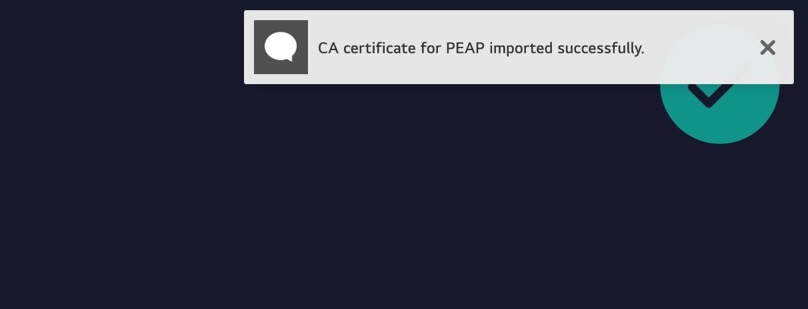
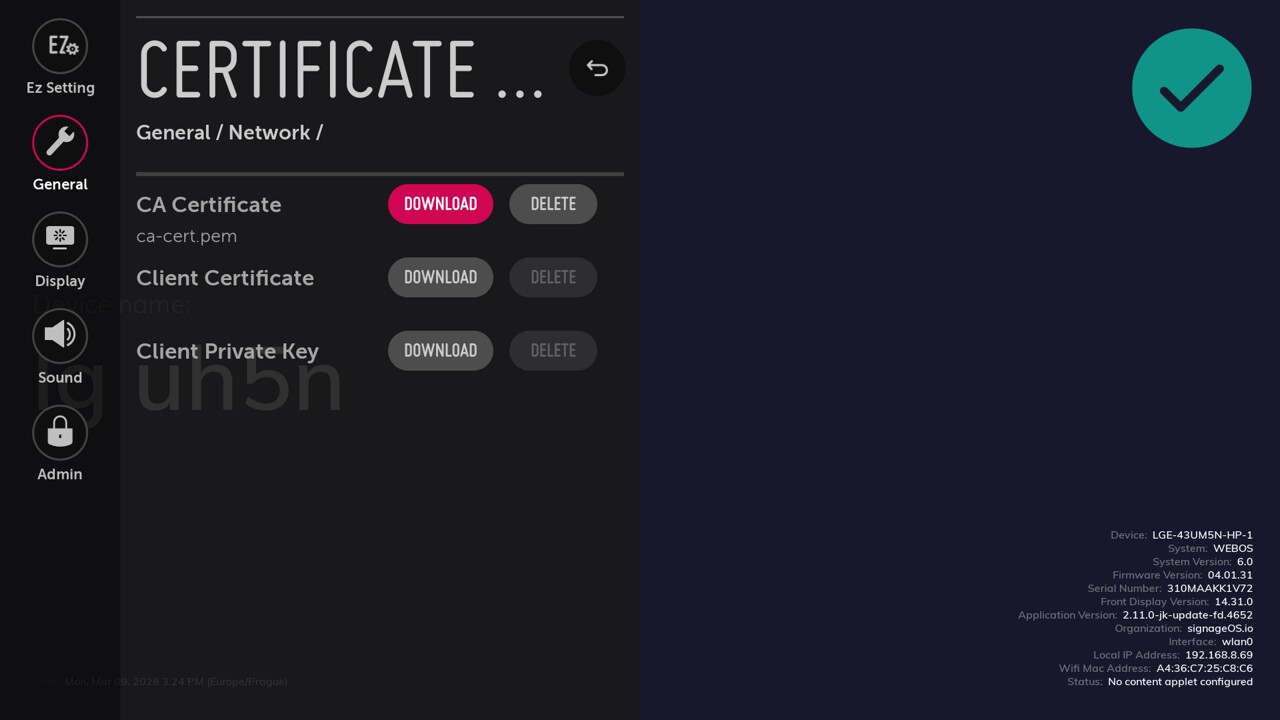
If you have correctly imported the certificates via JS API, you can verify them on the display by displaying a result notification. Imported certificates are also displayed in settings: Settings button -> General -> Network -> Certificate Download.
Manual import via webOS settings
You can also import certificates via a USB drive. The certificates must be placed in the root of a USB drive attached to the webOS display.
Folders on the USB drive should be structured as follows:
# Methods: PEAP or EAP-TTLS
 └── ca.pem

# Method: EAP-TLS
├── ca.pem
├── client.pem
└── client.key
After connecting the USB drive to the webOS display, go to Settings button -> General -> Network -> Certificate Download and select your certificates based on the authentication method.
Connecting to Wi-Fi Enterprise
JS API SDK
With the Wi-Fi JS API SDK, connect to a WPA2-Enterprise network directly from your applet, script, or runner. This approach allows you to manage the connection process within your application.
Our documentation page for Wi-Fi connect function in JS API SDK.
Connecting to Wi-Fi on WebOS may fail unless you first execute sos.management.wifi.scan(). Always run this command before configuring a network.
Note: From Core App version 2.11.0, scan() is no longer required — it is called in the background automatically when you call connect().
import sos from '@signageos/front-applet';

// Connect to WPA2-Enterprise network with EAP PEAP + GTC method
await sos.management.wifi.connect('MyEnterpriseNetwork', undefined, {
 securityType: '802.1x_EAP',
 eap: {
  method: 'PEAP',
  identity: 'my-username',
  identityPassword: 'tokenCode',
  phase2Auth: 'GTC',
  useCaCert: false,
 }
});

// Connect to WPA2-Enterprise network with EAP PEAP + MSCHAPv2 authentication
await sos.management.wifi.connect('MyEnterpriseNetwork', undefined, {
	securityType: '802.1x_EAP',
	eap: {
		method: 'PEAP',
		identity: 'my-username',
		identityPassword: 'my-username-password',
		phase2Auth: 'MSCHAPv2',
		useCaCert: true,
	}
});

// Connect to WPA2-Enterprise network with EAP TTLS authentication
await sos.management.wifi.connect('MyEnterpriseNetwork', undefined, {
	securityType: '802.1x_EAP',
	eap: {
		method: 'TTLS',
		identity: 'my-username',
		identityPassword: 'my-username-password',
		phase2Auth: 'PAP',
 		useCaCert: true
	}
});

// Connect to WPA2-Enterprise network with EAP TLS authentication
// Note: Selecting domain for user is not available on webOS.
await sos.management.wifi.connect('MyEnterpriseNetwork', undefined, {
	securityType: '802.1x_EAP',
	eap: {
		method: 'TLS',
		identity: 'my-username',
		identityPassword: 'my-username-password',
	}
});
OSD Menu
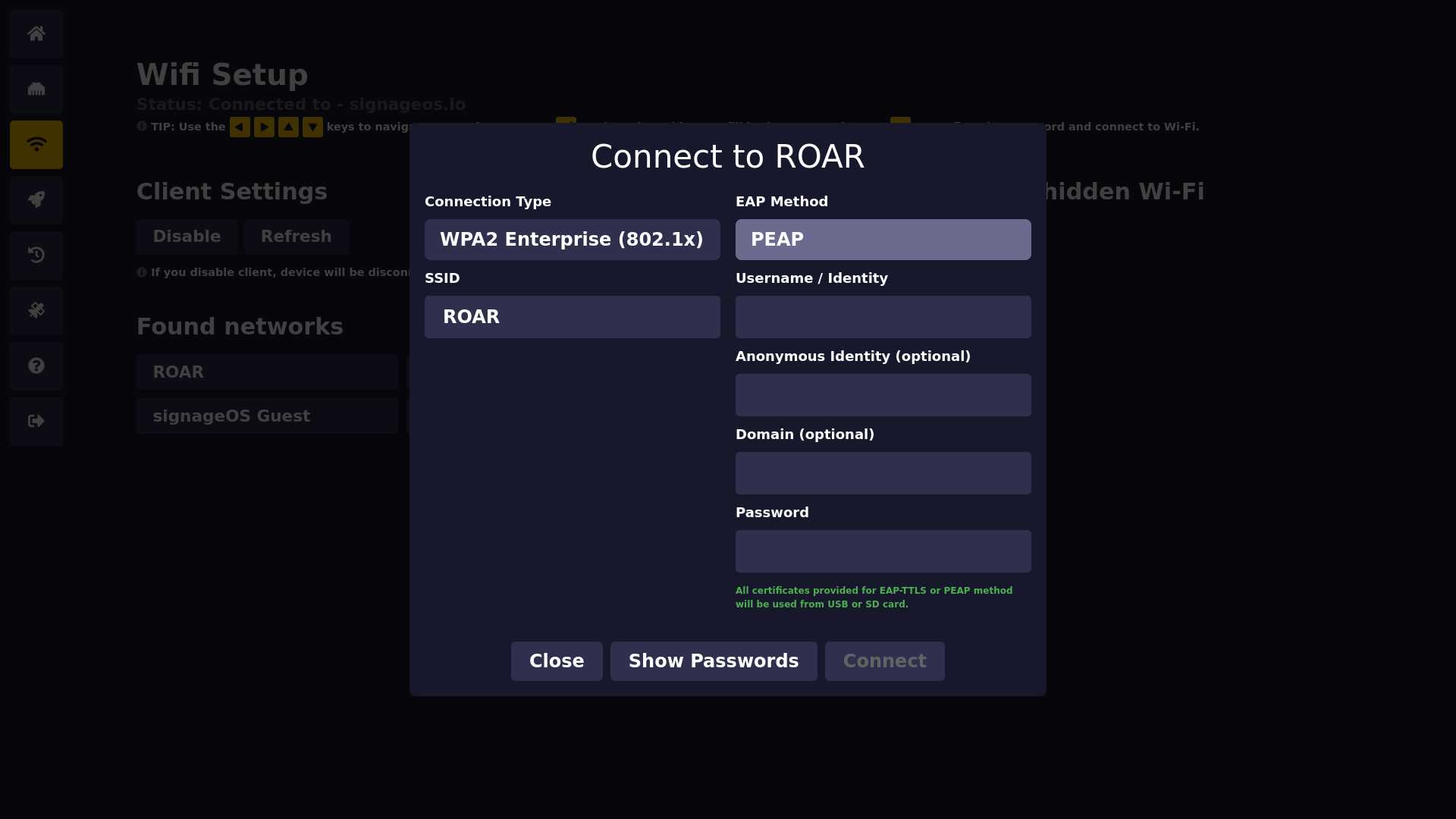
If you have already imported certificates to the webOS device, you can connect to Wi-Fi enterprise via our OSD menu. It's available on every device and accessed with a security PIN code.
- Open the OSD menu by entering the PIN code shown on the Box or Device default screen.
- Navigate to the "Wi-Fi" settings (3rd section) in the OSD menu.
- Enable the Wi-Fi module and select search for available networks.
- Select your WPA2-Enterprise network from the list of available networks.
- In the menu, select the EAP method used by your network (PEAP, TTLS, or TLS).
- Fill in the required fields based on the selected EAP method.
- Finally, click on "Connect" to establish the connection to the WPA2-Enterprise network. The OSD shows the connection status at the top within seconds. If successful, the connected Wi-Fi network name appears at the top.