Adding Content Guard item
When creating your own rules, you can choose between two primary technologies depending on the type of content you want to monitor.
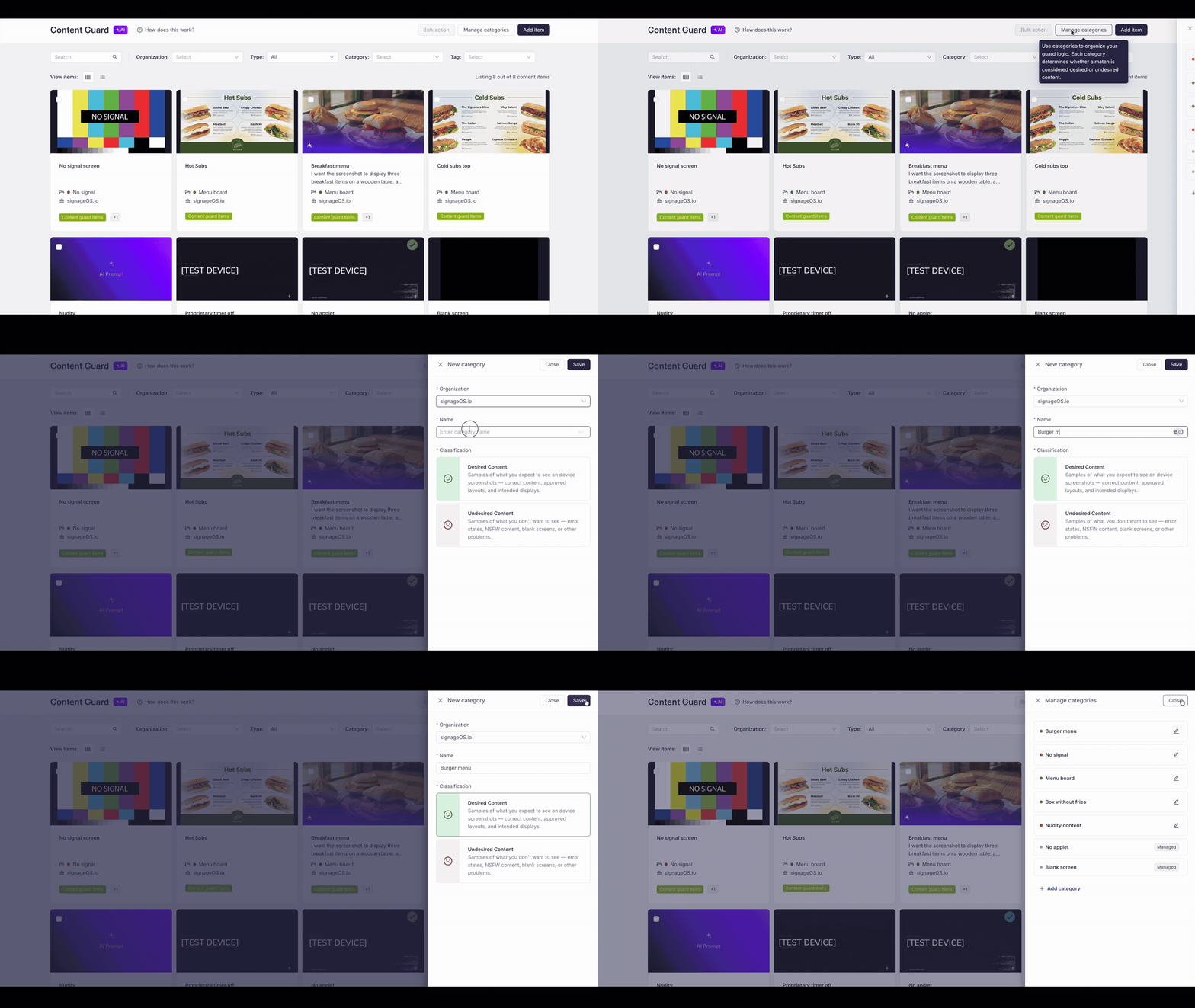
Creating a Category
Categories act as labels for your content and determine whether the state is correct or requires attention.
Steps to add:
- Navigate to Manage Categories in the Content Guard menu.
- Click the "Add Category" button.
- Select organization: Choose the organization this category belongs to (Mandatory).
- Name: Enter a unique name for the category (e.g., "Promo Loop" or "System Error").
- Set classification: Choose the desired state:
- Desired content : Content that should be displayed.
- Undesired content : Content that indicates an issue.
- Save: The category is now ready to hold your detection items.
Custom detection methods
1. Image-Based Detection
This method looks for visual similarity (a digital fingerprint).
- When to use: For static content that always looks the same—e.g., a specific menu board, a logo, or a frozen system screen.
- Benefit: Extremely fast and highly accurate for identifying identical or near-duplicate content.
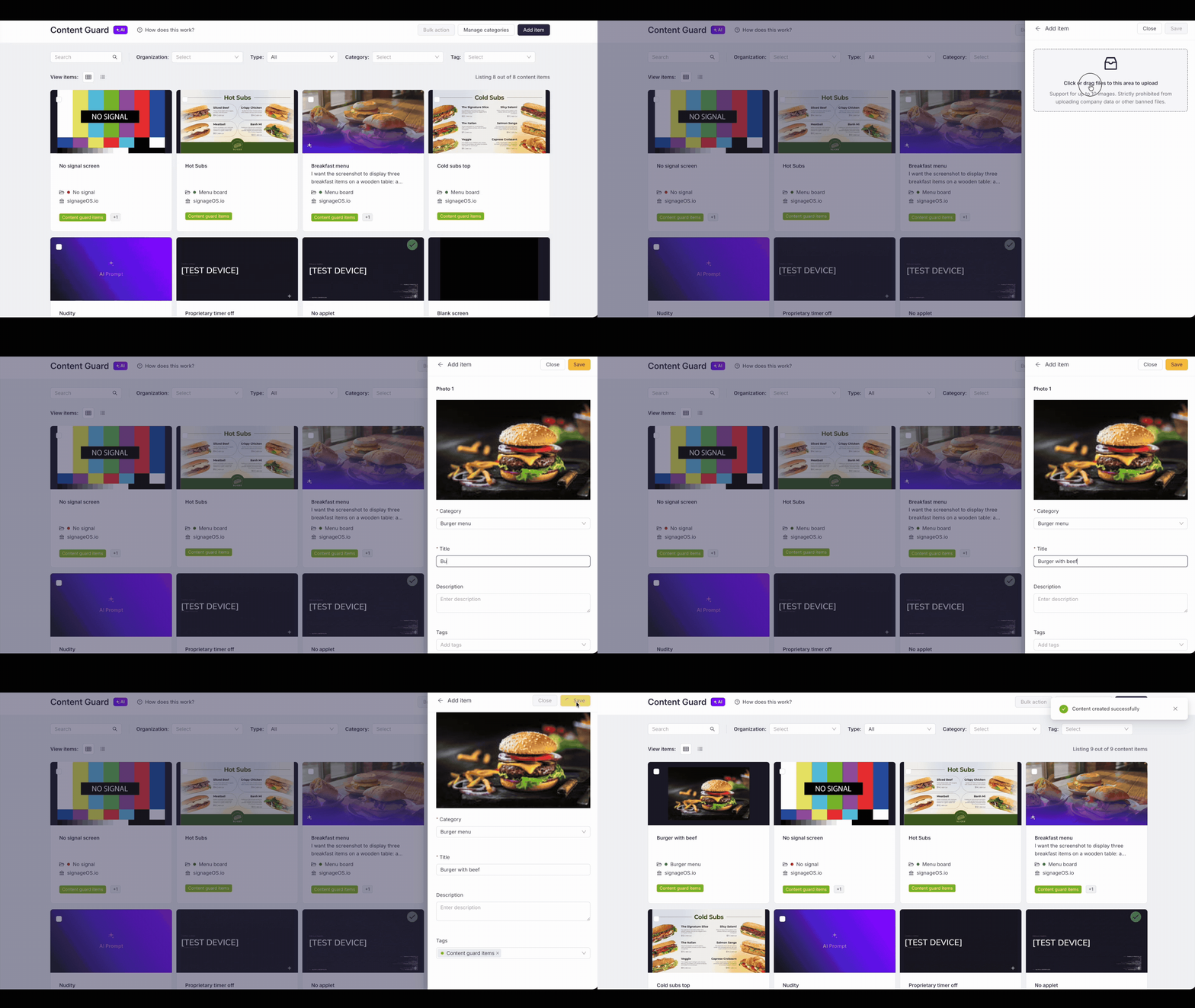
Steps to add:
- Click "Add" and choose "Image".
- Upload Assets: Upload at least 10 images (or video frames) for high accuracy.
- Fill Metadata:
- Category & Title (Mandatory).
- Description & Tags (Optional).
- Save: The item is immediately active in your list.
2. AI-Powered Detection (Prompt-based) ✨
Instead of an image, you define a natural language description (a Prompt).
- When to use: For dynamic content where elements change positions, or when you want to monitor general concepts (e.g., "There should be a burger visible").
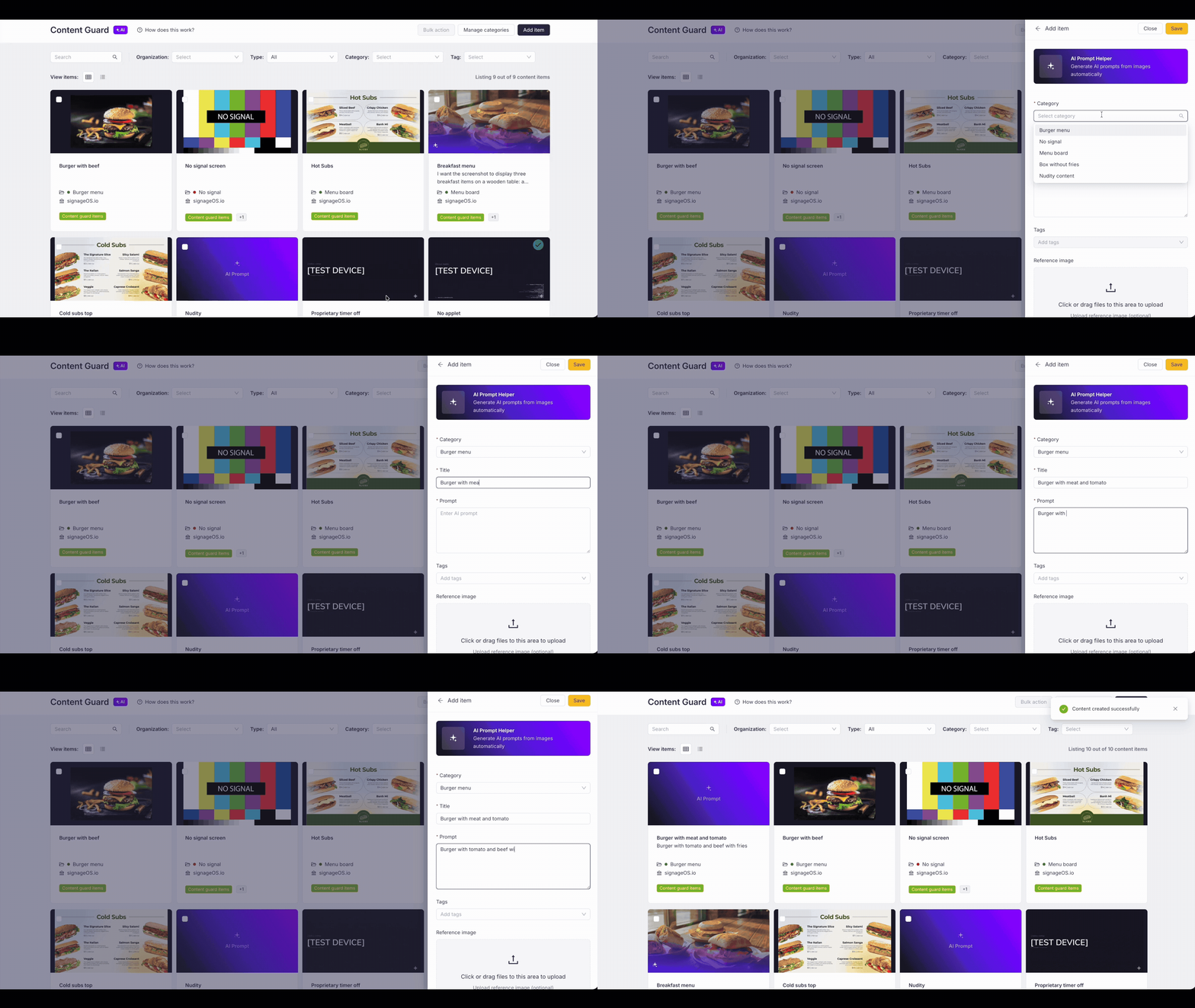
Steps to add:
- In the drawer, choose the "Prompt" option.
- Metadata Entry: Fill in the Category, Title, Prompt description and Tags (Optional).
- Reference: Upload a Reference Image (Optional).
- Save: The item is immediately active in your list.
AI Helper
If you are not sure how to write the perfect AI instruction, upload a sample photo to the AI Helper. It analyzes the image and automatically generates a professional technical description (Positive or Negative prompt) for you.
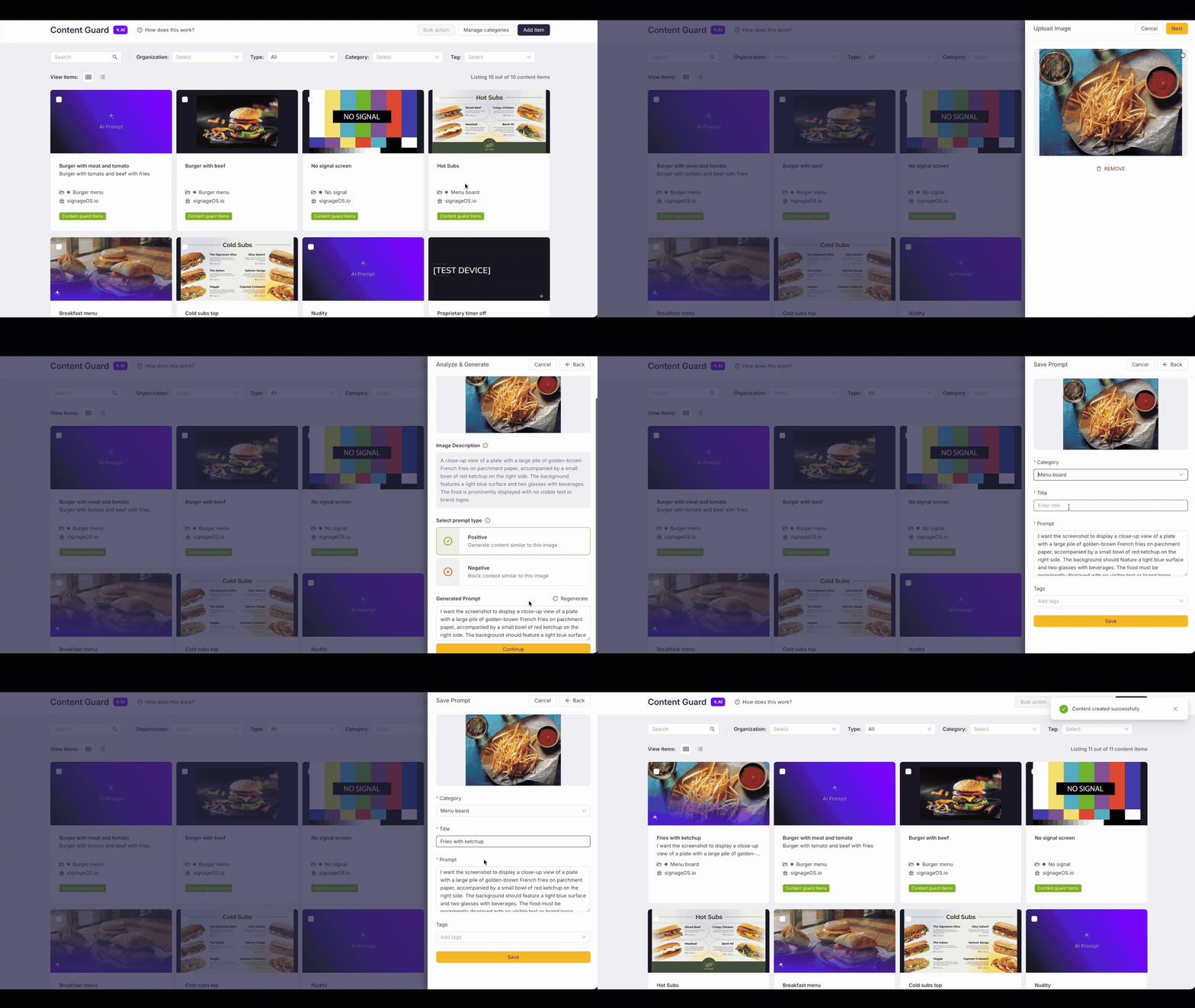
Steps to add:
- Click "Add" → "Prompt" → click the "AI Helper" banner.
- Upload: Upload one sample image that represents the correct state.
- Analysis: The system generates a "ground truth" description of your image.
- Choose a Positive prompt ("I want to see") or Negative prompt ("I don't want to see").
- Review and manually edit the final text to fine-tune the behavior.
- Saving: Fill in the Name, Category, Title. Once the Save button turns yellow, your AI-generated guard is ready.
System-managed items
To simplify your start, Content Guard includes pre-defined categories and items that are ready to use out of the box. These are "Read-Only" templates managed by the system:
- Blank screen (Invalid): Detects black, white, or empty screens.
- No applet (Invalid): Detects states where the system is running, but the application is missing.
- Proprietary timer off (Invalid): Detects system overlays indicating playback has stopped.
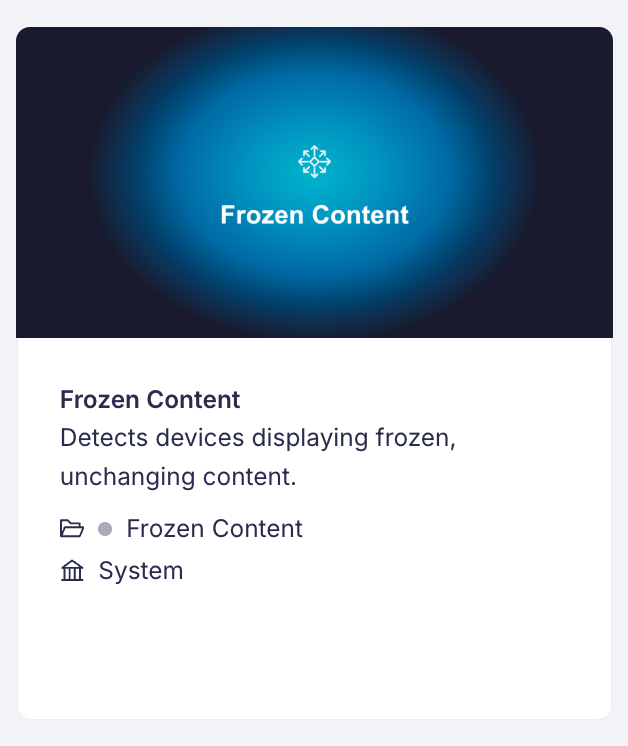
- Frozen Content (Invalid): Detects screens that have stopped updating—crashed players, stalled playlists, or a frozen last frame.
Frozen Content detection
Crashed players, stalled playlists, frozen last frames—a screen can look "online" while showing nothing new for hours. Frozen Content detection catches this for you, automatically.
- Built in, nothing to configure: Every organization with Content Guard gets a ready-made, managed Frozen Content category and item. There is nothing to create, upload, or tune.
- How it works: Under the hood, Content Guard compares each device's two most recent screenshots and flags the ones that haven't changed—no reference images, no thresholds to set.
How to use it:
- Go to the Alert Rules section and create (or edit) a rule of type Content Guard.
- Select the Frozen Content category as the condition.
- Pick the devices (tags) you want to monitor.
- Save. Your selected devices are now watched for frozen screens automatically.
For more details on connecting categories to alerts, see Alert rules setup.
Check out our interactive Onboarding Tour directly in the app (click the question mark How does it work?). It will walk you through creating your first AI Prompt step-by-step!