Creating a new device policy
Device Policy is only available for devices using Device Plan Pro and higher.
Device policies are synced with devices approximately every 2–7 minutes. Applet, Plugin, and Runner changes are propagated within this interval.
Adding new Policy
In Box navigate to Organize -> Device Policy and click Add Policy.
- Fill in a Device Policy name
- Select Organization under which you want use this policy
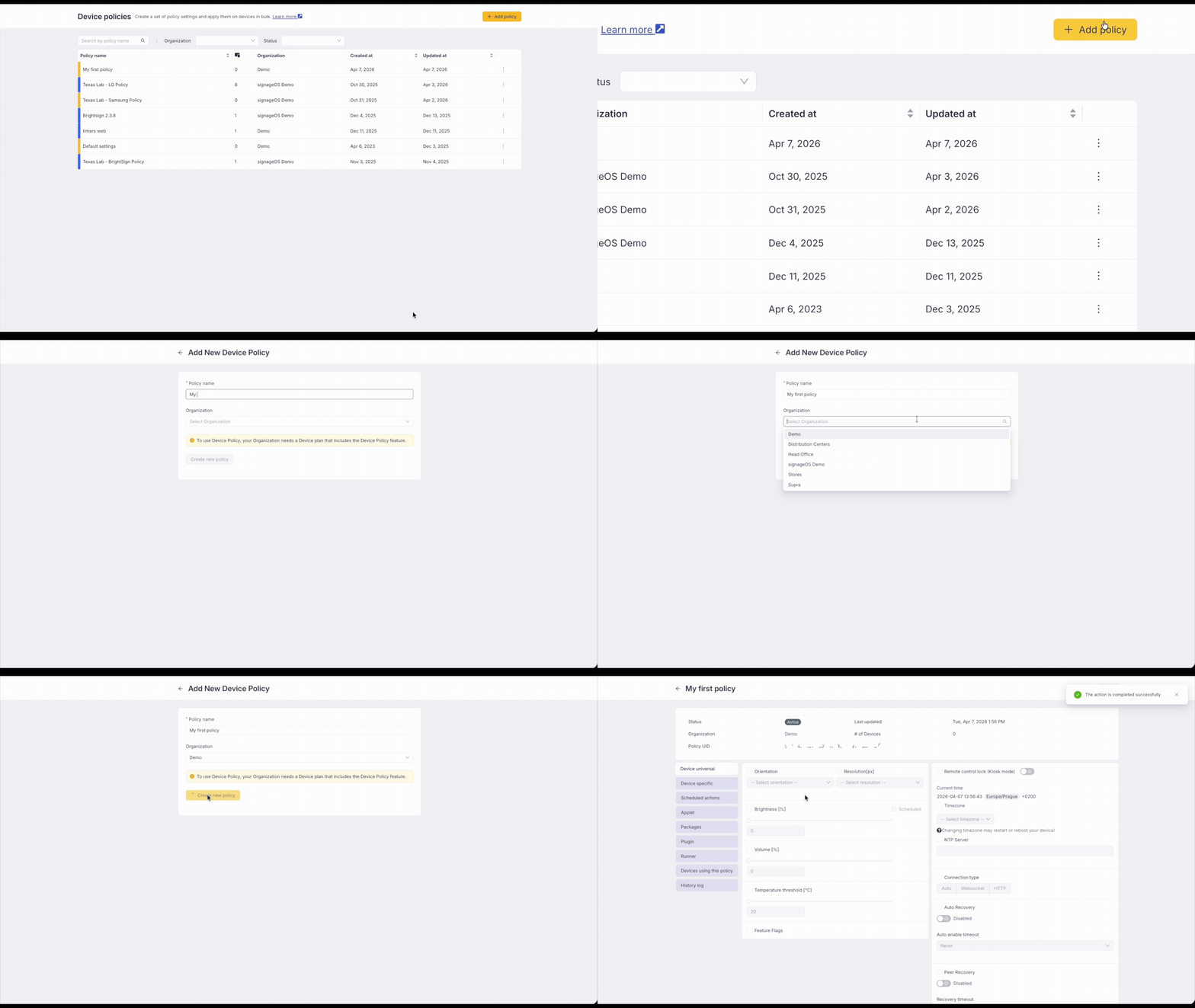
Device Policy is limited to a single Organization and cannot be moved or transferred to another Organization.
Device Universal Policies
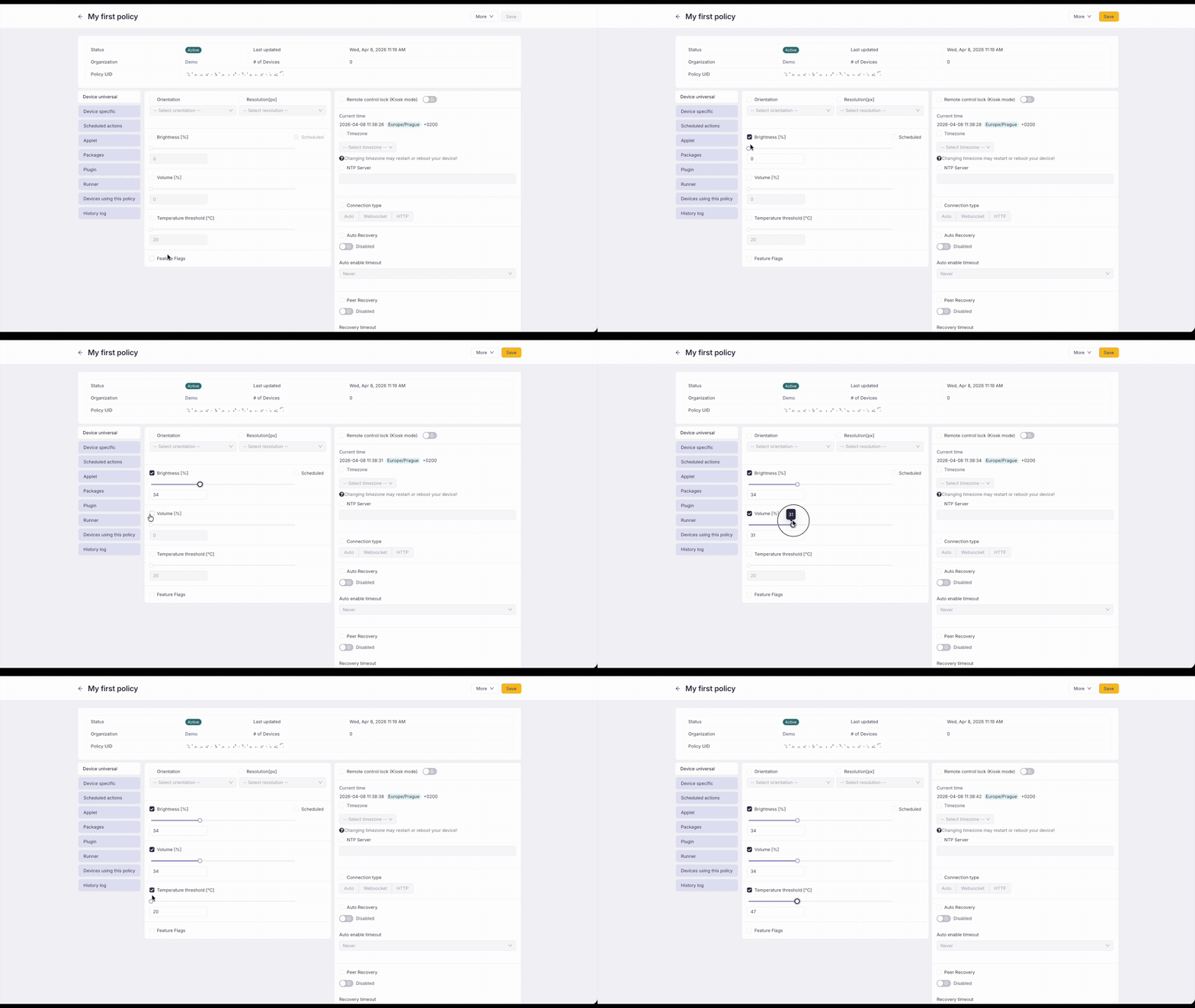
Set of policies that are available across all devices and do not require any device-specific options.
- Orientation
- Resolution
- Brightness & Brightness schedule
- Volume
- Temperature threshold
- Remote control lock
- Timezone and NTP server
- Connection method
- Auto recovery
- Telemetry intervals
- Feature flags
Connection method
Define the network connection type used by devices under this policy.
Auto recovery
Enable automatic recovery so that devices automatically detect and resolve issues such as frozen processes, unresponsive states, input source mismatches, and standby mode. Recovery actions range from a soft refresh to a full device reboot.
Telemetry intervals
Configure how often the device sends telemetry data (temperature, volume, and other metrics) to the server.
Feature flags
In this section, you can control which optional Core App capabilities are enabled or disabled for devices using this policy. For the full list of available flags and their behavior, see Feature Flags.
When a feature flag is disabled via policy, the corresponding tab in device detail becomes inaccessible and the functionality is turned off on the device. Policy-based feature flags take precedence over per-device settings.
Disabling Plugins or Runners feature flags in the policy will also lock the Plugin and Runner tabs in the policy itself, preventing configuration changes until the flag is re-enabled. Already deployed Plugins and Runners will be stopped on the device but not removed — they will resume once the flag is re-enabled.
Scheduled Actions
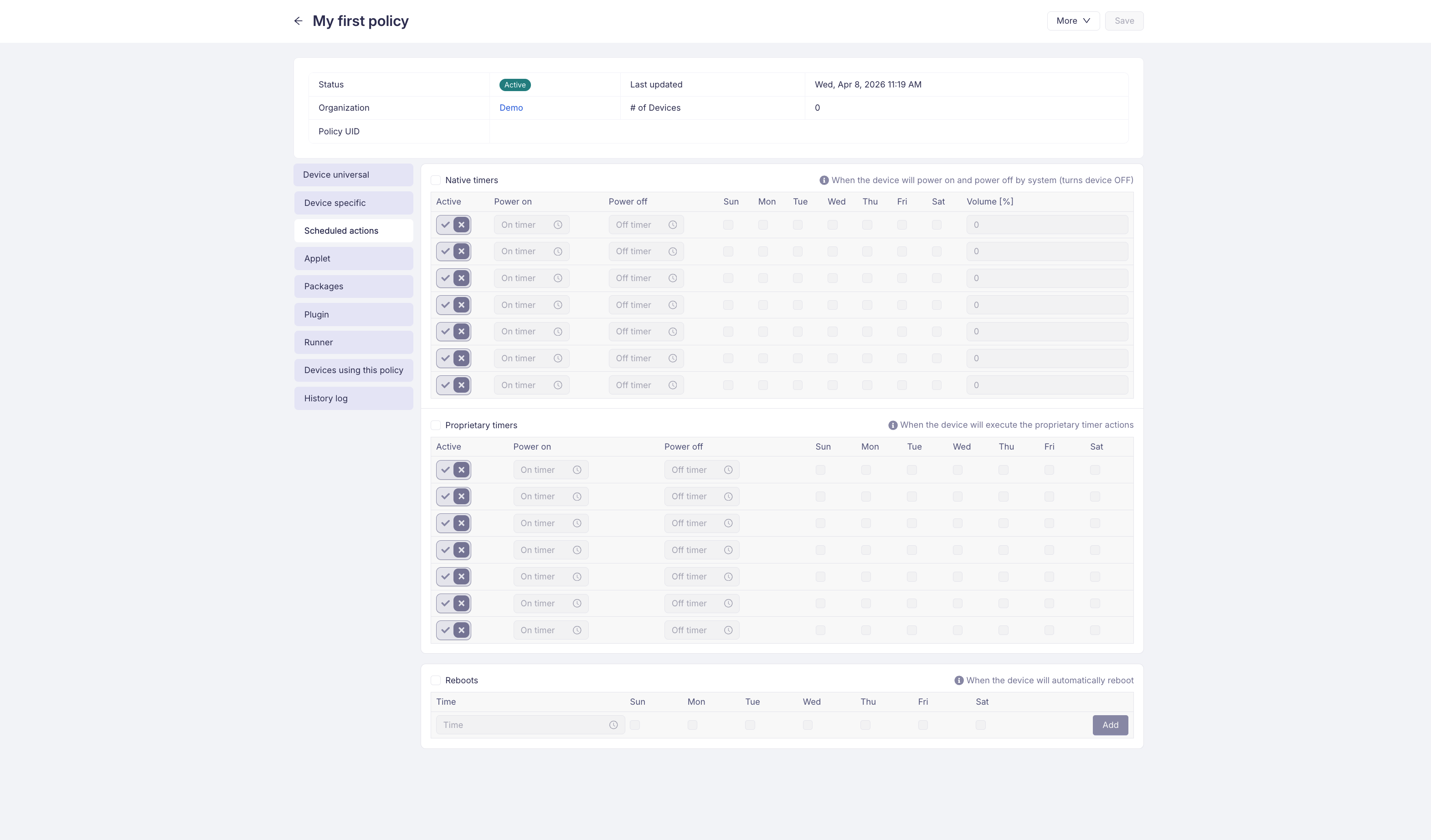
Scheduled actions managing the power state of the devices.
- Native Timers
- Proprietary Timers
- Scheduled Reboots
Device Specific
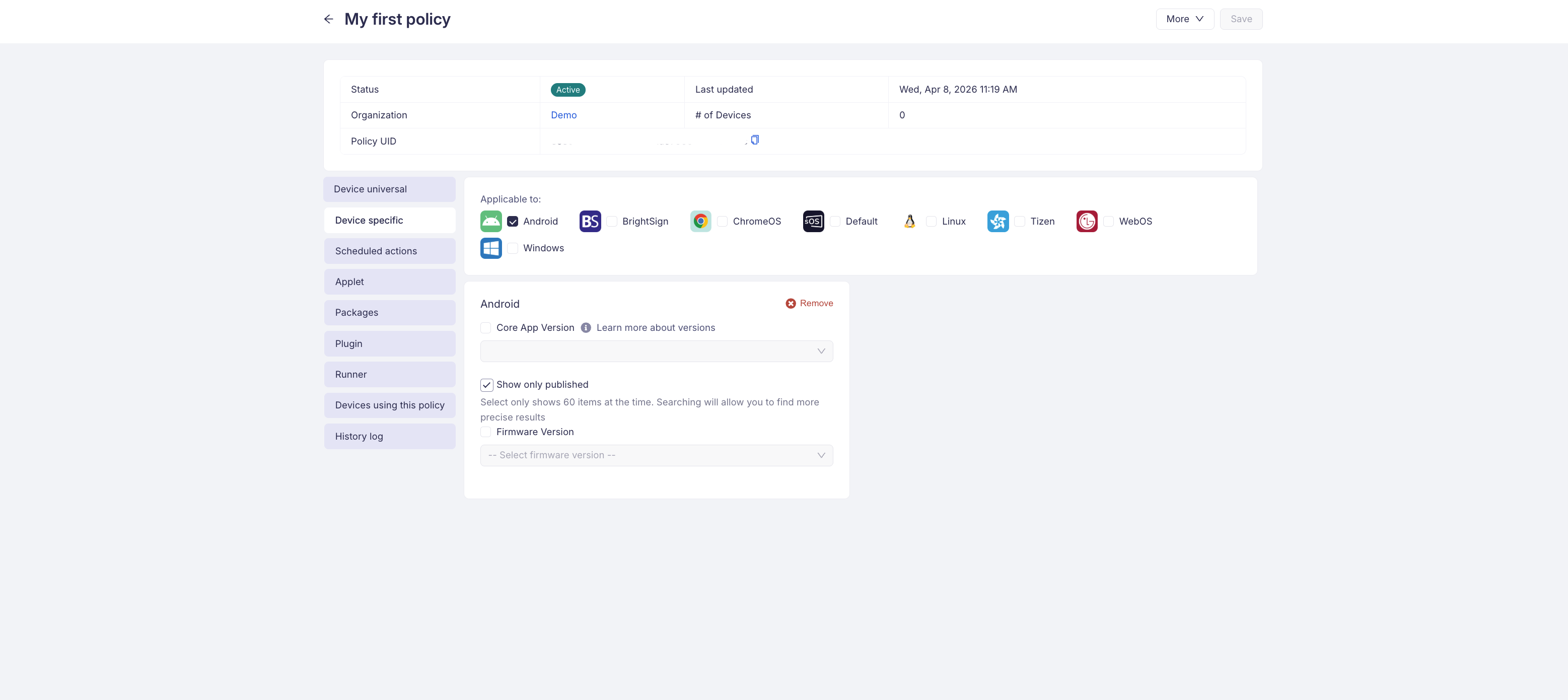
In this section, you can define device-specific options and keep a single Device Policy that works across all devices.
For each platform, you can set:
- Specific Core App version
- Specific Firmware
In case the device has a different Core App, the Device Policy will reinstall the Core App to the desired version.
Setting Samsung MagicInfo RM Server URL
For Tizen devices, you can adjust and set the MagicInfo RM Server URL. Tizen displays will set this URL and keep it set.
Applet
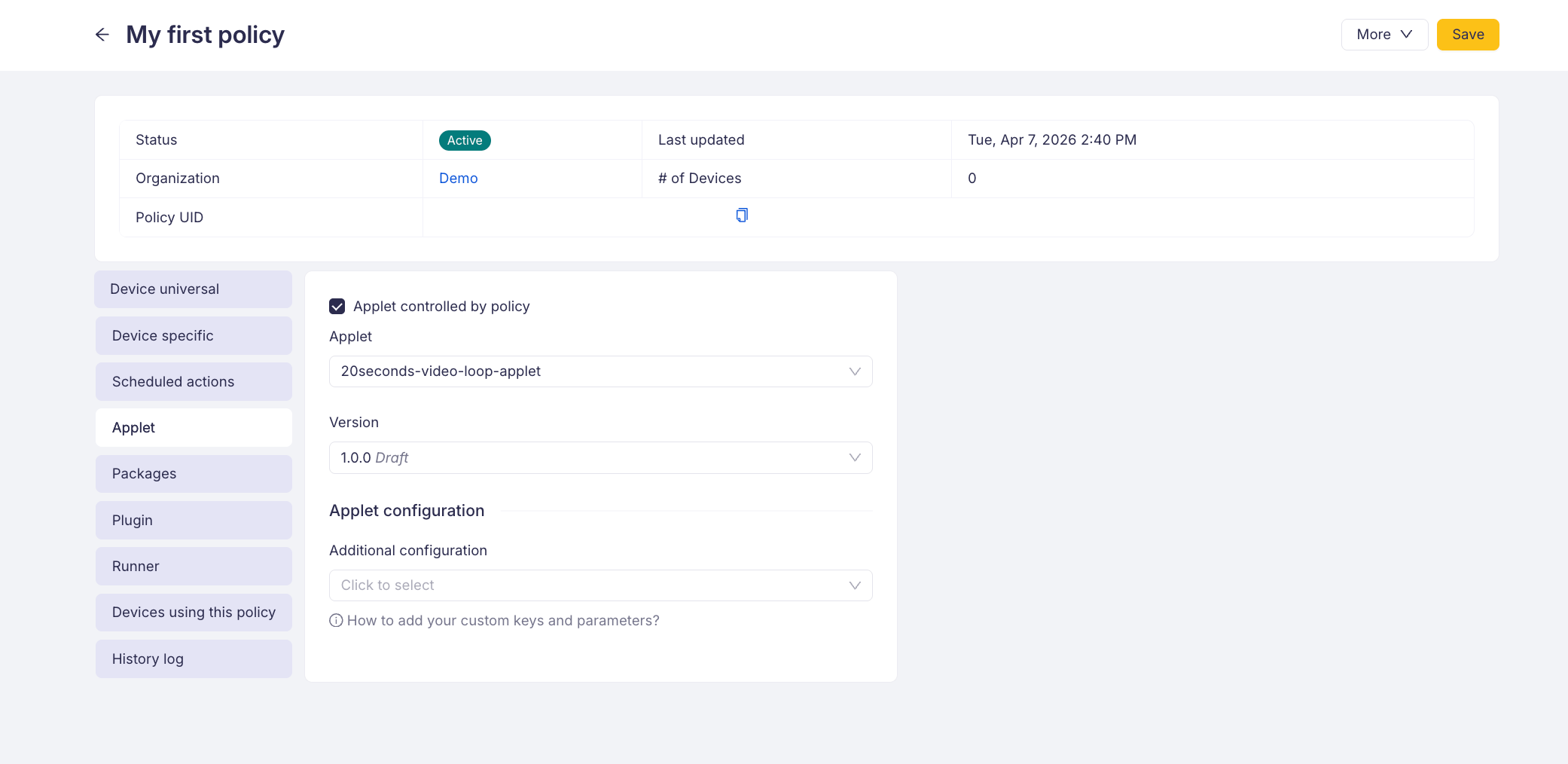
In this section, you can define Applet and its configuration that will be set on the device.
Important notes:
-
If a device doesn't have an Applet set up, it will use the Applet from its assigned Policy. If this Policy is later removed, the Applet will stay on the device to prevent any interruption in content, which is particularly useful during maintenance or certain configuration adjustments.
-
When you replace a Policy (let's call it Policy A) that includes Applet A with a different Policy (Policy B) that includes Applet B, the device will then use Applet B.
-
If an Applet is manually assigned to a device, it will be temporarily deactivated if there is also a Policy-assigned Applet linked to the device. Once any such Policy and its Applet are removed, the manually assigned Applet will become active again.
Packages
Important note: Device Packages are only available for ANDROID devices
If you want to install Android packages on your devices via policy navigate to Box -> Device policies
Select Packages tab as shown in the screenshot and click Install button. You will be offered a list of Packages available, for more detail you can click the plus icon to show additional information.
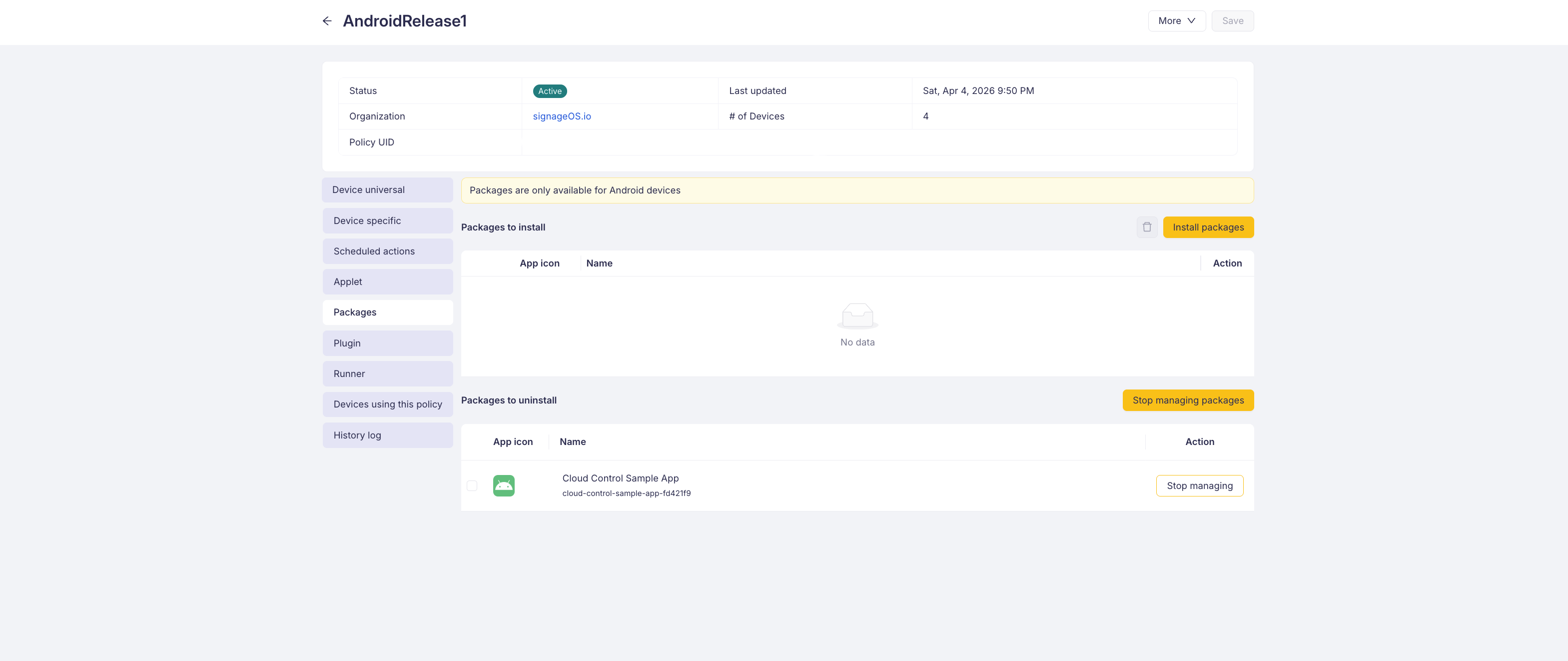
You can select multiple packages by selection via checkbox. Once you are happy with your list of packages click Install (this can also be done individually).
You can also remove packages - to remove package from a Device policy select the package with either a checkbox or click the trashbin icon.
Once your policy has all packages, assign the policy to your device from either Devices tab or directly in Device detail and all the packages will be installed and launched.
History Log
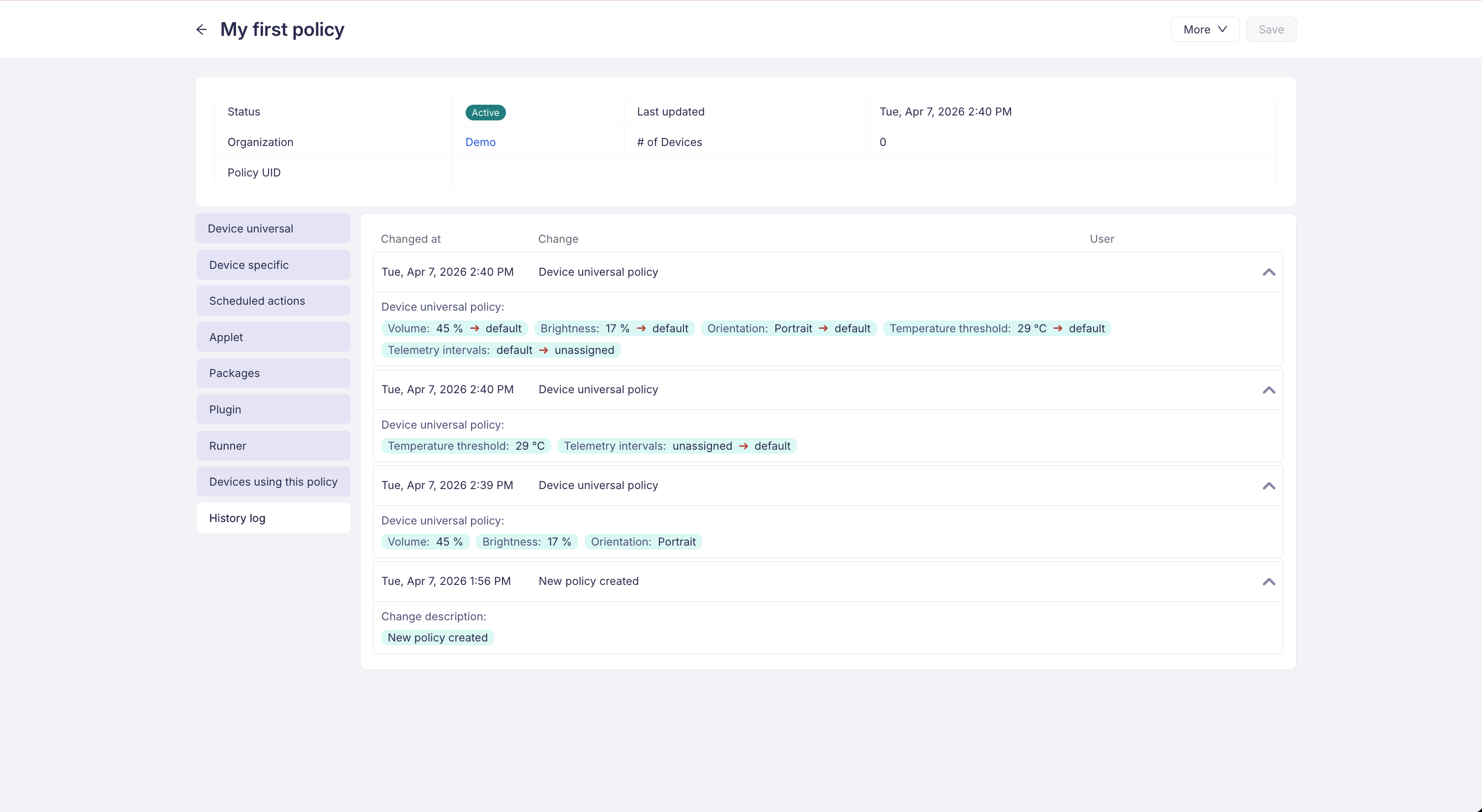
The history log keeps the complete history of any change made to the Device Policy, including information on how such change occurred. It provides you with a previous->next value overview.