Kiosk/IR Remote Control Lock
- User can remotely lock device to Kiosk mode and disable IR Remote control to prevent any misconfiguration
- If supported by the platform, Kiosk mode is secured with an auto-generated unique PIN
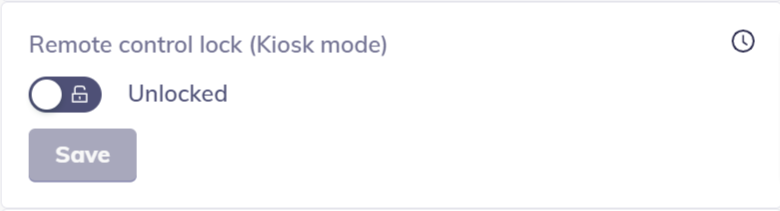
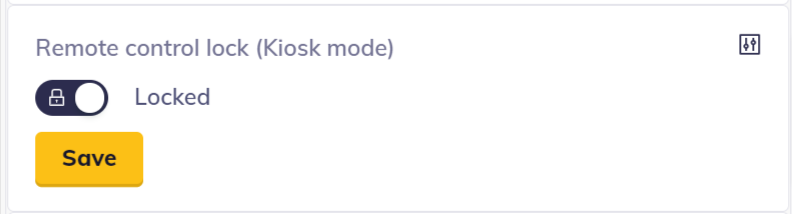
Any production device should always be in the Locked status to avoid unwanted operation by an outsider.
How to enable Kiosk mode / lock IR Remote Control
Box - Device detail
- Navigate to device detail in Box
- Go to Settings Tab
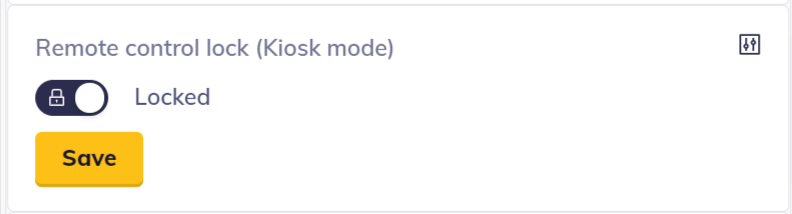
- Switch to Locked status
- Save
Box - Device Policy
- Create a new Device Policy
- Set Kiosk mode - Locked on the Policy detail
- Assign Device Policy to devices
Rest API
How to disable Kiosk mode locally / unlock kiosk mode
On LG and Samsung devices
Navigating to display menu
- Connect a USB keyboard to the device
- Press Windows key - this will open up menu and stop the application
On touch-enabled devices (Android tablets)
- Touch and hold one finger in the bottom left corner
- Use your other hand and swiftly swipe with all 5 fingers on the screen (any direction, preferred is left to right)
- Enter a device PIN in the input
- PIN is unique per device and can be found on the device detail page
On non-touch devices (Wiindows, Linux)
- Connect a keyboard to the device
- Press F2 (x5) five times
- Enter a device PIN in the input
- PIN is unique per device and can be found on the device detail page
Switch off the Kiosk mode in OSD
tip
OSD is built-in menu available in all CoreApps. This interface provides access to several settings and troubleshooting tools. Explore how OSD works.
- Open OSD menu
- Navigate to Device Settings (learn more here)
- Switch off the kiosk mode by
Set remote control lockto disabled