How to Invite a New Member into Company and Organization
To manage larger device networks you usually need more than one member. You - Company Owner, Company Manager - can invite more people into your Company and Organizations and precisely define the level of access for the newly invited members.
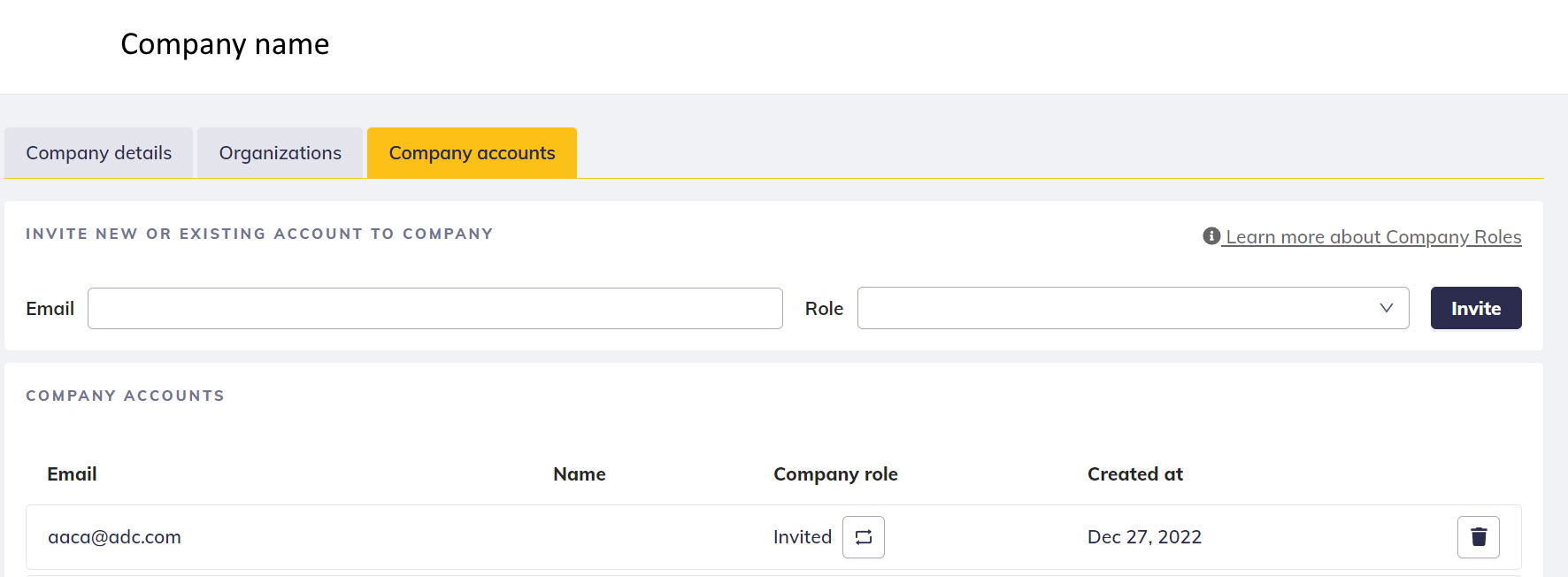
Invite members into your Company
On the Company profile page is an option to invite new members into your Company. The invitation is sent over email. At the time of sending out the invitation you already define the Role for the newly created member.
Company Member Roles:
| Role | Short description |
|---|---|
| Company Owner | Super administrator of the whole Company and all of Organizations. Responsible for billing. |
| Company Manager | Admin member within Company with access to all Organizations |
| Company User | Standard member within the Company with access to only specifically assigned Organizations. |
Roles in detail are described here.
Invite members into your Organization(s)
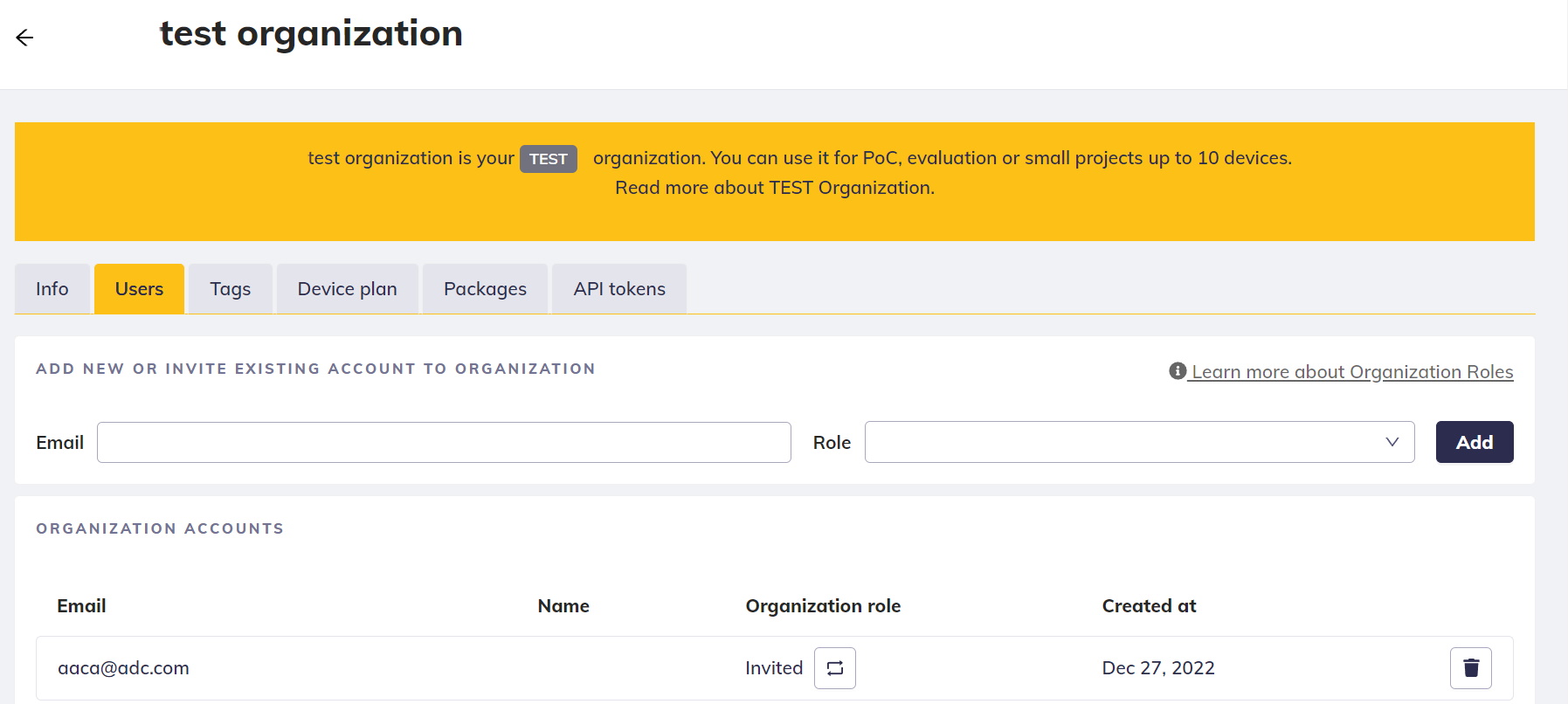
To give your Company members access to the devices, you have to invite them to Organization manually. This is a security element to prevent any undesired access.
While inviting a Company member to the Organization, you can assign an Organization-specific Role.
Organization Member Roles:
| Role | Description |
|---|---|
| Organization Manager | Can manage all devices, view members and tags |
| Organization User | Can manage devices and use tags |
Roles in detail are described here.
Changing Member Role
To change a Member Role, navigate to the Organization Detail page or the Company Detail Page and select the new Role from the dropdown menu.

Important remarks
- A Company member does NOT have access to ANY Organization unless you invite them into one
- Any member invited to an Organization is automatically added to the Company as a Company User
- A user can belong to multiple Companies at the same time — there is no restriction on how many Companies a single user can be a member of
Multi-Company Membership
A single user account can be a member of multiple Companies simultaneously. When a user belongs to more than one Company, they can switch between Companies using the Company switcher in the top navigation.
This is useful for:
- Agencies or service providers managing multiple client Companies
- Users who work across different departments or business units that have separate Companies
- Administrators who need access to multiple Company environments
To add an existing user to another Company, simply invite them by their email address — the same process as inviting a new member. The system will recognize the existing account and add the Company membership without requiring a new registration.
Common use cases
Add a member to a single Organization
This use case describes how to restrict a member's access to devices by adding them to a specific organization within a company. Initially, the member is given a 'Guest' role in the company. Then, they are assigned either a 'User' or 'Manager' role in the desired organization.
How to:
To limit a member's access to devices within a specific organization, follow these steps:
- Invite the member to your company and assign them the role of 'Guest.'
- Go to the desired organization and add the member to it with the role of either 'User' or 'Manager.'