Assign Device Policy to Devices
Device Policy is only available for devices using Device Plan Pro and higher.
Device policies are synced with devices approximately every 2–7 minutes. Applet, Plugin, and Runner changes are propagated within this interval.
Once you've created a new Device Policy, you can assign it to any device.
Assign the Device Policy in Bulk
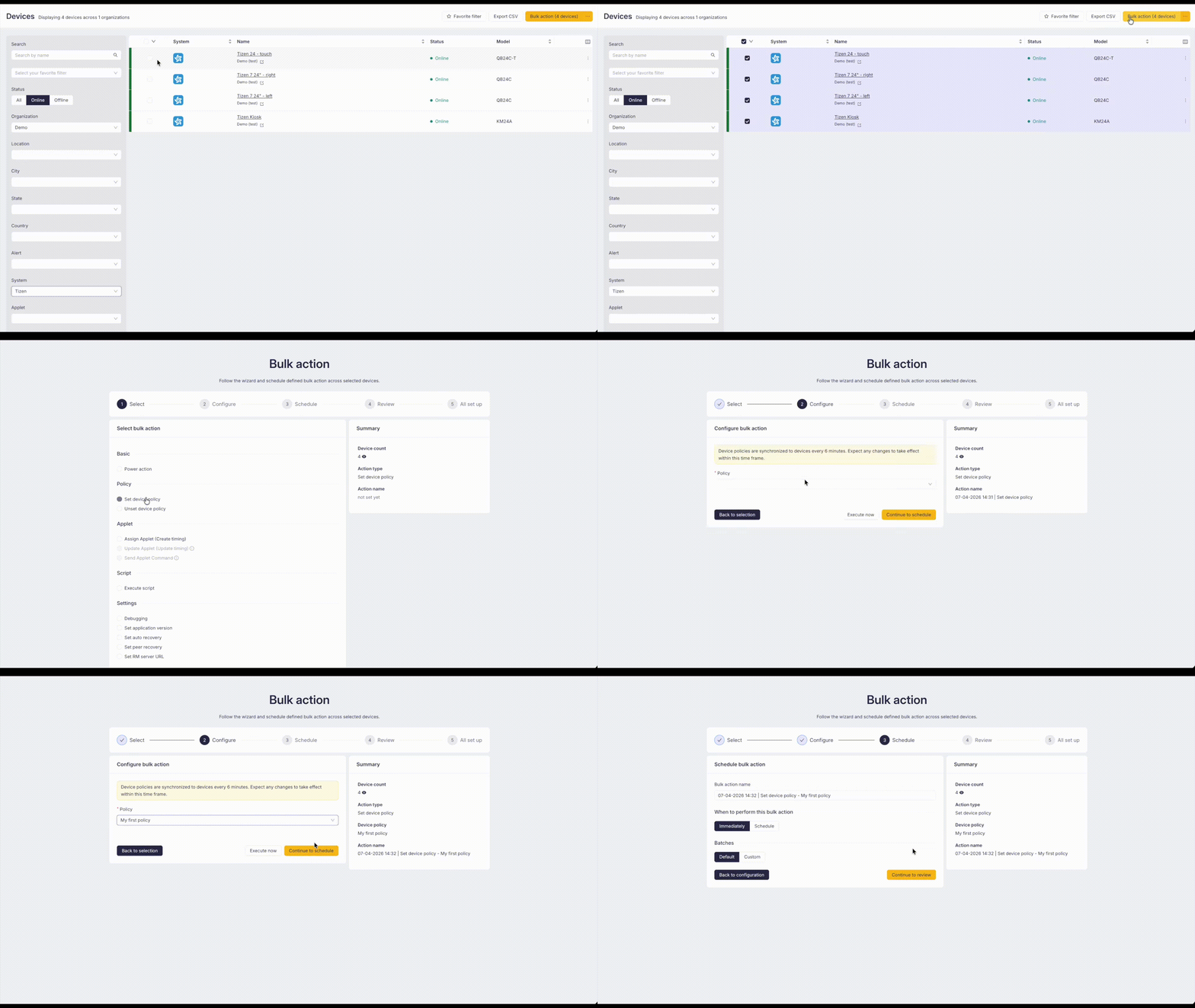
If you want to assign the Device Policy to multiple devices at once, follow these steps:
- Go to the Device list
- Select the devices you want to assign the policy to
- Click Bulk action (showing the number of selected devices)
- From the list of bulk actions, select Policy → Set device policy
Devices have to be in the same Organization, otherwise, you will not be able to assign Device Policy in bulk.
Assign the Device Policy on the Device detail page
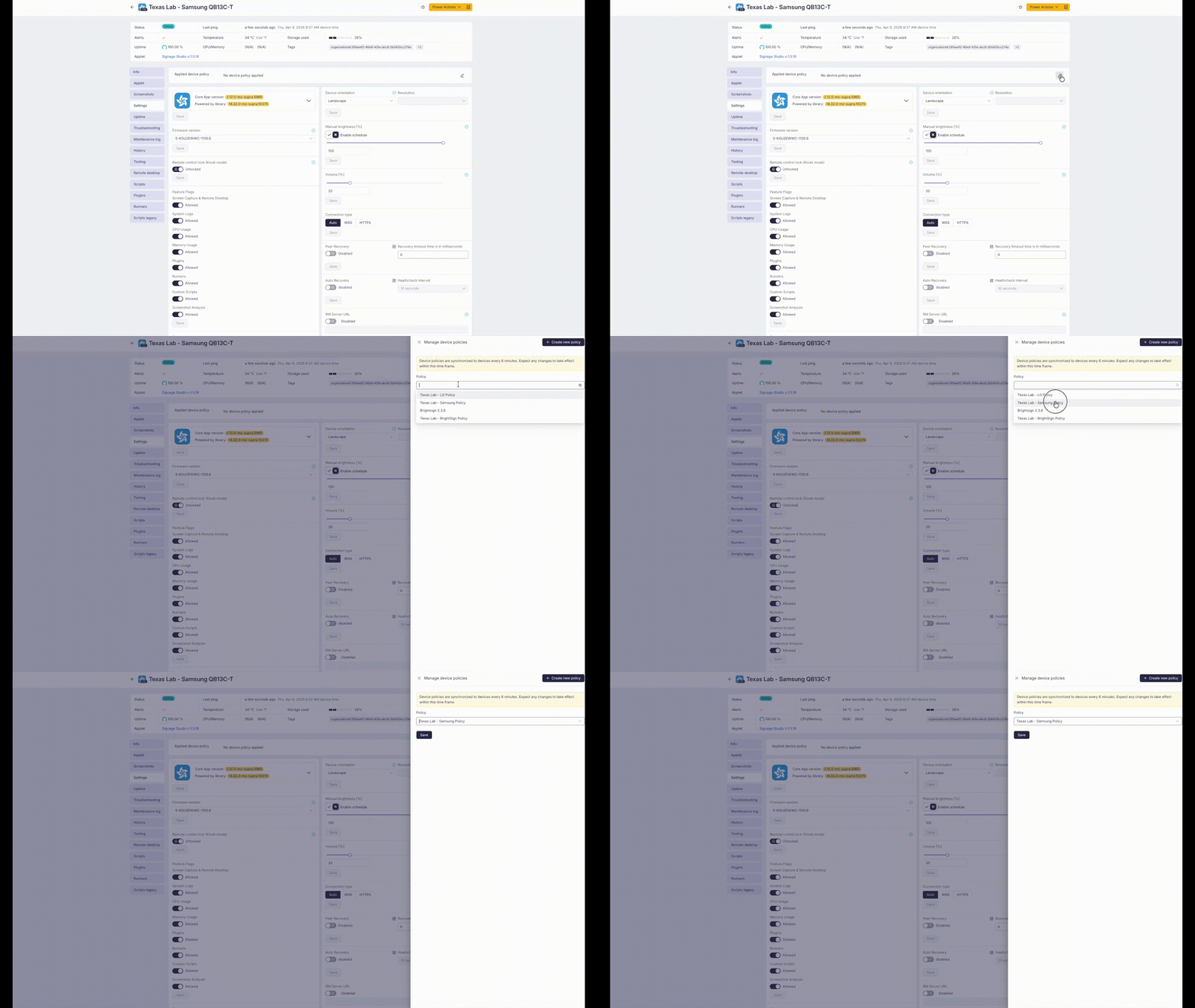
In Cloud Control, navigate to the Device list and select a device. Once you are on the device detail page:
- Go to the Settings tab
- On the Policy tab, click the edit (pen) icon
- In the opened drawer, select the desired policy (or create a new one)
- Click Save
Settings that are managed and controlled by the applied Device Policy are highlighted and you can no longer adjust them.
Remove a Device Policy from a device
To remove a policy from a device, navigate to the device detail, open the assigned policy, and click the unassign button. After removal, per-device settings become editable again.
If the policy included an applet, the applet remains on the device after policy removal to prevent content interruption.
Device Policy Refresh
By default, policies are synced with devices approximately every 2–7 minutes.