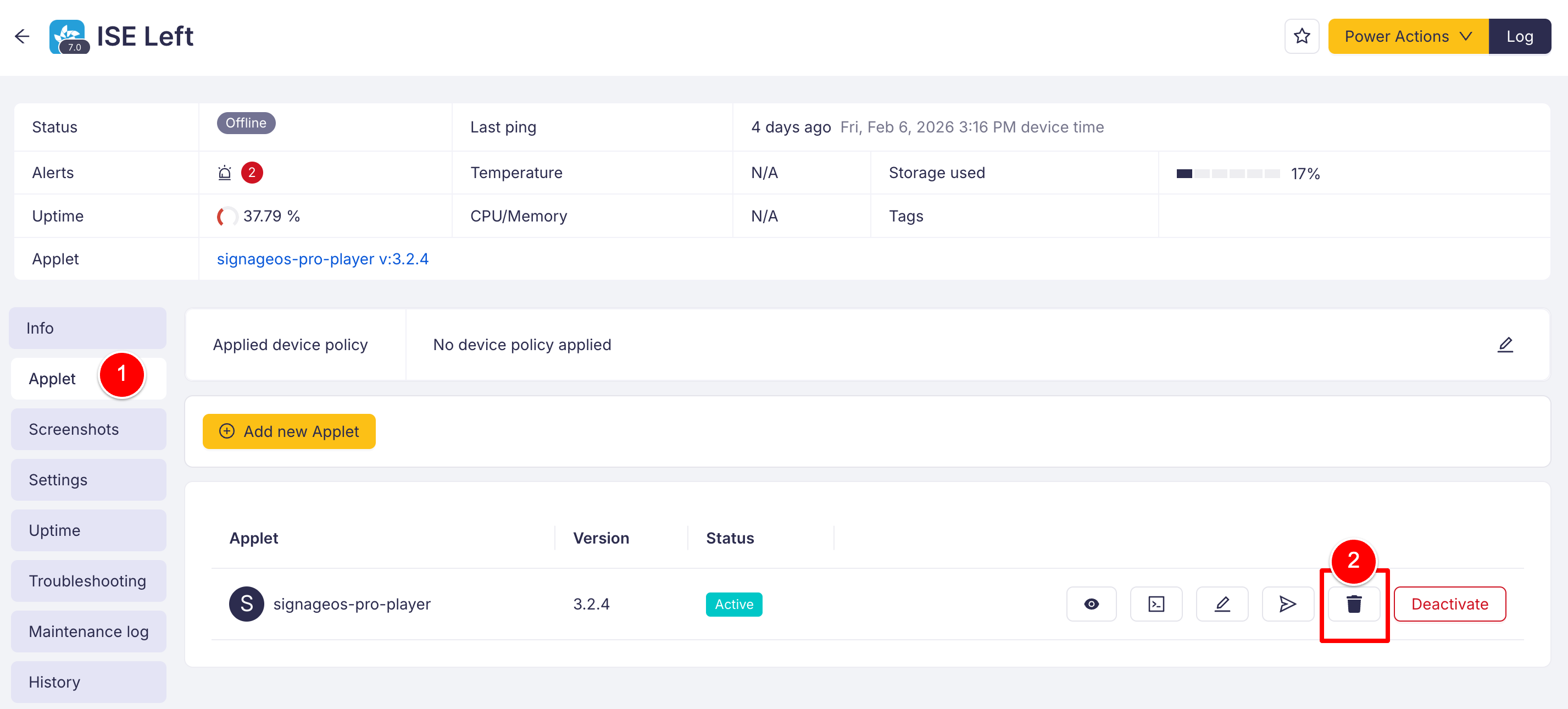
How to assign Applet to the device via Timings
Prerequisites:
- Understanding of Applet and Timing
- Having at least one provisioned device
Assign Applet to the device with Box
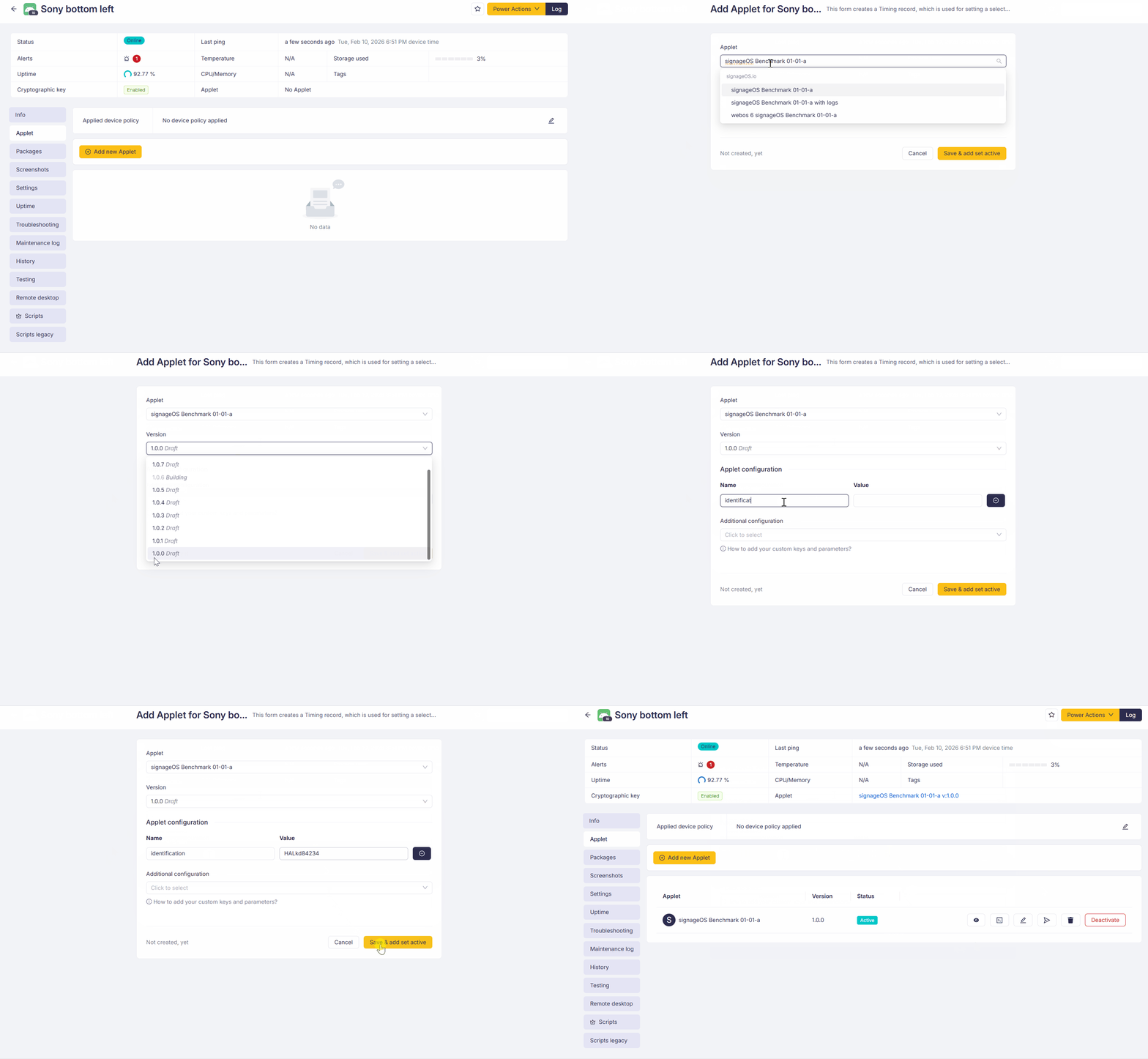
1.Log in to the Box, navigate to Devices and select the device you want to use.
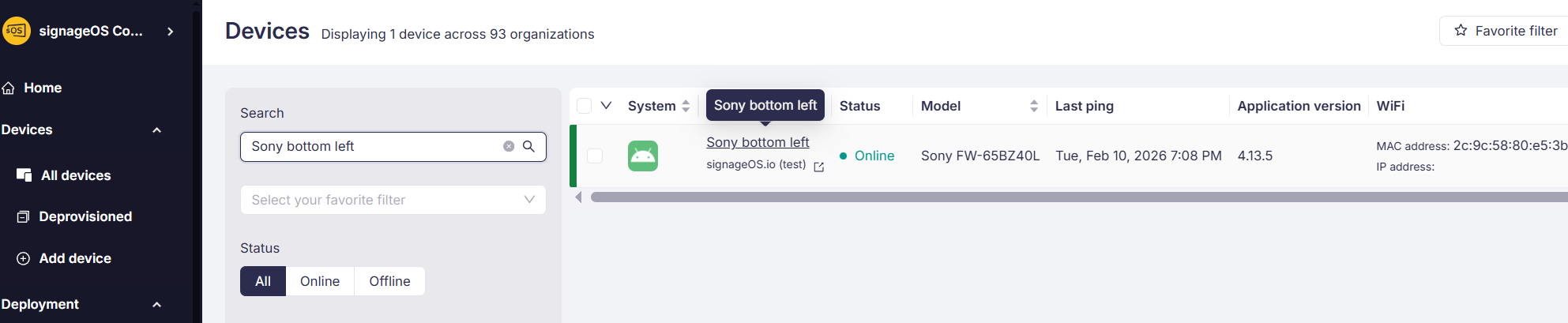
2. Navigate to the Applet tab in the device details page.
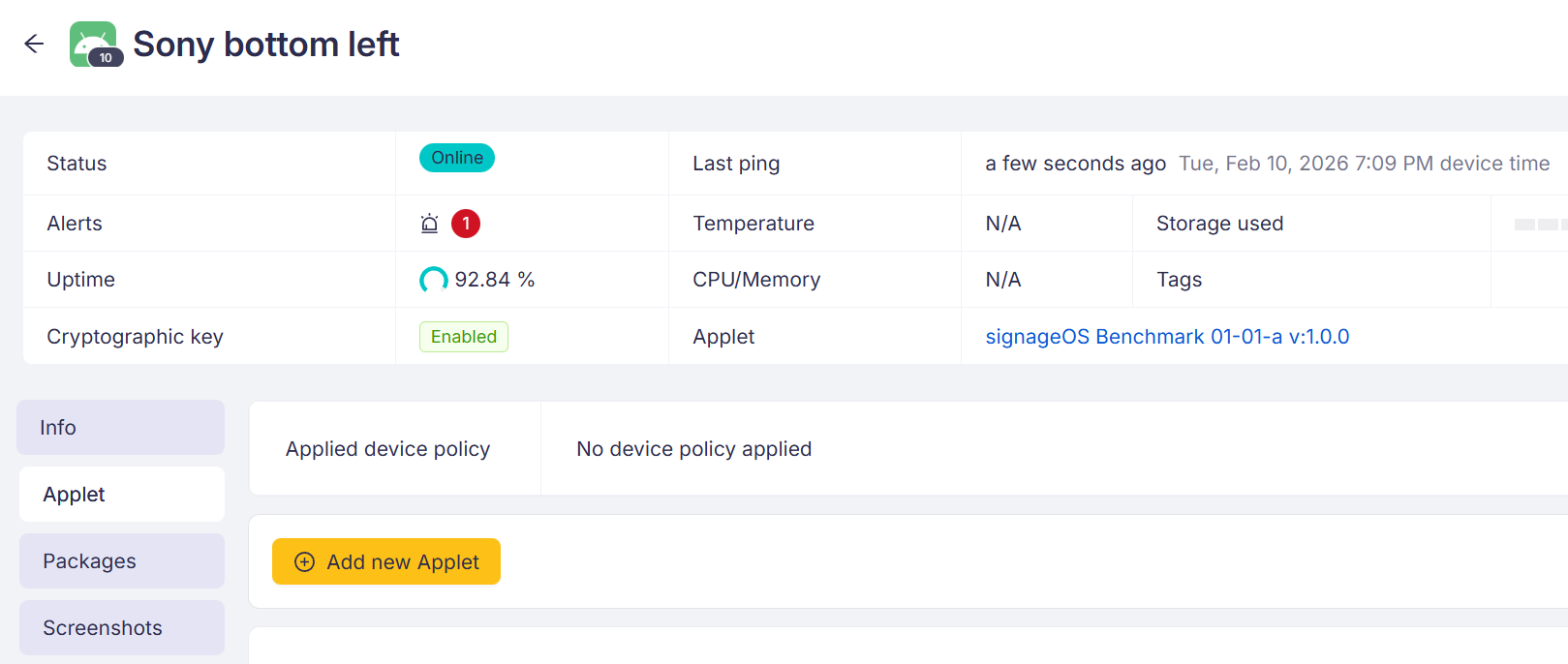
3.Click the Add new Applet.
4.The Timing editor will appear.
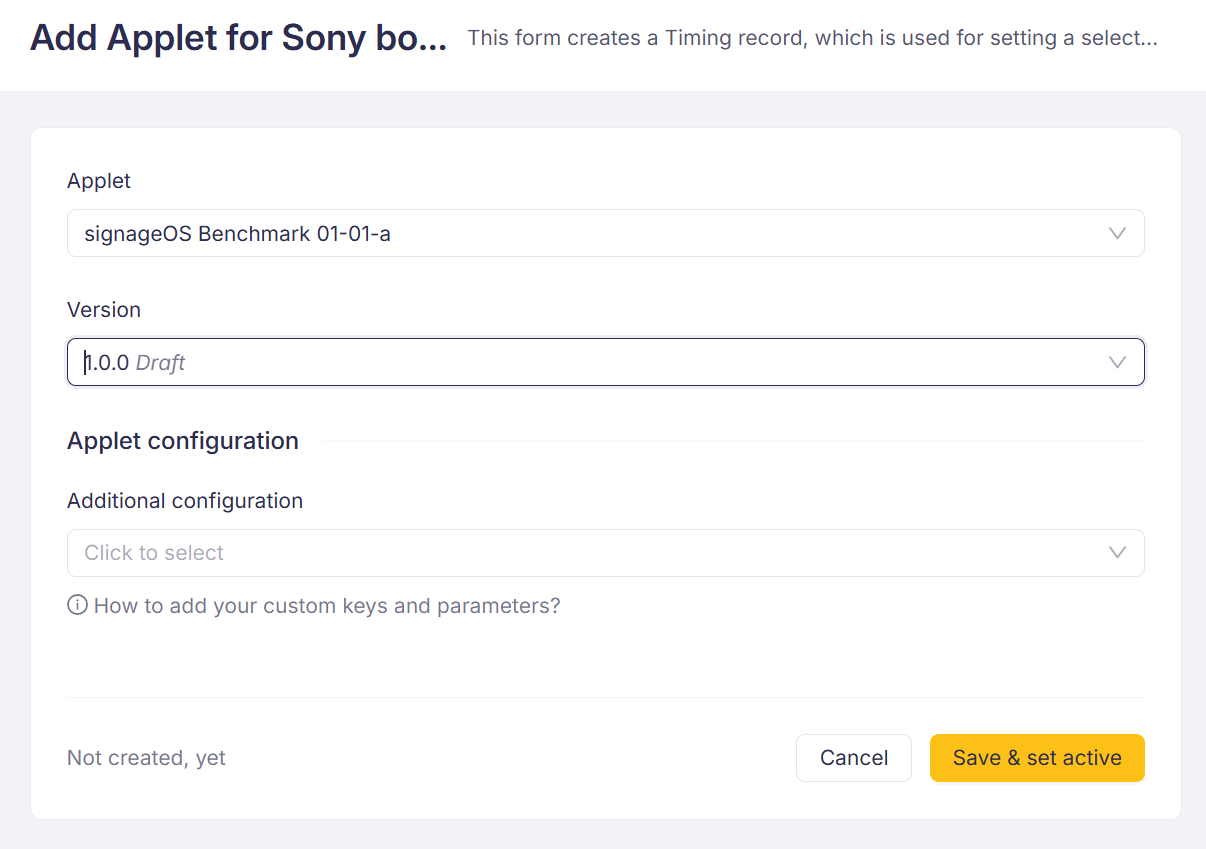
5. Select your Applet and its version.
6. Press "Save and set active". Applet will be played on the device.
Advanced fields - Applet configuration
To add additional Applet configuration. You can pass specific data, URL or anything else that your Applet can use.
These configurations are first set and processed in your applet. They can be defined in package.json.
"sos": {
  "config": \[
    {
      "name": "identification",
      "valueType": "string",
      "mandatory": false,
      "description": "An identification hash for my device."
    },
    {
      "name": "authToken",
      "valueType": "encrypted",
      "mandatory": true,
      "description": "A token generated by My Control used for authentication against My cloud."
    }
  \]
}
Then the key-value pairs can be included when you add your applet to a device
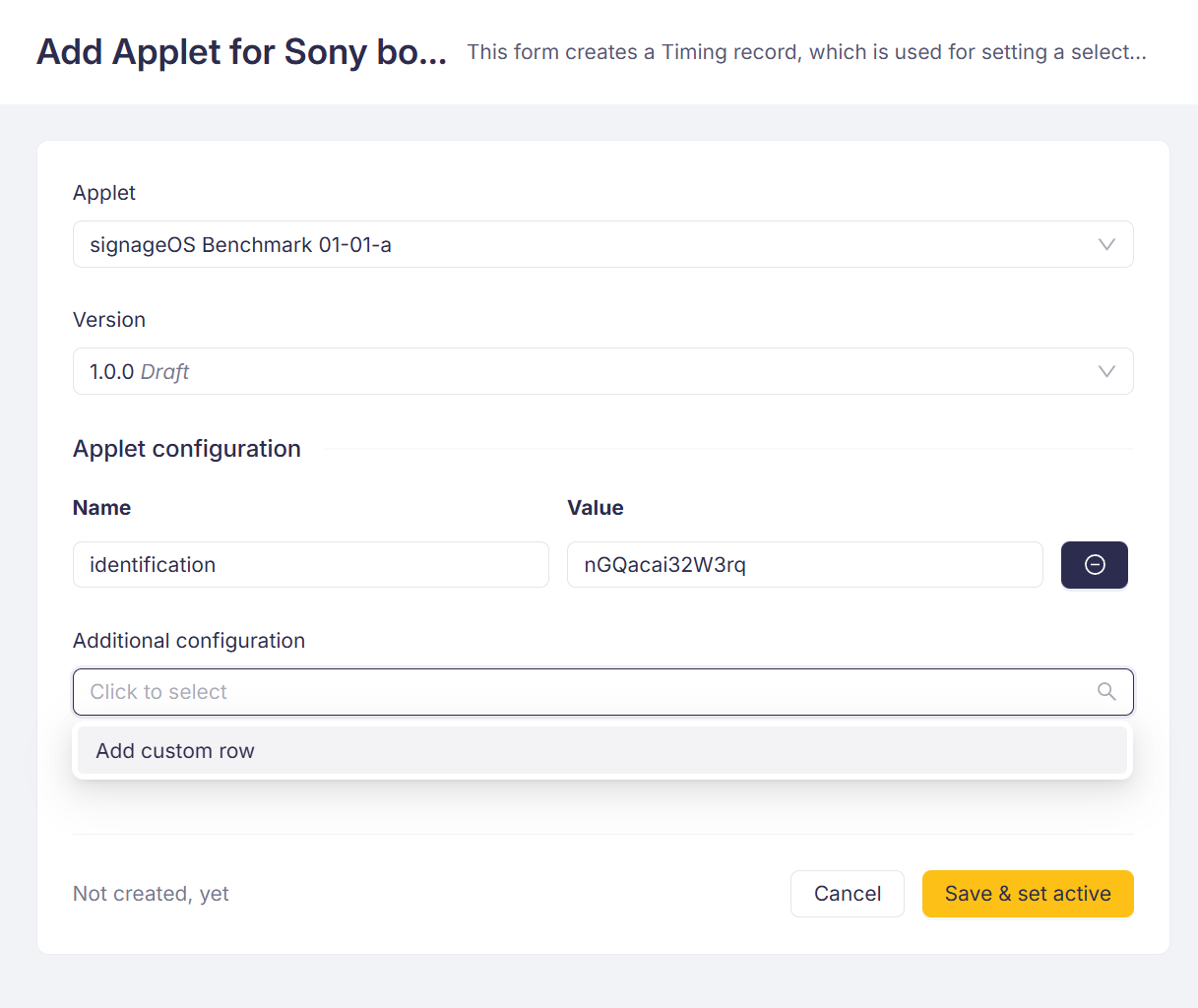
Please check our documentation for more on this topic.
How to deploy Applet over REST API
For deployment over REST API use the Device/Applet API endpoint. Via this endpoint, you can assign desired Applet version and configuration.
Remove Applet From Device
You can remove Applet (and Timing) using UI, REST API for Unassign applet.