Device detail
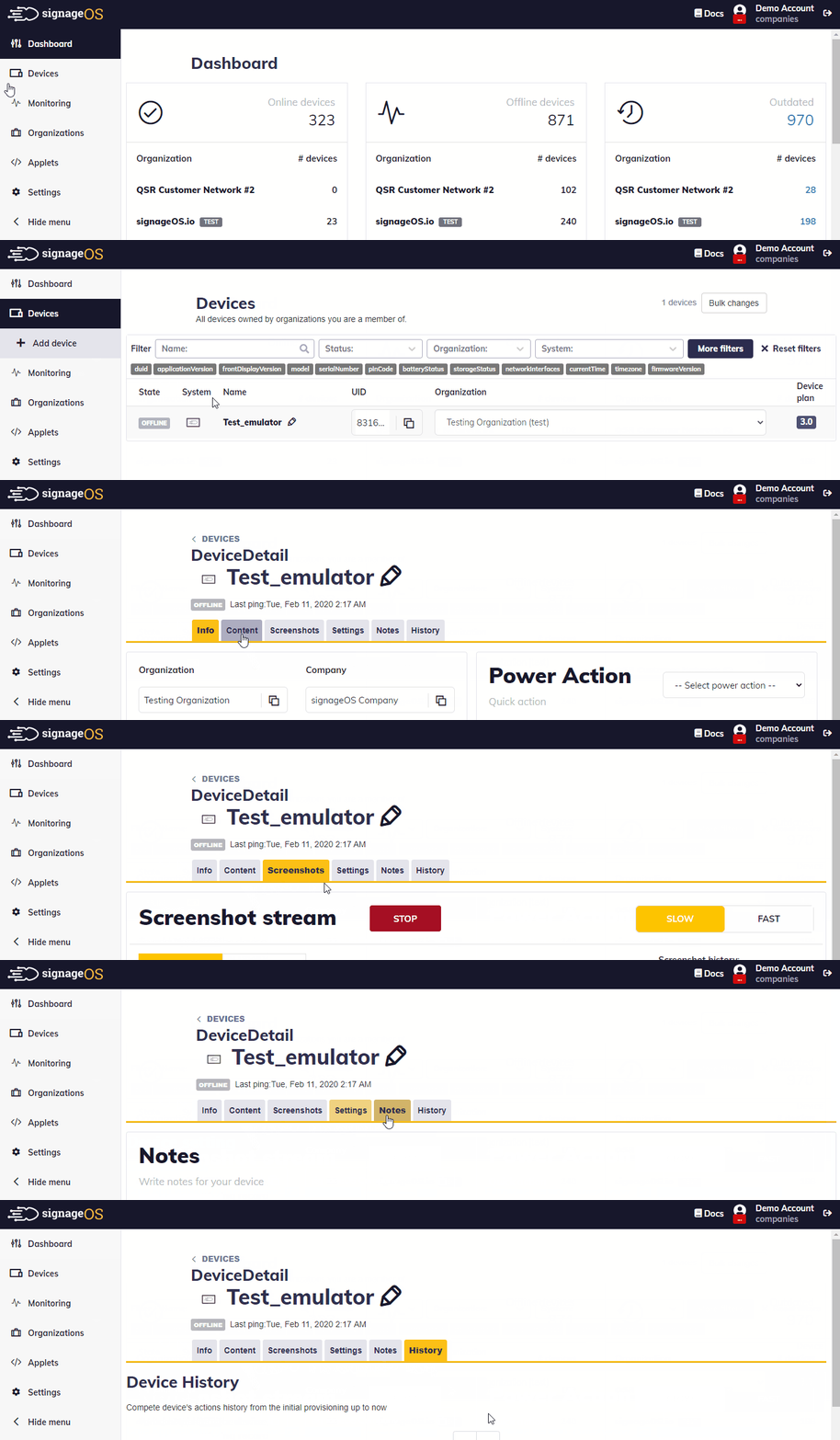
After navigating to the Devices tab you can filter out a specific device based on a wide number of criteria such as:
- Name
- Status
- Organization
- System
- Device model
- Firmware version
- Tags
- Storage size
Upon landing on a device detail page you can access several features and detailed information.
Power actions
Above all tabs is a Power Action panel where you can perform "Power Actions":
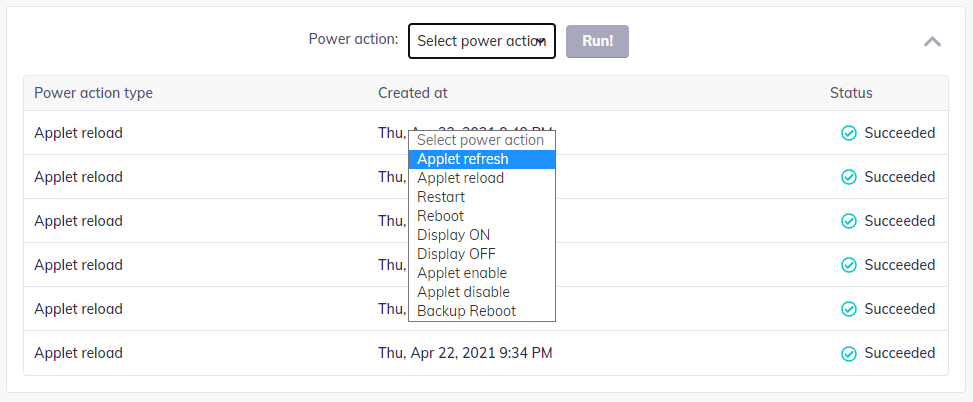
Applet refresh
- Applet Refresh is a soft refresh of the Applet that is running on the device. It's similar to a refresh of a webpage in the browser.
- Applet Refresh does not perform any file-related actions (no files are deleted nor downloaded)
Applet reload
- Applet Reload deletes all Applet files (JS, CSS, HTML) and initiates a download of the same Applet from signageOS
- Once the download of the Applet ends, it restarts the Applet
- Applet Reload does not delete any files or folders with media saved on a device with FileSystem API
- Applet Reload should be used only for development or troubleshooting as it's demanding and network-sensitive operation
Restart
- Restart means signageOS Core App restart
- On all platforms Restart turns off the signageOS Core App and re-launches it (Exception: Tizen does not support this action, Restart on Tizen does a "hard refresh" of the currently running browser)
- Restart does not perform any file-related actions (no files are deleted nor downloaded
Reboot
- Reboot means signageOS Core App reboots the whole device on the OS level
Display On/Off
- Display ON/OFF switching the display panel (screen) to either ON (display is showing Applet) or OFF (display is black, Applet is not visible)
Applet Enable/Disable
- Turning of the Applet that is currently running on the device ON (Applet is running and showing content) or OFF (Applet is disabled, no content is shown).
- In Applet Disabled state, there is an information on the display informing that "Applet has been disabled"
Backup Reboot
- Backup Reboot is a failsafe functionality that is capable of performing Reboot in case the main connection to the device is not functioning due to a network issue or any other reason
- Backup Reboot is using a secondary backup connection to signageOS designed specifically just for this purpose
- Backup Reboot action is checked by the device every 5 minutes and might take up to 10 minutes from the time you perform the action
Info
Info panel as name suggests provides you with a plethora of useful information about the device and its current state. The page lists information about:
- name of Organization and Company
- UID
- Core App version
- Network interfaces - Wi-Fi and ethernet
- Device model
- Serial number
- Time
- Storage
- Deprovisioning
- Device Failover Configuration
Applet
Under applet tab you can assign your applets to display videos, images, text, custom HTML and much more, you can find more details about Applets here. To assign your applet all you need to do is click "Create new timing" button and choose desired applet, it's version, start and end time and additional optional settings
Screenshots
Under Screenshots tab you can view your devices current video output in Slow or Fast mode, view screenshot history, or stop screenshot streaming
Settings
Settings Tab allows you to update Core App version remotely in case it is outdated, it also displays information about current Core App version, alongside the same can be done with Firmware versions for your specific device. Settings also let you use features such as:
- Remote control lock
- Orientation & Resolution
- Setting Volume
- Setting Brightness
- Native Timers - Important for automatic power-saving at pre-defined times
- Proprietary timers - Turn the SCREEN (not the device) off at pre-defined times
- Scheduled reboots
- Connection status
- Firmware versions
- Remote control settings
- Timezone/NTP server setting
- Screen Capture & Remote Desktop setting
Uptime
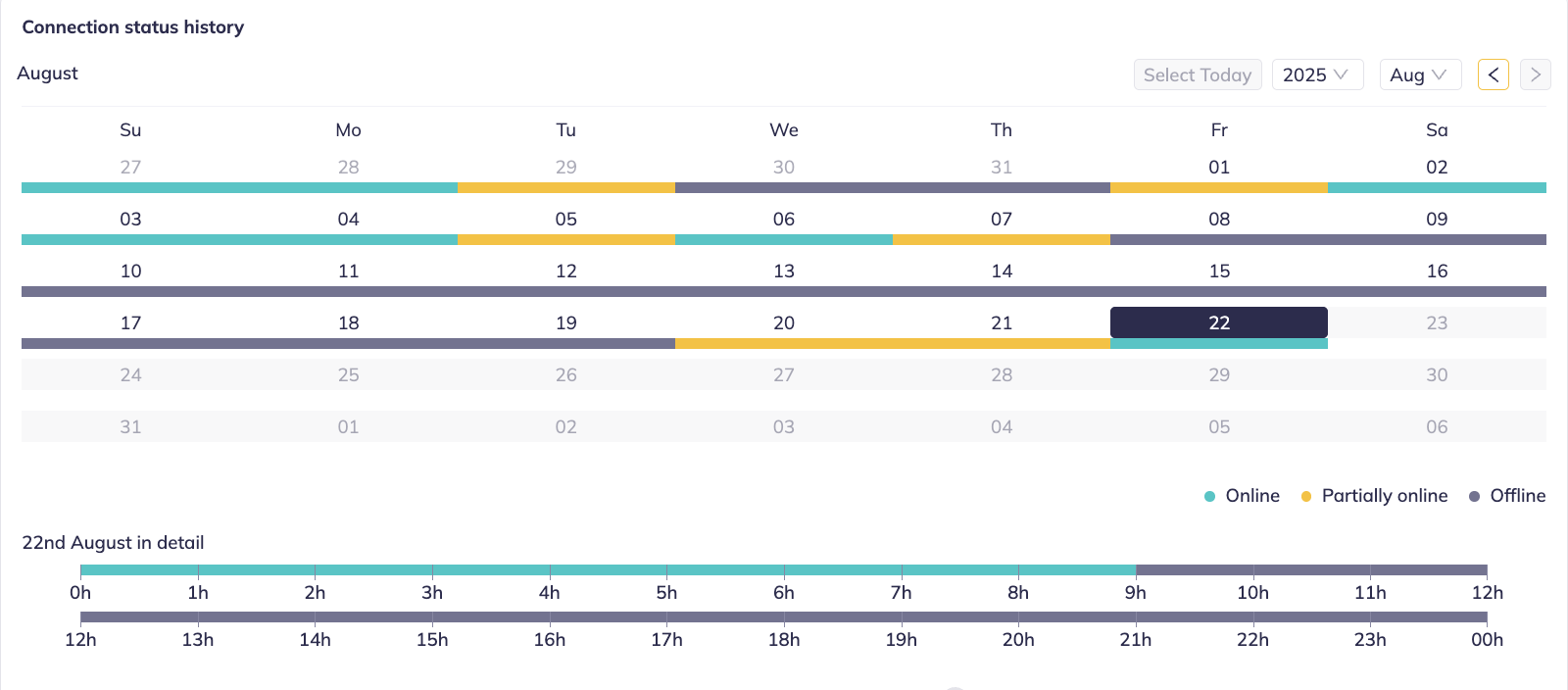
Uptime tab displays a history graph of device connection in hours for each day or month, you can select a time period for the data.
Troubleshooting
Troubleshooting tab is split into two parts, one for debugging controls - these allow you to enable either Native or Remote debugging. More information about debugging can be found in our documentation here. Or more in detail under each Platform specific debugging options also in the documentation.
Second part displays:
-
Applet command logs - these are logs coming from your applet, allowing for further integration into your code base
-
System logs - these are information logged out by the device such as DeviceAlive information, network changes, policy changes etc.
Both of these log entries can be filtered by type or within a specific time range and if needed generated into a CSV file.
Maintenance log
Under the Maintenance tab you will find a simple text editor allowing you to co-operate with other partners on the project, keeping the information relevant to a specific device alongside with date of taken note.
History
If you want to see the complete history of actions/commands your device received you can find it under this tab. Alongside with action name, you can see specific data that was sent to the device, the date of issued command, and succeeded or failed result. This list is updated every 30 seconds.
Note: This next section is only for premium users of DevSpace
Scripts
Scripts for certain platforms lets you execute your own script functionality outside of standard signageOS scope for supported functions, tapping into native support of the device. You can read more about scripts in our documentation page here. Their primary purpose is for simple remote commands and are always executed once. The script execution is not persisent.
Plugins and Runners
Plugins and Runners similarly to Scripts let you leverage additional functionality outside of signageOS API functions, in contrast to Scripts Plugins and runners are periodic (Plugins) and continuous (Runners). More information on Plugins and Runners can be found in our documentation article here.