Alerts
Introduction
The Alerts section gathers all Alerts triggered for devices in Organizations you are part of. Each Alert identifies which Alert Rule was triggered, how many devices are affected, and the last change.
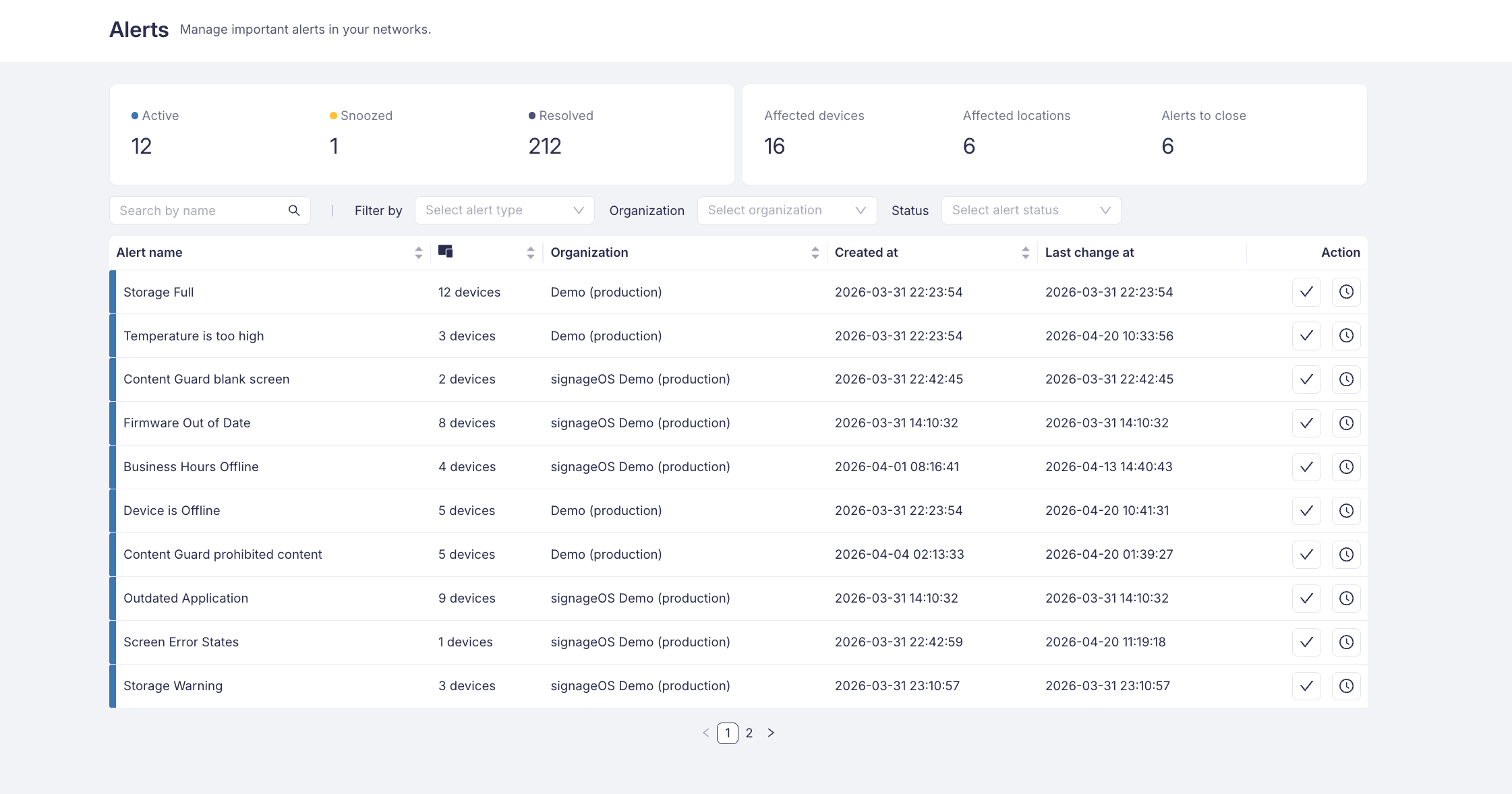
Alerts are further triaged based on the Alert Rules type:
- All alerts
- Device alerts
- Policy alerts
- Applet alerts
- Content Guard alerts
On the Alert section you can choose and filter out based on several criteria as listed above by - Type, Organisation, Status and Name.
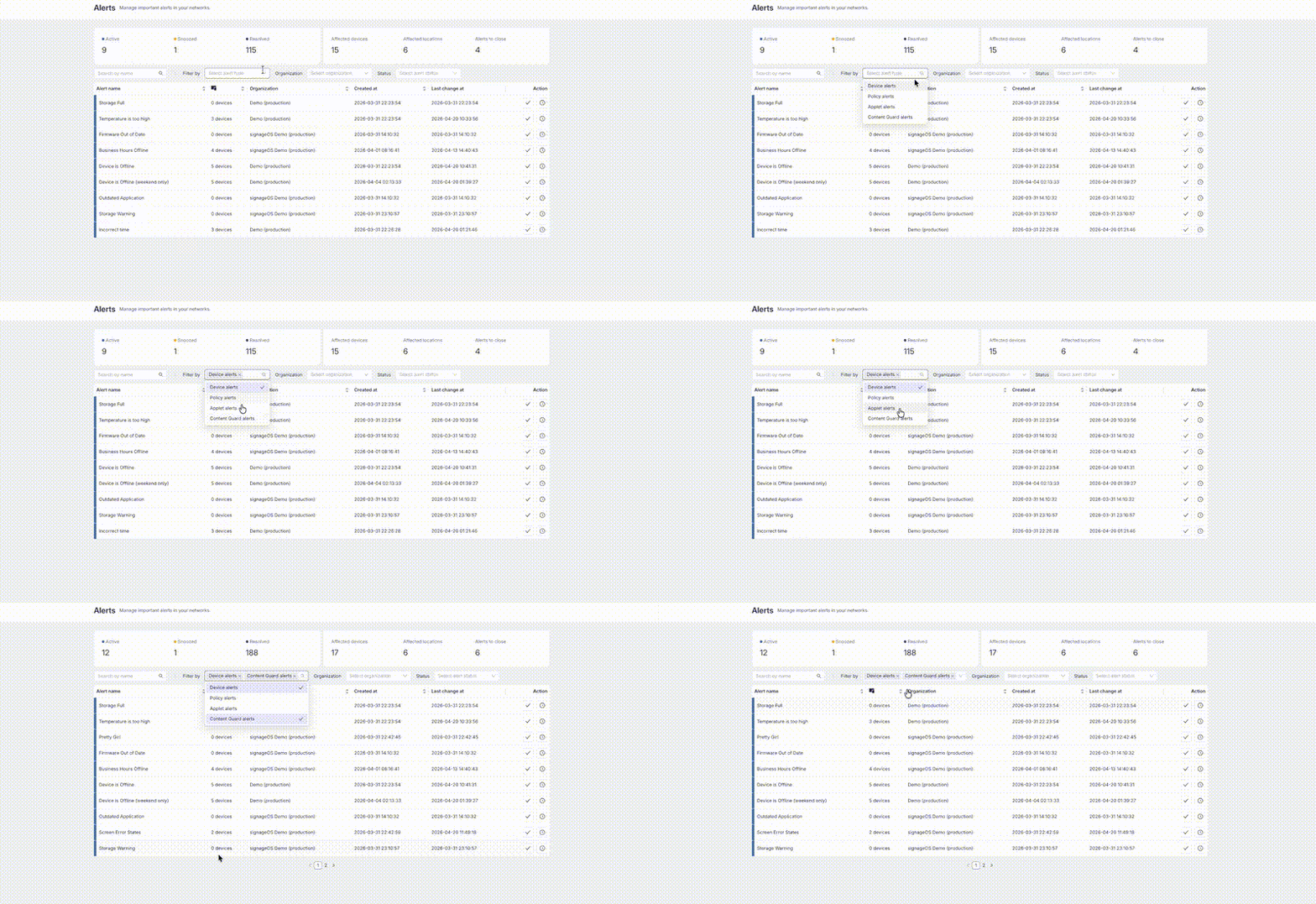
Alerts statuses
Alerts to resolve
Alert is in "to resolve" state whenever the Alert Rule is activated, it's the default state. Alert can be Snoozed for later or Resolved.
If the Alert Rule for the selected Alert is activated again, only Affected devices # will change. You will not get a new Alert in the list.
Snoozed
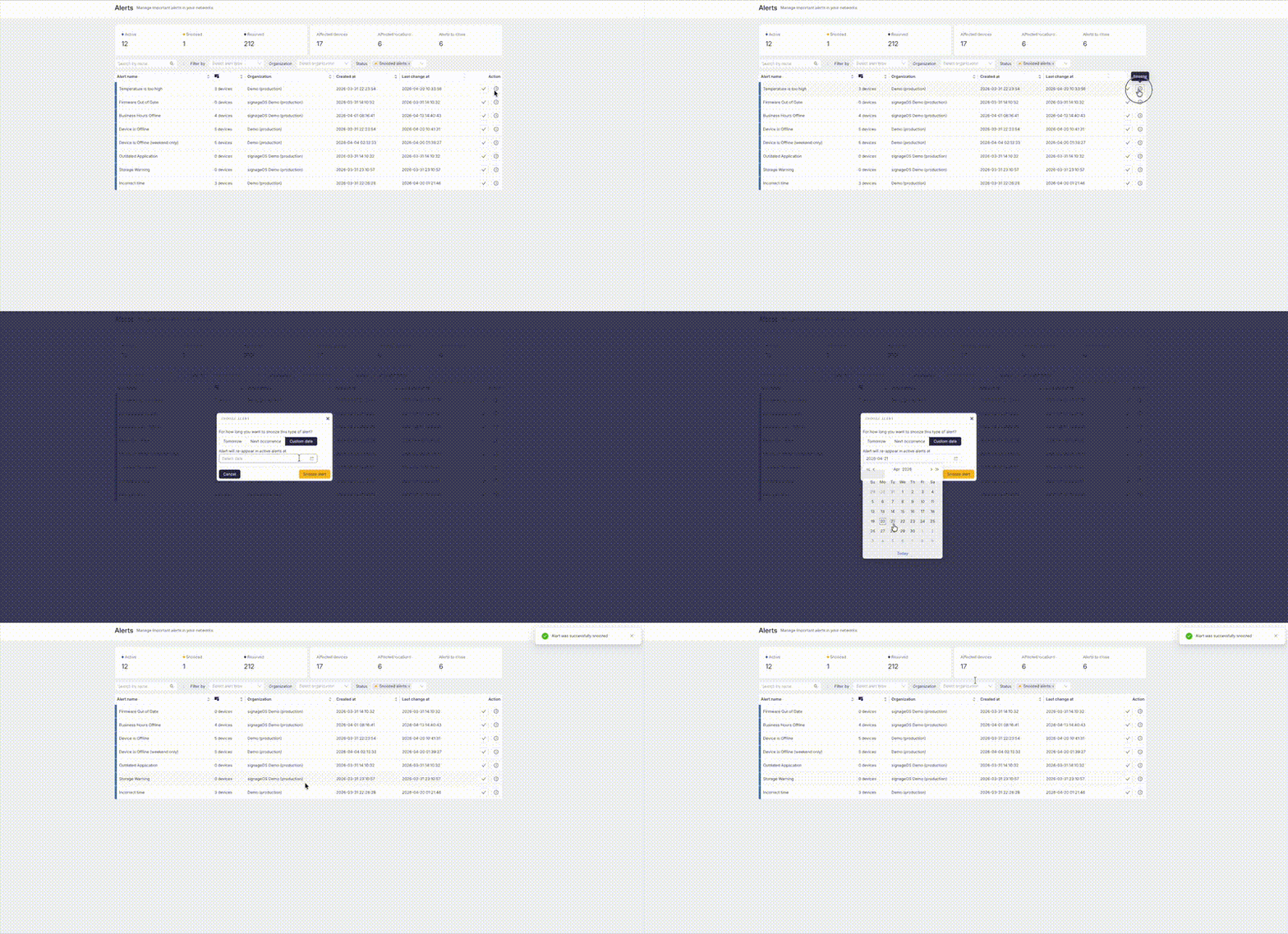
Alerts can be snoozed within custom time and date. You will get no Alerts of this type till the selected date and time
1. By clicking the clock icon under Triggered alert in Actions section you can snooze the alert for later date/time.
2. Snoozed and Resolved Alerts will be moved into their own section where they can be viewed/unsnoozed/snooze edited later
Resolved
Once you resolve an Alert, it stays resolved. If the Alert Rule for the selected Alert is activated again, you will get a new Alert in the Active Alerts list.
Alert Detail
Clicking on any Alert opens the Alert Detail view, which provides a comprehensive overview of the triggered alert.
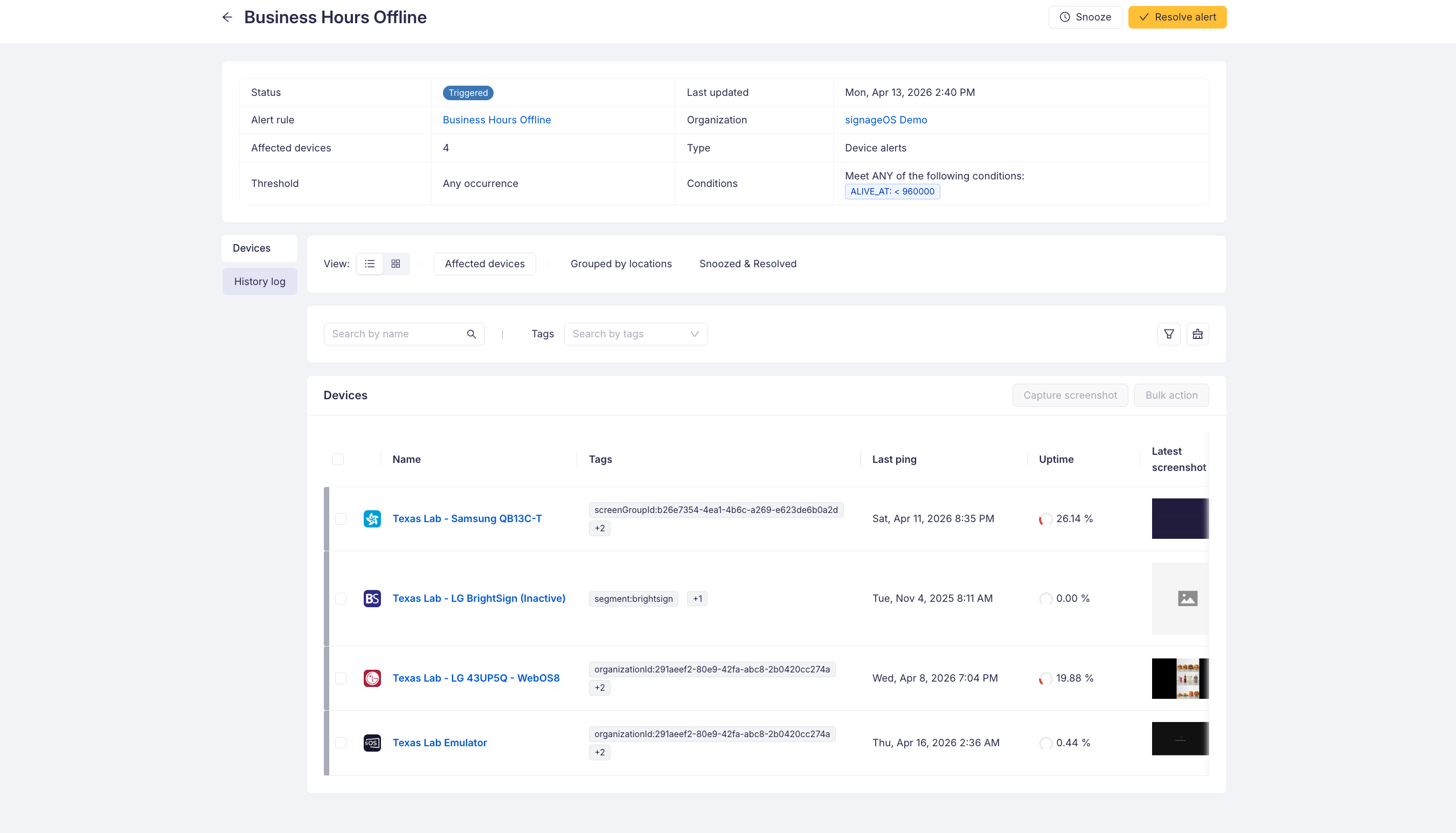
At the top you can see the alert summary with the following information:
- Status — Current status of the alert (Triggered, Snoozed, Resolved)
- Alert rule — Link to the Alert Rule that triggered this alert
- Affected devices — Number of devices matching the alert conditions
- Threshold — The threshold setting defined in the Alert Rule
- Last updated — When the alert was last updated
- Organization — The Organization the alert belongs to
- Type — The type of alert (Device, Policy, Applet, Content Guard)
- Conditions — The conditions that triggered the alert
Below the summary, you can navigate between the following tabs:
- Devices
- Affected devices — List of all devices that currently match the alert conditions. You can search by name or filter by tags. The list shows device name, tags, last ping, uptime, and latest screenshot.
- Grouped by locations — Devices grouped by their physical location
- Snoozed & Resolved — Devices that have been individually snoozed or resolved
- History log — Shows when the alert was triggered and lists resolved alerts
From the Alert Detail view you can also Snooze or Resolve the entire alert and all affected devices using the buttons in the top-right corner.