deviceManagement · Plan: Basic Device Plan or higherConfiguration Check
Configuration Check is currently in beta. We're actively improving this feature based on user feedback.
Overview
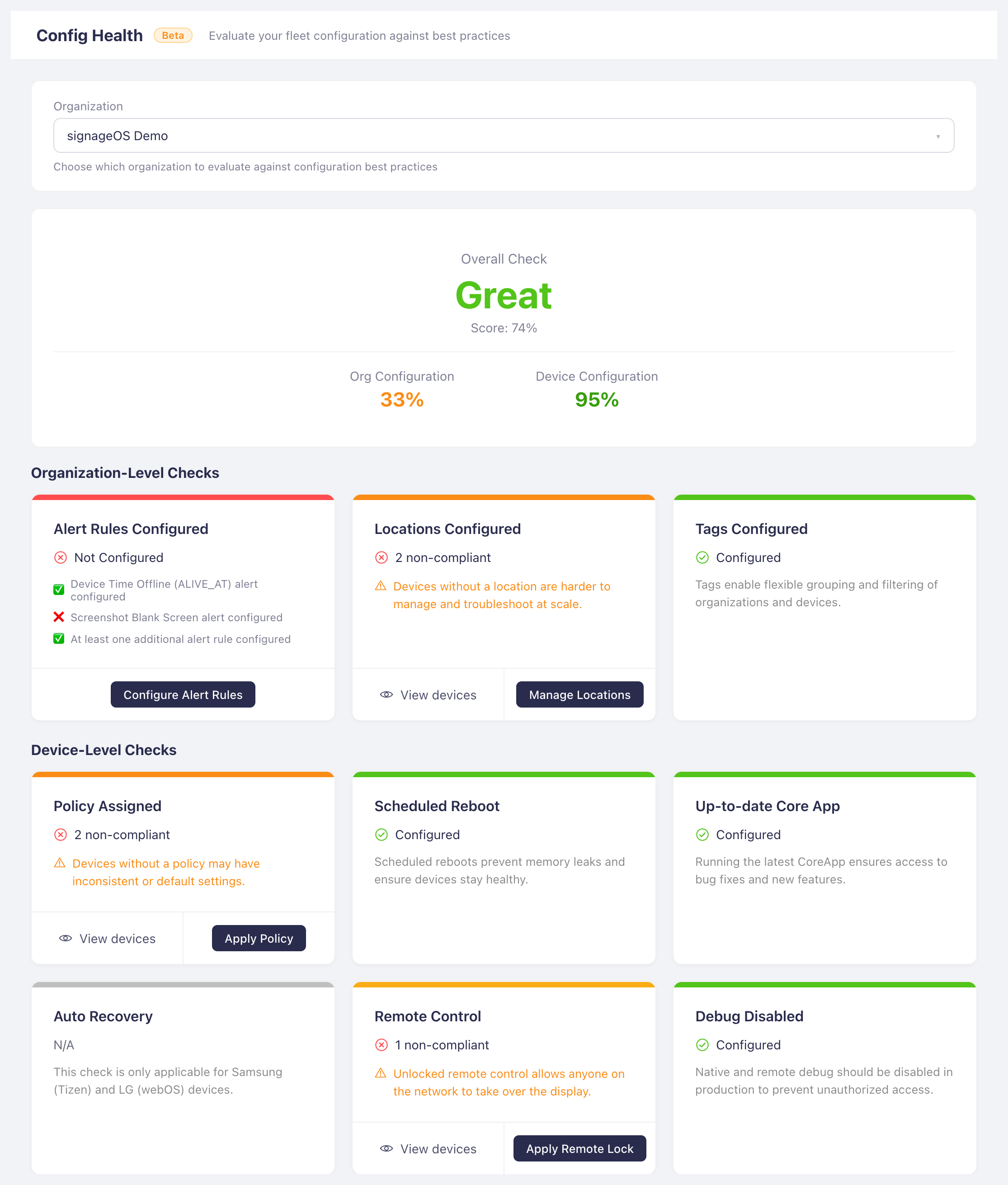
Configuration Check is a diagnostic tool in CloudControl that evaluates the health of your signageOS deployment. It performs comprehensive validation across organization-level policies and device-level telemetry to identify configuration gaps and security issues, helping you maintain optimal device performance and reliability.
Why Configuration Check Exists
As your digital signage deployment grows, maintaining consistent configuration across hundreds or thousands of devices becomes challenging. Configuration Check helps you:
- Proactively identify issues before they impact device performance or end-user experience
- Ensure security best practices by detecting devices with debug modes enabled or insecure remote control access
- Maintain operational excellence by validating that critical features like auto-recovery and scheduled reboots are properly configured
- Save time by providing a centralized view of configuration compliance instead of checking devices individually
What to Expect
When you access Configuration Check, you'll see:

- Overall Health Score: A color-coded rating (0-100) showing your deployment's configuration health
- Excellent (90-100): All or nearly all configurations are optimal
- Great (70-89): Good configuration with minor improvements needed
- Good (50-69): Acceptable but several areas need attention
- Moderate (<50): Significant configuration gaps requiring remediation

-
Organization Configuration Score (33% of total): Validates foundational organization setup
-
Device Configuration Score (67% of total): Monitors device-level compliance rates
-

Check Cards: Visual cards for each validation showing:
- Pass/Fail status
- Number of compliant vs. non-compliant devices
- Quick-fix action buttons to remediate issues
-
Drill-Down Details: Click any failed check to see:
- Specific devices causing failures
- Telemetry values and timestamps
- Direct links to fix the issue
What Gets Checked
Configuration Check performs 9 comprehensive validations organized into two categories:
Organization-Level Checks
These validate your foundational organization configuration:
1. Alert Rules Configured
Purpose: Ensures proactive monitoring is in place to notify you of device issues.
Pass Criteria: Your organization must have ALL of the following alert rules active:
- Device Offline alert (monitors when devices stop communicating)
- Blank Screen alert (detects when Content Guard identifies blank screens)
- At least one additional active alert rule
Why it matters: Without proper alerting, device failures may go unnoticed until end users report issues, leading to prolonged downtime and poor user experience.
Remediation: Navigate to Alert Rules settings and configure the required alert types.
2. Locations Configured
Purpose: Verifies all devices are assigned to a location in your hierarchy.
Pass Criteria: 100% of devices must have a location assignment.
Why it matters: Location hierarchy is fundamental for:
- Organizing devices by physical site or region
- Applying targeted policies and content
- Generating location-based reports
- Efficient device management at scale
Remediation: Use bulk actions to assign locations to unassigned devices, or visit individual device settings.
3. Tags Configured
Purpose: Ensures you have a minimum tag structure for device organization.
Pass Criteria: Your organization must have at least 3 tags defined.
Why it matters: Tags provide flexible device grouping beyond location hierarchy, enabling:
- Targeted content delivery (e.g., "retail-floor", "lobby")
- Policy application to specific device types
- Dynamic filtering and bulk operations
Remediation: Create tags in your organization settings to categorize devices by function, type, or any other logical grouping.
Device-Level Checks
These validate per-device configuration and security posture:
4. Policy Assigned
Purpose: Confirms all devices have a device policy for centralized management.
Pass Criteria: All devices (excluding emulators) must have a device policy assigned.
Why it matters: Device policies provide:
- Centralized configuration management
- Consistent settings across device groups
- Remote control of device behavior
- Security hardening through policy enforcement
Remediation: Create or assign an existing policy to devices. Use bulk actions for efficient assignment across multiple devices.
5. Scheduled Reboot
Purpose: Verifies devices have scheduled power actions (reboots) configured.
Pass Criteria: Devices must have a SYSTEM_REBOOT entry in their power actions schedule.
Why it matters: Regular scheduled reboots:
- Prevent memory leaks and performance degradation
- Clear temporary files and caches
- Ensure system stability over long periods
- Apply system updates that require restart
Special note: Devices with assigned policies may configure this through the policy, so they may show as "N/A" if telemetry hasn't reported yet.
Remediation: Configure scheduled reboot in device settings or through device policy power action schedules.
6. Outdated Core App
Purpose: Detects devices running older versions of the signageOS core application.
Pass Criteria: Devices must run a core app version equal to or newer than the latest published stable version.
Why it matters: Keeping the core app updated ensures:
- Access to latest features and improvements
- Security patches for known vulnerabilities
- Better performance and stability
- Compatibility with current CloudControl features
Remediation: Update devices to the latest core app version through bulk actions or individual device updates.
7. Auto Recovery (Tizen, webOS, SSSP only)
Purpose: Confirms auto-recovery mechanism is enabled on supported devices.
Pass Criteria: AUTO_RECOVERY telemetry must show enabled: true.
Applicability: Only evaluated for Tizen, webOS, and SSSP devices. Other device types will show "N/A".
Why it matters: Auto-recovery allows devices to automatically:
- Restart failed applets
- Recover from transient system errors
- Self-heal without manual intervention
- Minimize downtime and support tickets
Remediation: Enable auto-recovery in device settings or through device policy configuration.
8. Remote Control Disabled
Purpose: Validates that remote control access is disabled (security check).
Pass Criteria: REMOTE_CONTROL telemetry must show enabled: false.
Why it matters: Remote control access can be a security risk if:
- Devices are publicly accessible
- Unauthorized users could gain control
- Compliance requires disabling remote access
- It's not needed for your use case
Best practice: Only enable remote control when actively needed for troubleshooting, then disable it afterward.
Remediation: Disable remote control in device settings.
9. Debug Disabled
Purpose: Ensures debug modes are disabled (security check).
Pass Criteria: Both native debug and applet debug must be disabled (nativeEnabled: false and appletEnabled: false).
Why it matters: Debug modes:
- Expose internal system details
- Create potential security vulnerabilities
- May impact performance
- Should never be enabled in production deployments
Best practice: Debug modes should only be enabled temporarily during development or troubleshooting, then immediately disabled.
Remediation: Disable debug modes in device settings.
How Health Score is Calculated
The overall health score uses a weighted calculation:
-
Organization Score: Each org-level check is pass (1 point) or fail (0 points)
- Organization Score = (sum of passed checks / total checks) × 100
-
Device Score: Each device-level check calculates compliance ratio
- Compliance Ratio = (compliant devices / applicable devices) × 100
- Device Score = (sum of all compliance ratios / number of checks) × 100
-
Total Score: Weighted average favoring device compliance
- Total = (Organization Score × 0.33) + (Device Score × 0.67)
The 1:2 weighting reflects that device-level configuration typically has greater impact on deployment health than organization-level setup.
Performance and Scanning
When you run a Configuration Check scan:
- Organization Checks run first (quick, no device iteration)
- Device Inventory is fetched with cursor-based pagination (handles large deployments)
- Telemetry Scanning evaluates each device's reported telemetry
Scan characteristics:
- Results are cached for 5 minutes to prevent excessive rescanning
- 120-second timeout prevents hung scans
- Rate limiting (300ms delays) prevents API overload
- You can cancel scans in progress
Device filtering:
- Emulator devices are excluded from checks
- Only devices with reported telemetry are evaluated
- Platform-specific checks (e.g., auto-recovery) only count applicable devices
Requirements
To access Configuration Check, you need:
- Feature entitlement: CloudControl feature must be enabled for your organization
- RBAC permission:
Monitoring:READaction is required
Quick Navigation
Configuration Check provides direct links to remediation workflows:
- Bulk Actions: For issues that can be fixed across multiple devices (assign policy, update version)
- Settings Pages: For organization-level configuration (alert rules, locations, tags)
- Device Settings: For device-specific adjustments
This makes it easy to go from identifying an issue to fixing it in just a few clicks.
Best Practices
- Regular Monitoring: Check your configuration health weekly or after major deployment changes
- Prioritize Failures: Focus on checks with the most failed devices first for maximum impact
- Security First: Address debug mode and remote control issues immediately
- Automate with Policies: Use device policies to enforce configuration standards across device groups
- Document Exceptions: If some devices legitimately fail checks (e.g., kiosk devices without scheduled reboots), document why they're exceptions