Device list overview
1. Devices section
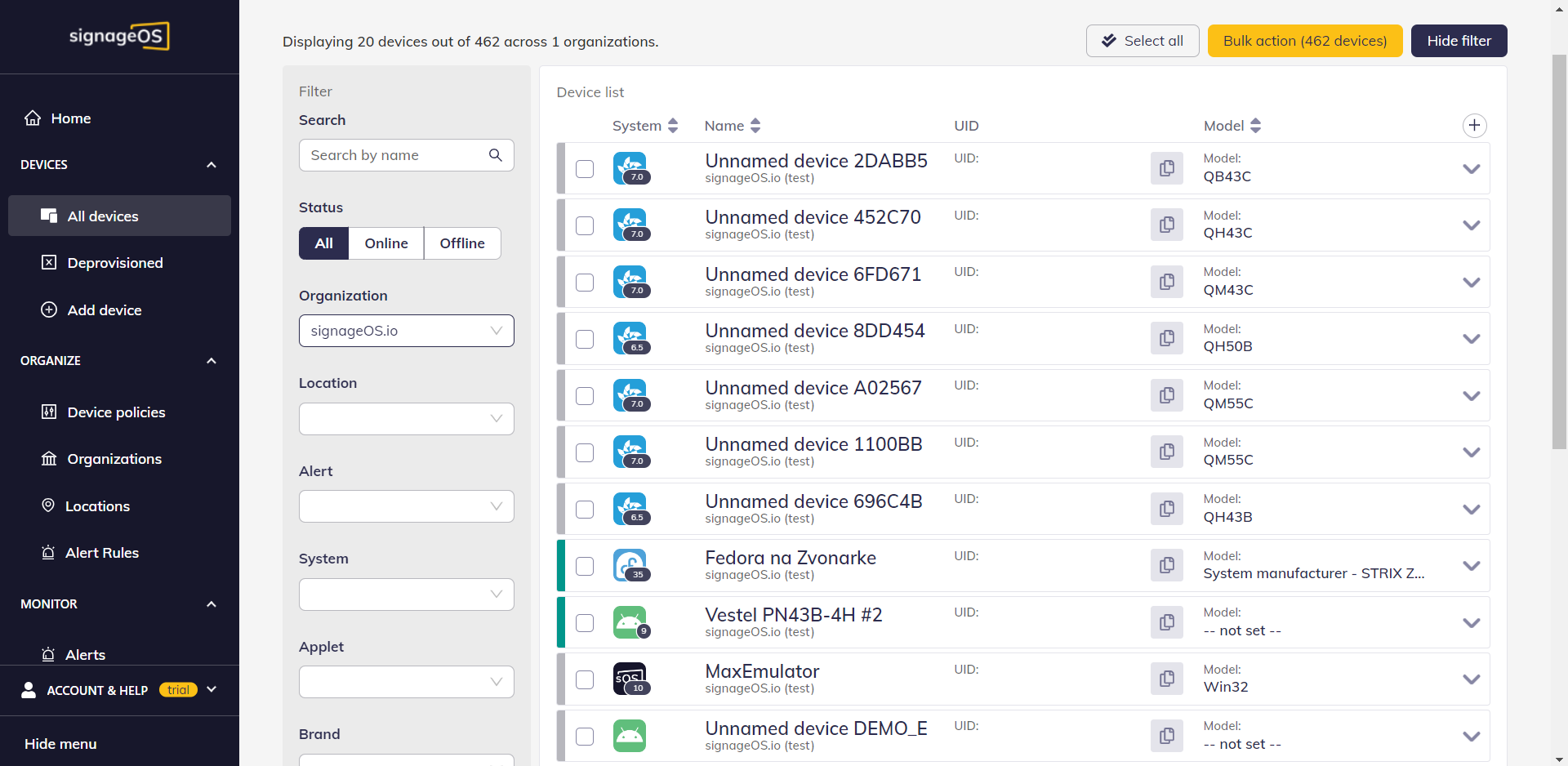
Under Devices you find all devices you have access to. You can easily filter and check their settings.
2. Device Filter
Filter your devices by:
- Name, including full-text search
- Status, for sorting online and offline devices
- Organization
- Location
- Alert
- System stands for Tizen, webOS, Android, and others
- Applet
- Brand
- Model
- Firmware, is very useful for bulk upgrading and checking outdated devices
- OS version
- Tags
- Policies
- Available storage, with predefined scale
- Show emulators (YES/NO)
3. List of devices
Here comes the list of devices, showing Status, System, Name, Device UID, Organization and Modeland much more can be added by clicking + button.
If you click on the Device Name, you will see Device detail page.
4. Export Device List
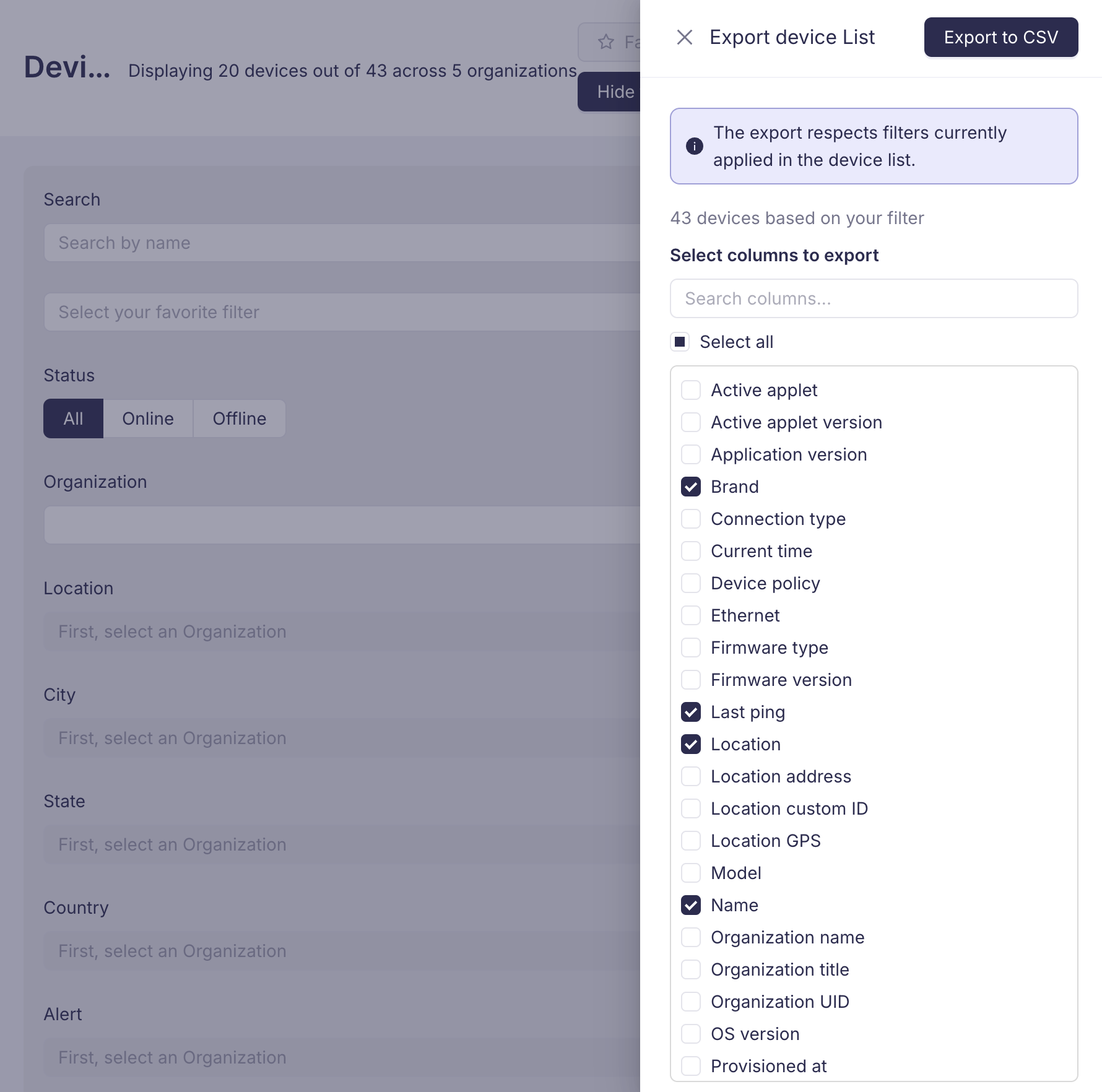
You can export your device list to a CSV file by clicking the Export to CSV button in the top-right area of the device list. This opens the Export device list drawer where you can configure your export.
Selecting columns
The export drawer displays all available columns as a list of checkboxes. You can:
- Use the search field at the top to quickly filter columns by name
- Click Select all to toggle all columns at once
- Check or uncheck individual columns to include or exclude them from the export
Your column selection is remembered for future exports.
Filter awareness
The export respects any filters currently applied to the device list. If you have active filters, only the matching devices will be exported — not your entire device inventory.
Downloading the export
Once you have selected the desired columns, click Export to CSV in the drawer header to start the export. When the file is ready, a notification will appear with a download link.
Bulk changes
Whenever you need to change multiple device settings at once, go to Bulk action.