BrightSign Supervisor Provisioning
BrightSign supports provisioning of devices with a preinstalled supervisor via a firmware extension. This guide describes how to provision BrightSign devices with our supervisor extension.
Supervisor is available only as a preview; do not use it on production devices.
Prerequisites
- BrightSign device with required firmware
- Access to the local network for DWS access or BrightAuthor
- Downloaded supervisor package based on the device family
- Supervisor requires a minimum BrightSign firmware version of
8.5.64. Firmware versions on newer models9.0.xand9.1.xare all supported. - If the device has installed older firmware, please update firmware to the latest version and then follow the steps below.
- Additionally, if you do a major firmware upgrade later, e.g., from
8.5.64to9.1.125, you need to install the extension.bsfwpackage again.
DWS access
The Diagnostic Web Server (DWS) is used to upload the firmware extension and configure the registry. Before starting, make sure that:
- DWS is enabled on the device. On factory-fresh devices it is usually enabled by default; if it has been disabled, re-enable it via BrightAuthor:connected or by running our BrightScript for enabling local DWS.
- The device and your computer are on the same local network, with HTTP traffic on port
80allowed between them. - You know the device's local IP address. It is shown on the device's on-screen splash, in your router's DHCP table, or in BrightAuthor:connected.
- You have the DWS credentials. On recent firmware the default username is
adminand the password is the device serial number (printed on the device label). If a custom password has been set, use that instead.
For more details, refer to BrightSign's official DWS documentation.
Supervisor versions
| Device Family | Models | Download link |
|---|---|---|
| Raptor | XC5 | Link |
| Cobra | XS6, XD6, HD6, HD5, LS5, XD5, XT5 | Link |
| Malibu | XD4, XT4 | Link |
| Pagani | LS4, HD4 | Link |
| Pantera | LS3, HD3, HS3 | Link |
Installation steps
Registering the device
- On the Info page in DWS, copy the Unique ID — it's the serial number used for provisioning.
- Go to the Bulk Provisioning page in Box under the Cloud Control and Deployment sections.
- On the top right, press the Register devices button.
- Fill in the required text boxes with the required values:
- Organization – where the device will be provisioned.
- Device Name – for identification in Box/API.
- Brand – select BrightSign.
- Serial Number – put the Unique ID from the Info tab on the device here.
- Then press Save.
- When the device loads the supervisor, it will be automatically registered in the selected organization.
Supervisor installation
-
Put the downloaded package into the root directory of the SD card. Ensure that the package ends with
.bsfw. -
Go to the device DWS page, usually available at the local IP address of the device
<deviceIp>:80. -
Navigate to the Registry tab and insert additional values into the registry via the available text box and the Submit button.
registry write signageos enabled 1
registry write signageos sos_url https://2.signageos.io/app/brightsign/2.5.0-rc.0/snippet.js -
Now it's required to reboot the device. Go to the Control tab and press Reboot the player.
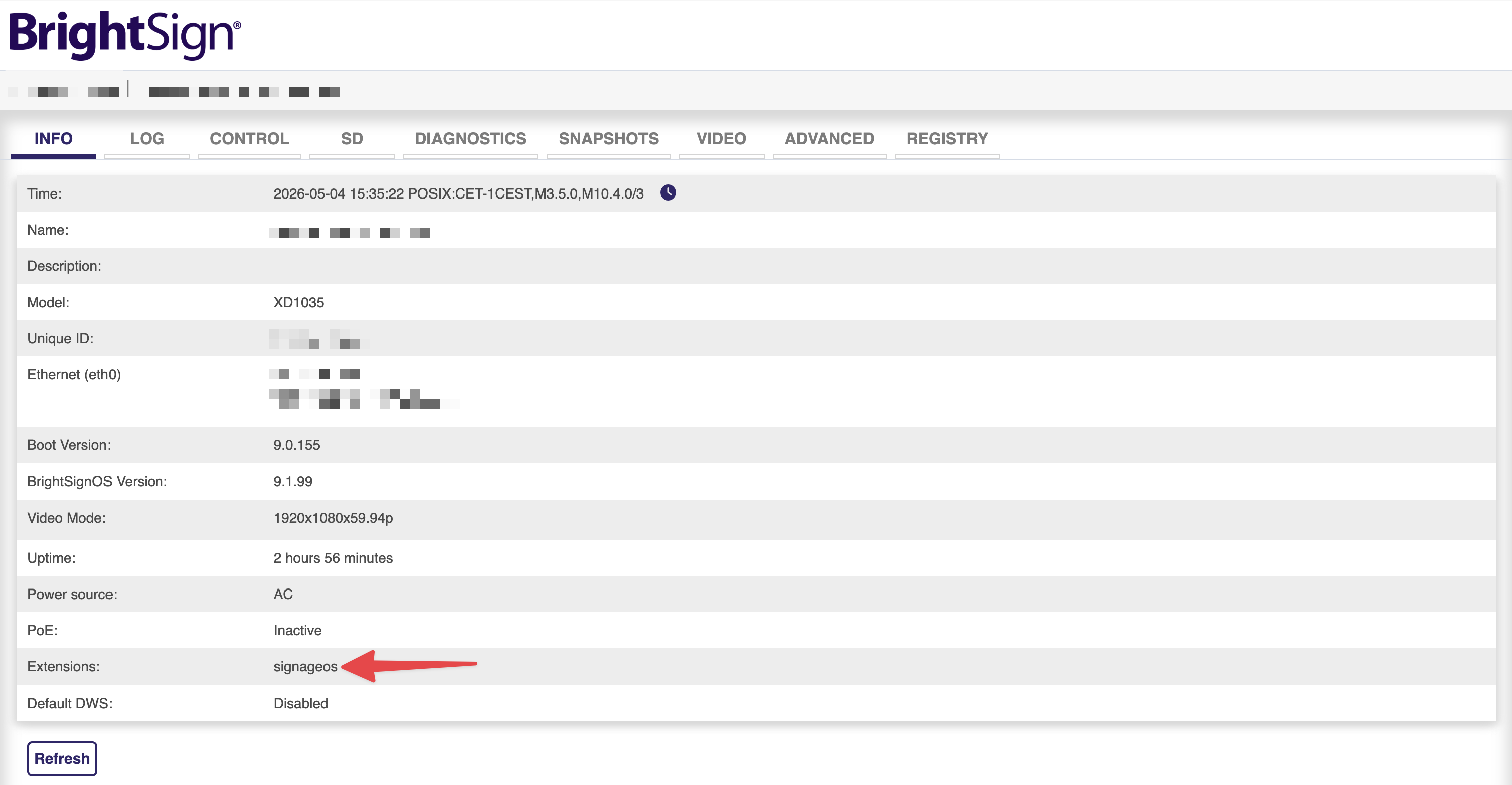
After the reboot, verify that the device has installed the extension on the DWS info page.
-
The device should be available in the Device overview within a few seconds.
Custom Scripts
Supervisor supports running scripts on the device with nodejs and sh runtime. In Node.js scripts, you can use our Front-Applet Management API to control the device or use native Node.js BrightSign libraries.
Optional steps
- If the device is successfully provisioned, try to update the supervisor to the latest version in Box via the Settings page or via the REST API.
Limitations
- Supervisor works as Cloud Control; therefore, it can only control management features like settings, updates, timers, etc. For full content management, you must use the standard Core App version.
- To install standard Core App, please refer to this guide.
Removing the supervisor
To remove the supervisor, you need to perform factory reset on the device.