LG webOS Device Provisioning
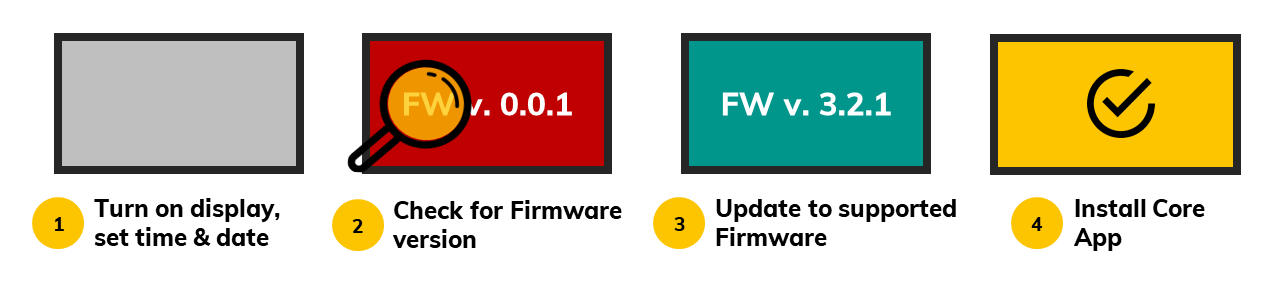
Before device deployment check the compatible device FIRMWARE as it is very important to have tested FW. The FW for each device is documented on the Supported devices page. In case the device is not on the list, contact our support.
In case our current release version does not support the latest model line or latest features, please use the Release Candidate apps listed in our Knowledge base article about Core Apps Release Policy. Please share the feedback of using the RC Apps as much as possible.
Looking For Supported LG WebOS Displays And Firmwares?
LG webOS 4.0 and 6.0
1. Turn on the display
2. Set display by “tutorial” (first option after display starts)
Important: Do not skip LG tutorial and set the display Timezone, time, date and location respectively to it’s location. Otherwise system will not work properly.
3. Once set, go to Settings -> Ez-settings
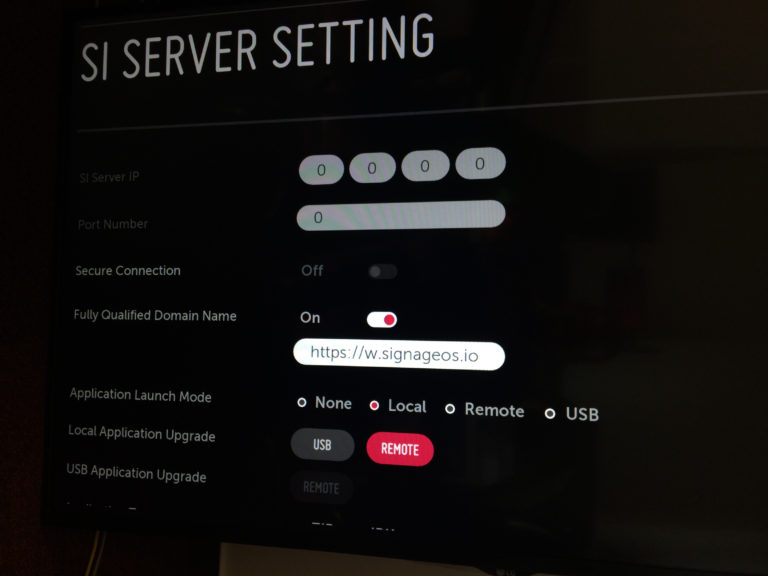
4. Select SI Server Setting
5. In Server Menu select following options
- Fully qualified domain
| Link to the latest LG webOS Core App |
|---|
https://w.signageos.io/w.ipk |
- Application Launch mode –
Local - Local Application upgrade –
Remote - Application type –
IPK - Auto set –
OFF
Important: The Auto set - OFF is a mandatory settings. If you leave that to "On", you will not be able to update the application remotely. Always keep this option to OFF.
6. Go up to Local Application Upgrade
7. Select Remote
8. App starts to downloading and installing
9. Once done, restart the display by pressing power off and power on the remote control
Once the display is started with the signageOS App you will see a short Verification code in the middle of the screen.
Learn how to add new device via box! Learn how to add new device via REST API!
LG webOS 3.2
1. Turn on the display
2. Set display by “tutorial” (first option after display starts)
Important: Do not skip LG tutorial and set the display Timezone, time, date and location respectively to it’s location. Otherwise system will not work properly.
3. Once set, go to Settings -> Ez-settings
4. Select SI Server Setting
5. In Server Menu select following options
- Fully qualified domain
| Link to the latest LG webOS Core App |
|---|
https://w.signageos.io/w.ipk |
- Application Launch mode –
Local - Local Application upgrade –
Remote - Application type –
IPK
6. Go up to Local Application Upgrade
7. Select Remote
8. App starts to downloading and installing
9. Once done restart the display by pressing power off nad power on on remote control
Once the display is started with the signageOS App you will see a short Verification code in the middle of the screen.
Learn how to add new device via box! Learn how to add new device via REST API!
LG webOS 2 and 3
1. Turn on the display
Important: Do not skip LG tutorial and set the display Timezone, time, date and location respectively to it’s location. Otherwise system will not work properly.
2. Press & hold Settings button on remote control until a small grey bubble appears
3. On the remote control press 8080 and confirm by pressing OK
4. Display turns into Server settings menu
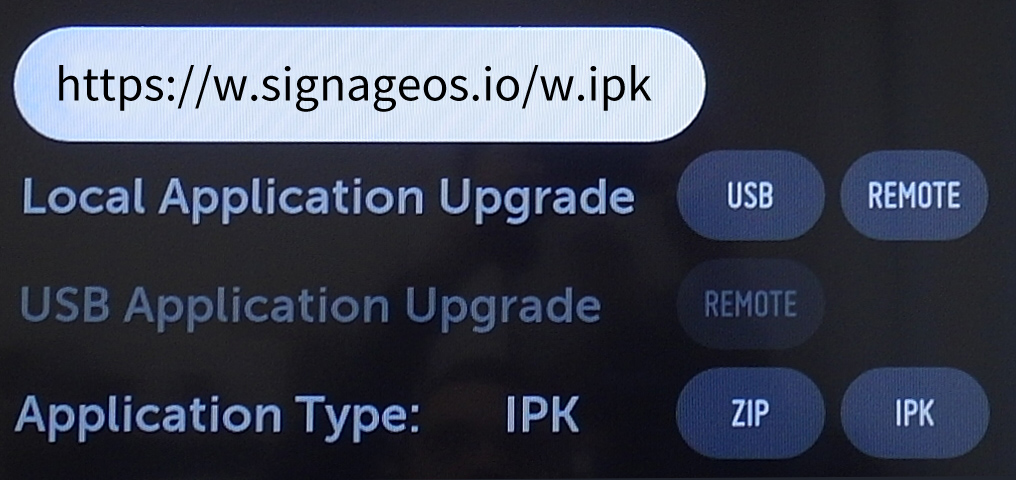
5. In Server Menu select following options
- Fully qualified domain
| Link to the latest LG webOS Core App |
|---|
https://w.signageos.io/w.ipk |
- Application Launch mode –
Local - Local Application upgrade –
Remote - Application type –
IPK
6. Go up to Local Application Upgrade
7. Select Remote
8. App starts to downloading and installing
9. Once done restart the display by pressing power off nad power on on remote control
Once the display is started with the signageOS App you will see a short Verification code in the middle of the screen.
Next steps
Learn how to add a new device via Box
Learn how to add a new device via REST API!
LG webOS 1
1. Turn on the display
Important: Do not skip LG tutorial and set the display Timezone, time, date and location respectively to it’s location. Otherwise system will not work properly.
2. Press & hold Settings button on remote control till small grey bubble appears
3. On the remote control press 8080 and confirm by pressing OK
4. Display turns into Server settings menu
5. In Server Menu select following options
- Fully qualified domain
| Link to the latest LG webOS Core App |
|---|
https://w.signageos.io/w.zip |
- Application Launch mode –
Local - Local Application upgrade –
Remote
6. Go up to Local Application Upgrade
7. Select Remote
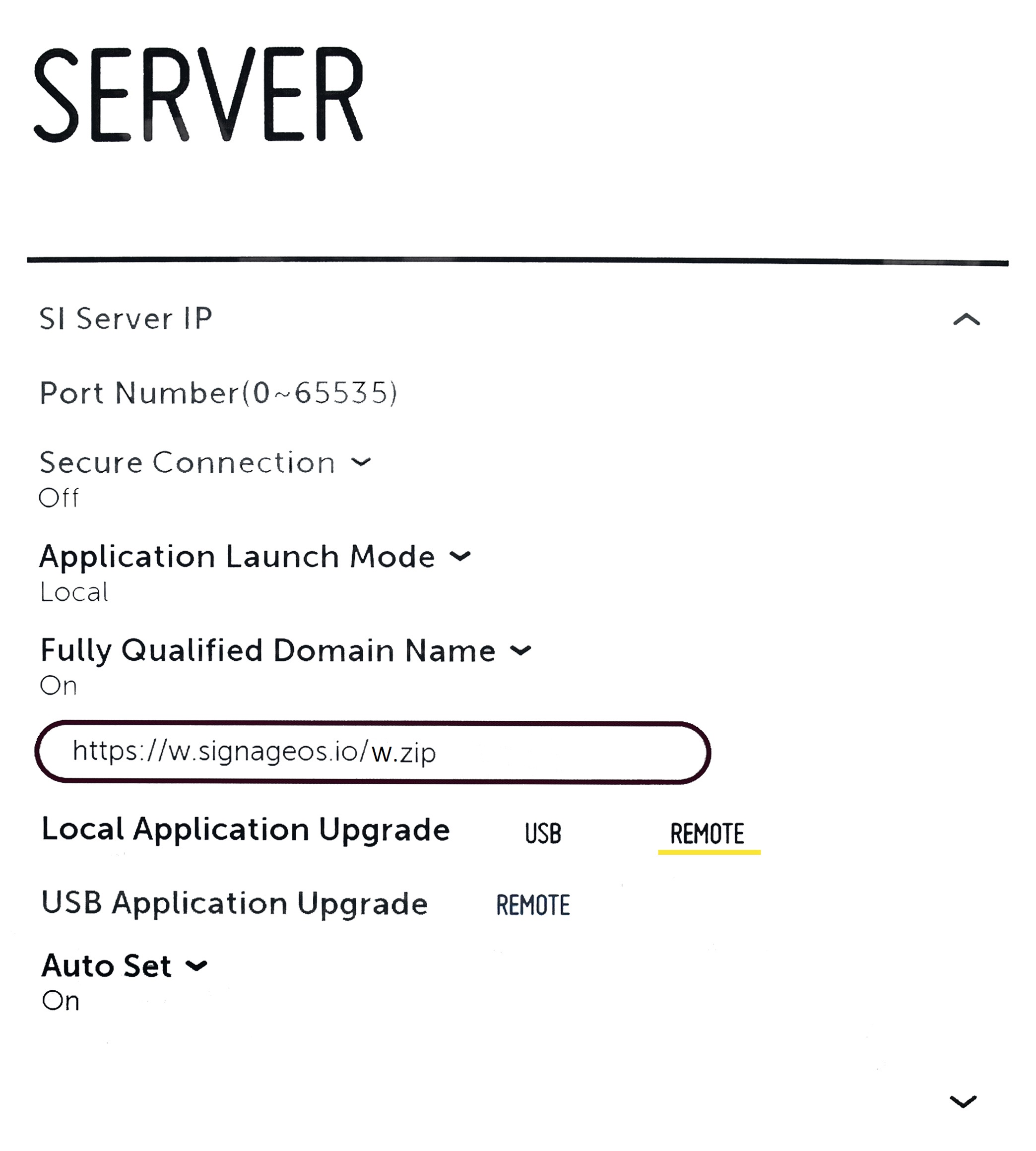
8. App starts to downloading and installing
9. Once done restart the display by pressing power off and power on on remote control
Once the display is started with the signageOS App you will see a short Verification hash in the middle of the screen.
Learn how to add new device via box! Learn how to add new device via REST API!
USB Provisioning
To provision your LG display through files on your USB, follow these steps:
- Download the CA from https://w.signageos.io
- Put the downloaded file on your USB drive into /application folder
- Remove the application version - resulting in USB/application/com.lg.app.signage.ipk structure
- Plug your USB into the display
- Press home button and navigate to SI Server Setting
- Select following settings:
- Application launch mode - Local
- Application type IPK
- Local application upgrade - USB
- Your device should now install the application, once this is complete it is recommended to turn the display off/on
- The device should launch the signageOS application
Common Troubleshooting
In the past, you could find issues below with certain LG devices, however, the issues have been resolved with the latest tested FW (those are available to select in Box). Please upgrade, the device will be able to operate at full capacity
webOS 3.0 & 3.2
- these models are not capable of playing FullHD videos in native portrait mode (1080x1920px), to achieve full resolution, you need to pre-rotate your videos, otherwise you will experience blurry video playback (webOS platform limitation)
webOS 4.0
- still does not have a 100% working FW. You might experience blurry portrait videos, gaps or time inconsistencies. LG was notified about these issues and working on FW update.
- always check you have the correct FW prior to app installation, otherwise you might experience system freezes, reboots etc. Never use FW below 4.02.xx