LG Cloning Process
Settings Included in the Cloning Process:
- Display & Audio: Configure picture and sound options.
- Time Management: Adjust time and date settings.
- Signage & Display Control: Options specifically related to signage functionality.
- Source Management: Set up and manage input source configuration.
- Energy & Power: Manage power consumption and standby settings.
- General Preferences: Access general system preferences.
Settings Typically Excluded from the Cloning Process:
- Device Identifiers (e.g., MAC address, serial number)
- Network settings
- Installed Software and CMS Content
- User Accounts and Licenses
Preparing the HW
Requirements for Cloning:
- Source Device: One LG Signage WebOS display.
- Target Devices: One LG Signage WebOS display (same version from source).
- Storage: A USB flash drive (FAT32 format is recommended). Please ensure the USB drive is empty or contains no conflicting configuration files
Export Configuration process
To export the display settings to a USB drive:
- Power on the display.
- On the LG remote, press Settings.
- Go to the Cloning menu:
Settings > EZ Setting > Setting Data Cloning
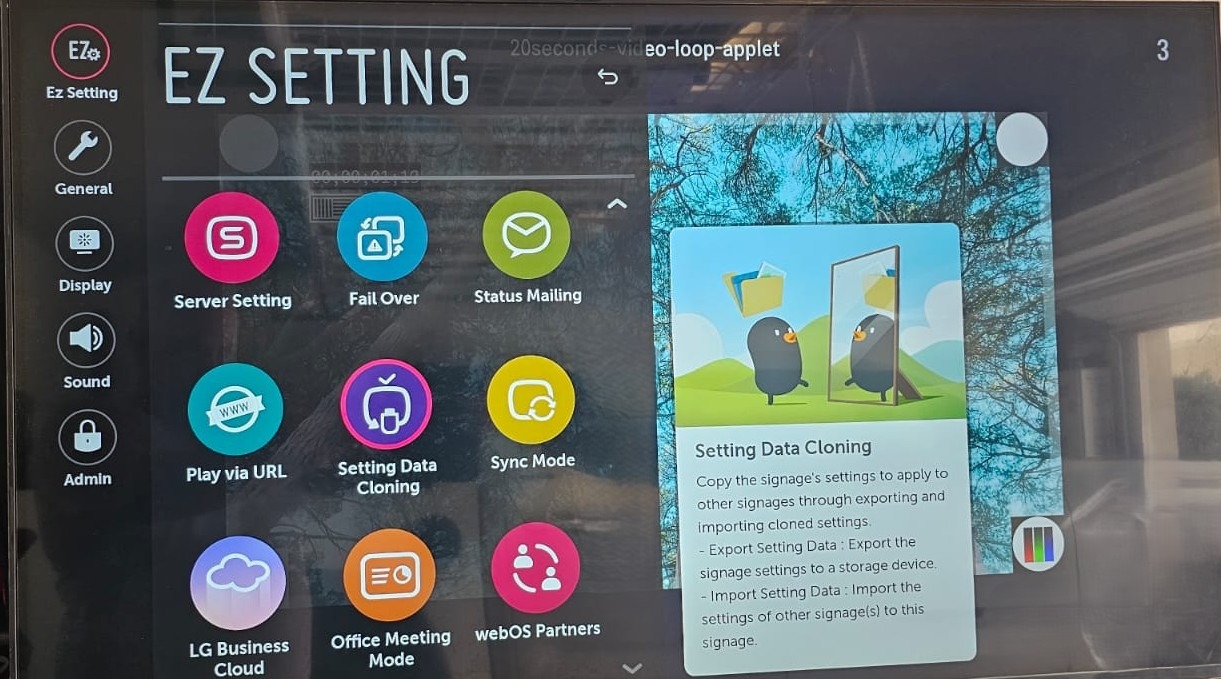
- The Setting Data Cloning window will appear. The first step is to select "Export Setting Data." This action will copy the settings to the USB drive, which you will then use to transfer the settings to the target screens.
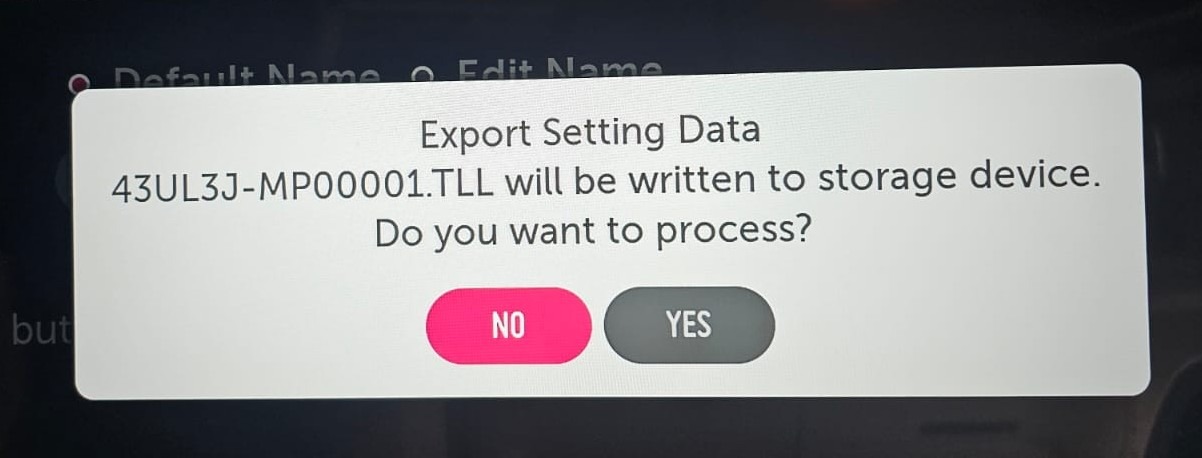
- The screen will display a screen to select
- Storage Device
- File Name.
- Press Start
- After pressing "Start," a confirmation screen will appear, asking you to proceed.
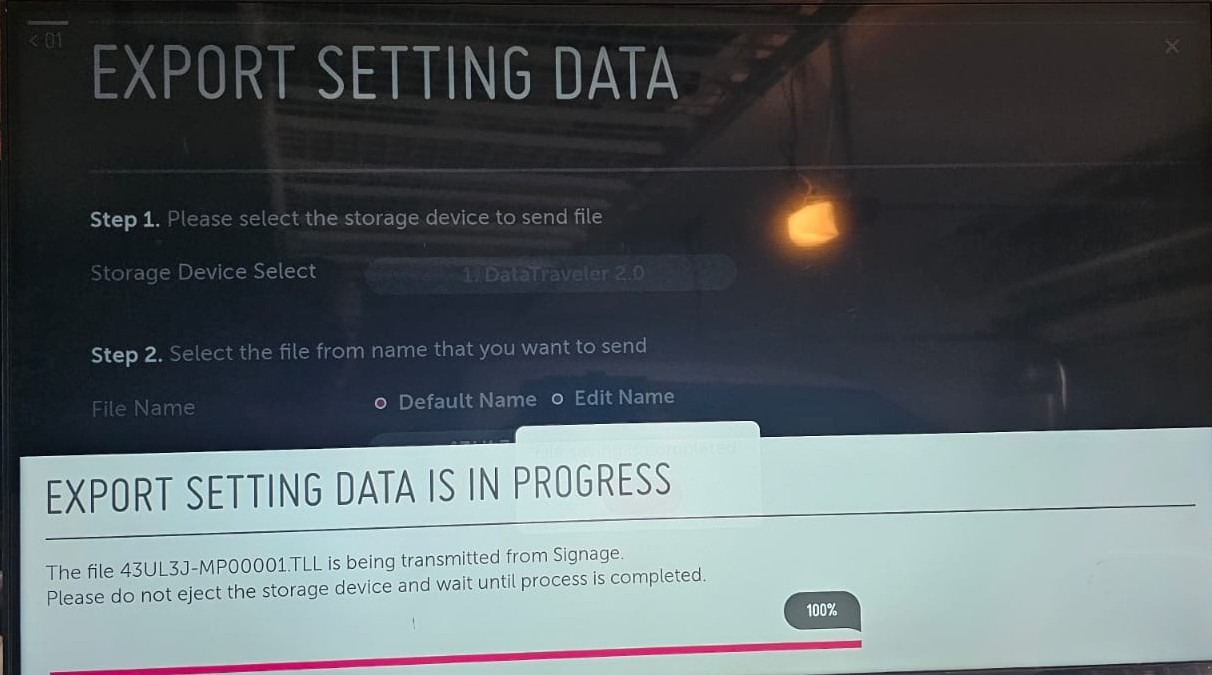
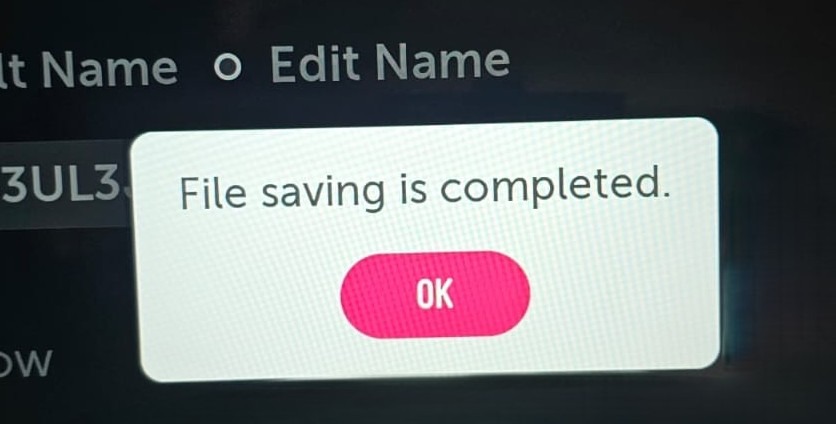
- After confirming with "Yes," a process window will appear, indicating the progress and notifying you when the cloning is finished.
- Press OK to complete the cloning.
Import Configuration process
To import settings from a USB device:
- Follow the 3 initial steps from exporting
- In the Setting Data Cloning, select Import Setting Data.
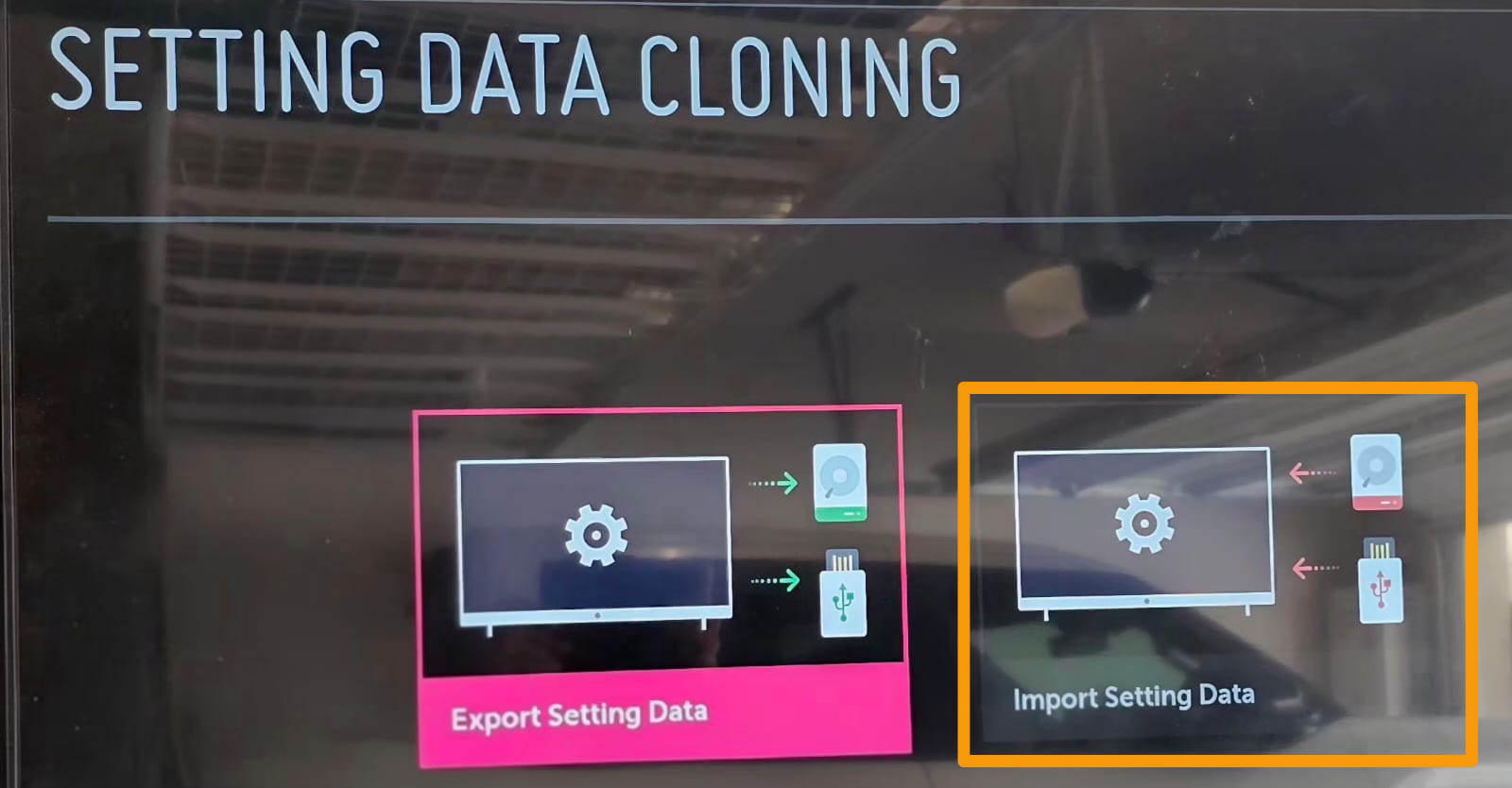
Confirm the action.
Note: The display will either reboot automatically or require a manual restart prompt.