Samsung Cloning Process
Settings Included in the Cloning Process:
The device cloning procedure typically copies the following configurations:
- Picture settings
- Sound settings
- Time and language settings
- Application settings (e.g., MagicINFO, Custom App / URL Launcher)
- Power, eco-mode, and auto-on/off scheduling
Settings Excluded from the Cloning Process:
The following information is not cloned, as it is specific to the individual device hardware or security:
- Device-specific identifiers (including MAC address and device name)
- Network settings (e.g., WIFI configuration)
- Certificates tied directly to the hardware
- Secure credentials
Preparing the HW
Requirements for Cloning:
- Source Device: One Samsung Signage Display running Tizen OS.
- Target Devices: One or more Samsung Signage Displays, also running Tizen (Same version from source).
- Storage: A USB flash drive (FAT32 format is recommended). Please ensure the USB drive is empty or contains no conflicting configuration files
Export Configuration process
-
Power ON the source Samsung display
-
Insert the USB drive into the display’s USB port
-
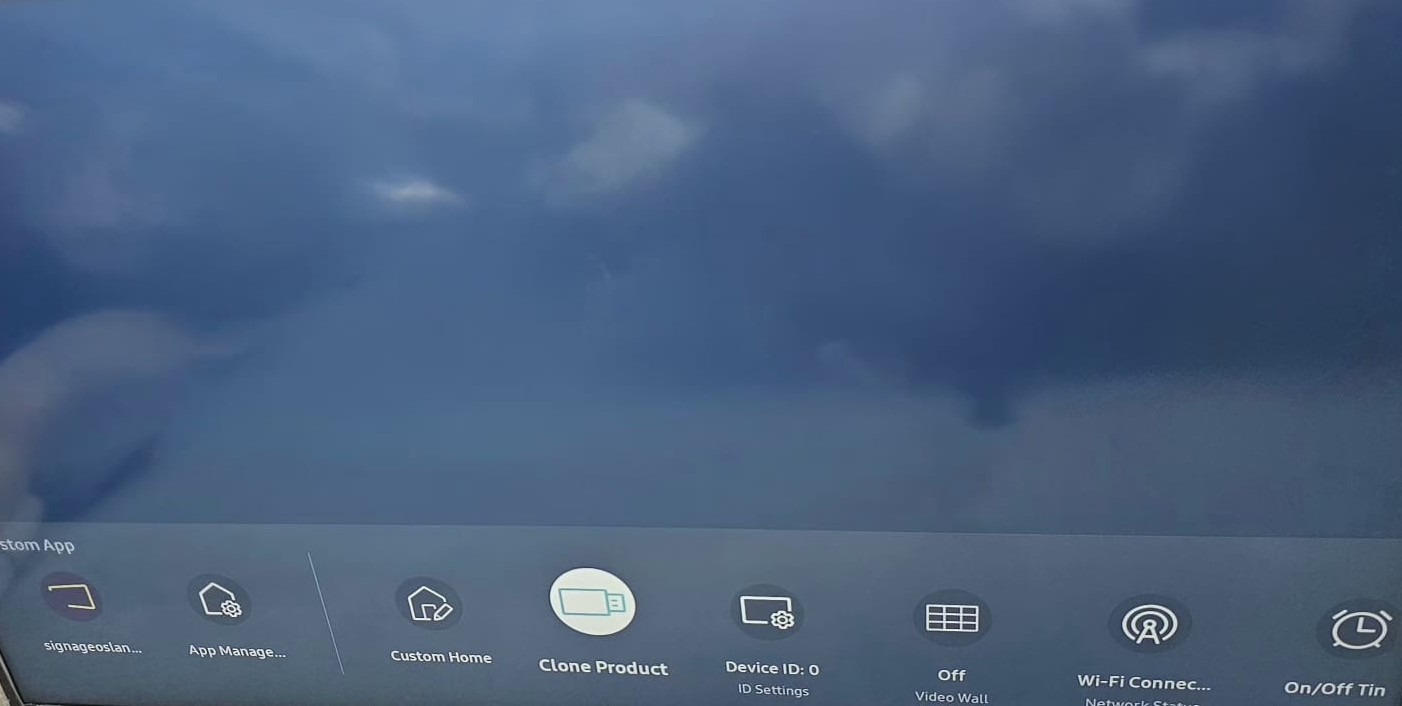
Using the remote control, press Home
-
Navigate to
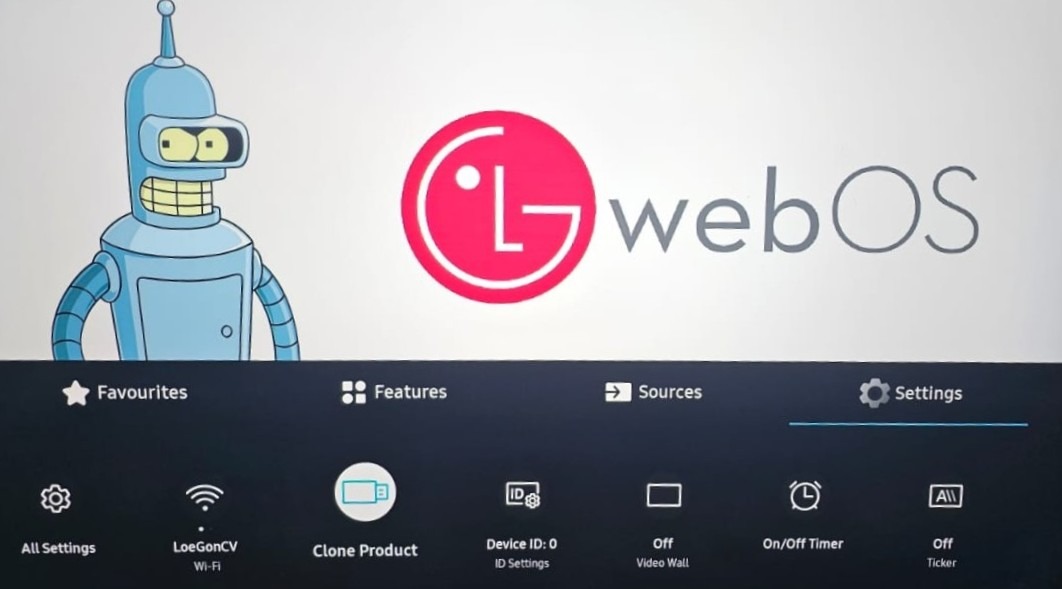
- In the top menu, go to Settings
- Bottom option, select Clone product
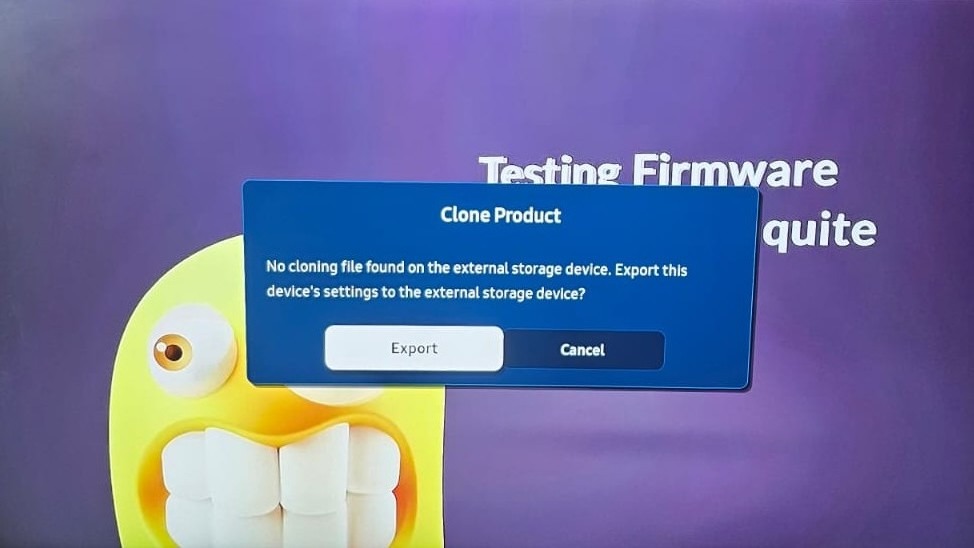
- If the USB drive does not contain a file of the .sclone type, a confirmation message will appear on the screen, asking if you wish to proceed with creating the cloning file.
- Once you select Export, the cloning process will begin, generating a file with the screen model, FW version, and the .sclone extension. Examples are provided below. QB43B_S-PTMWWC-1160.4.sclone QM50C_S-PTMLWWC-1060.9.sclone
- Once the files are ready, insert the USB drive with the file created into the target device and repeat the same previous steps.
Import Configuration process
Repeat the steps mentioned previously to either import or clone the settings onto the target display.
- Power ON the target Samsung display
- Insert the USB drive into the display’s USB port
- Using the remote control, press Home
- Navigate to:
- In the top menu, go to Settings
- Bottom option, select Clone product
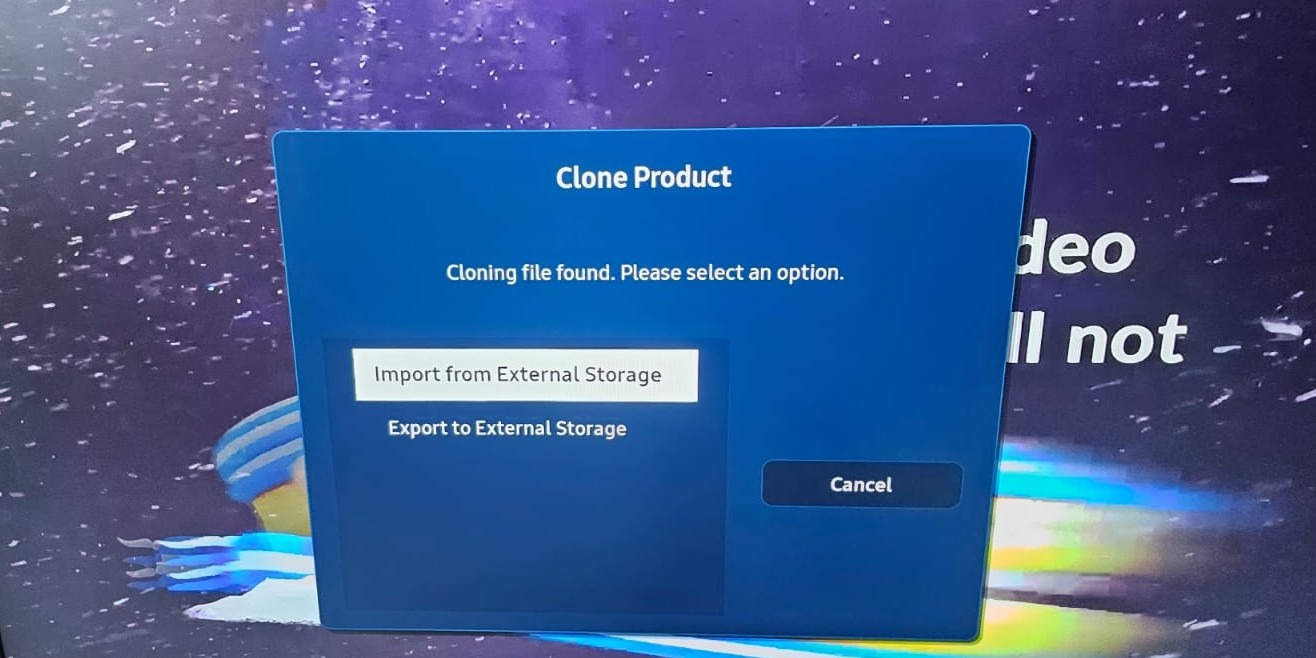
A different screen will request to select an action (Import or Export)
- Select Import from External Storage and the cloning process will start.
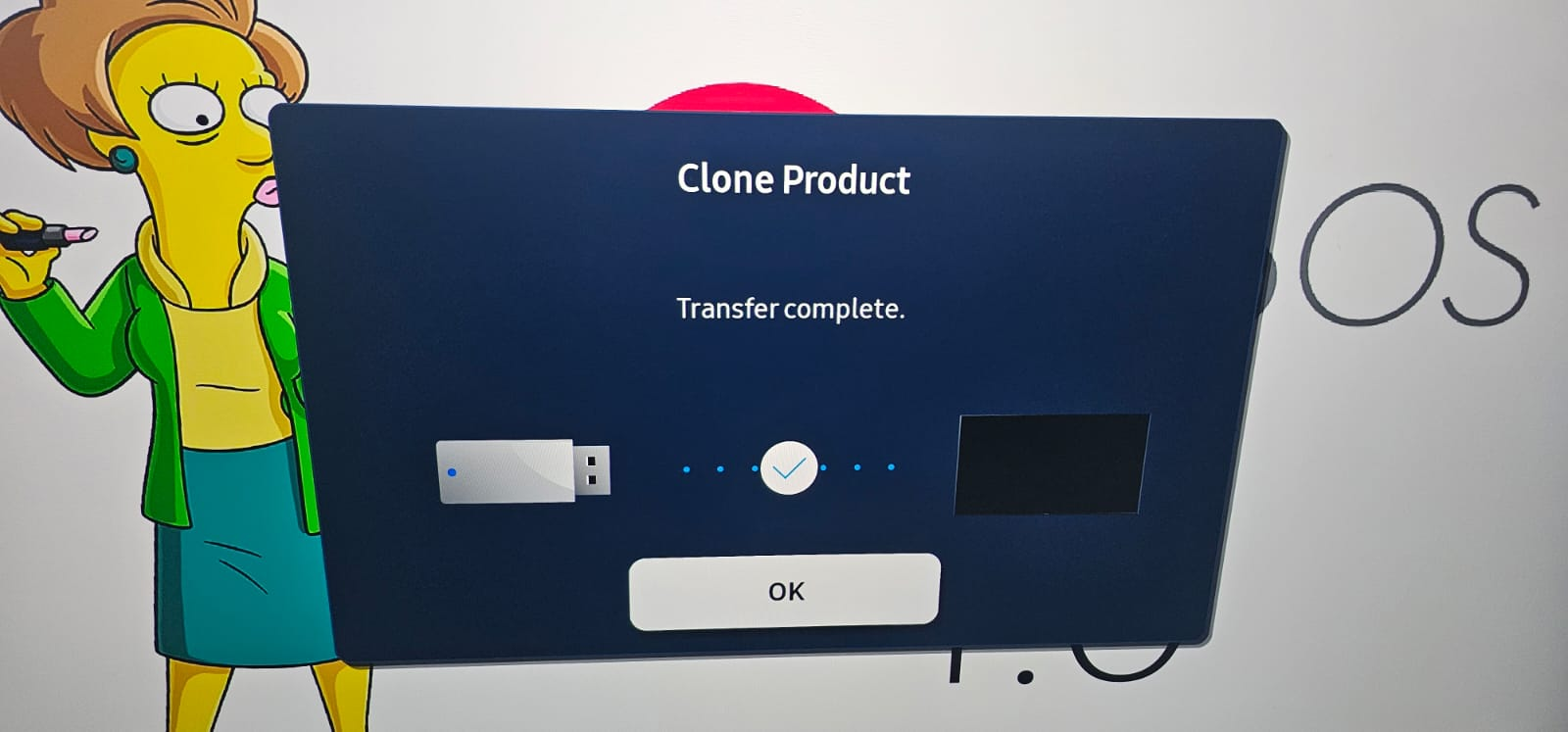
- After the whole process is completed, you should be able to see the next
The flow for other platforms, like Tizen 6.5, remains consistent with similar options. You will find these options in the main menu section, accessible from the Home menu.