Bulk provisioning
Introduction
Bulk provisioning feature is available on the CloudControl Pro plan or higher.
Doing a larger-scale deployment can be time-consuming and registering each individual device can be time-consuming. With signageOS you are now able to do Bulk provisioning - this allows you to provision registered devices in advance. Once your devices are connected to the internet (more specifically once they connect to the signageOS cloud - Core App is installed), they will be automatically provisioned into your pre-selected organization with necessary identifiers. You can now choose from two options of bulk provisioning - Manual entry or Bulk upload.
How to use
To use this feature, navigate to Box, and under the section Devices select the Bulk provisioning tab.
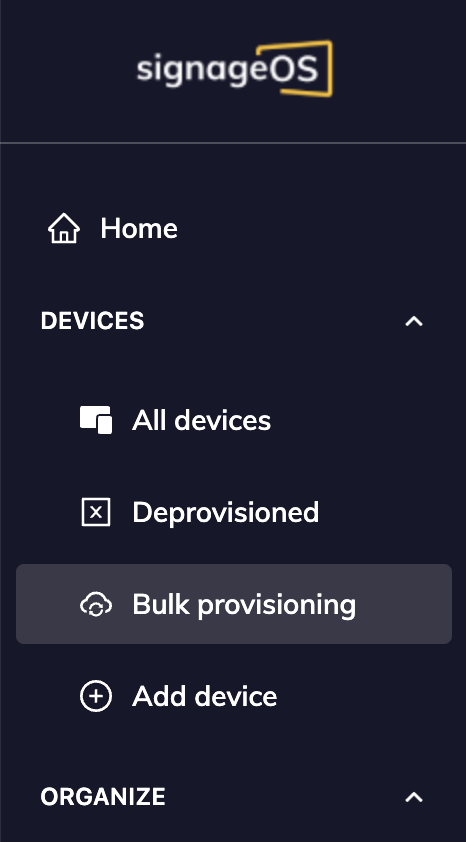
Once you are on the Bulk provisioning page, select the Register devices option in the top right corner.

Manual entry
For smaller-scale deployments (ie. an individual location) manual entry might be your preferred method due to the convenience of adding several devices quickly. Once you select Manual entry as your option for Bulk provisioning you will be prompted to fill in a form with information necessary to identify each device once they connect to the cloud and undergo the provisioning.
The form can be split into two parts - Basic information and Additional configuration
Please note that depending on the brand of device you are trying to register, different fields might be mandatory to ensure unique identifications are present to differentiate between devices reporting to the cloud.
- Organization (required)
- Select the organization the devices will be registered and provisioned into. This field is mandatory. If you are not familiar with organizations, check out our article for more details here
- Brand (required)
- Select the brand of your device for registration. This field is mandatory for every device.
Based on brand you will be prompted to input the necessary information as mentioned above.
Additional configuration
In addition to the default identifiers for your device, you can also select signageOS-specific features such as:
- Location
- More information about the locations feature can be found in the article here
- Policy
- More information about device policies can be found in the article here
- Tags
- More information about tags can be found in the article here
Bulk upload
If you are doing a larger-scale deployment Bulk upload allows you to input a CSV file in a specific format to import a larger list of devices to register for provisioning. For Bulk upload you also need to select the organization under which these devices will be registered and provisioned — this selection is required.
Your CSV file needs to be in the specific format shown below. The first row must be the header row with the exact column names, and each following row represents one device to register.
The columns are:
| Column | Required | Description |
|---|---|---|
brand | Always required | The device brand. Must be one of: Samsung, LG, Sony, BrightSign, ChromeOS. |
serialNumber | Required for Samsung, LG, BrightSign, ChromeOS | Device serial number used to identify and pair the device. |
macAddress | Required for Sony | Device MAC address (format xx:xx:xx:xx:xx:xx) used to identify and pair the device. |
model | Optional | Device model name. |
tagNames | Optional | One or more tag names separated by a semicolon (;). |
deviceName | Optional | The name the device will be given after provisioning. |
policyUid | Optional | UID of a policy to apply to the device. |
locationUid | Optional | UID of a location to assign the device to. |
brand is mandatory for every row and must be filled in. In addition, each brand has its own required identifier — Sony requires macAddress, while Samsung, LG, BrightSign and ChromeOS require serialNumber. A row is only valid when both the brand and that brand's required attribute are present. The same rules apply to Manual entry.
Example CSV with one device per supported brand (Sony uses macAddress, all other brands use serialNumber):
| serialNumber | model | macAddress | brand | tagNames | deviceName | policyUid | locationUid |
| 0AXG3MKN100001 | QM55R-T | Samsung | Lobby;Floor 1 | Lobby Display | 9b8f406cb3338fc4c950e584eb8f | e9f9dd5b1eb8f31f058d9b8f406c | |
| 412KCYZ9D801 | 55SM5KE-B | LG | Hallway | Hallway Screen | |||
| FW-55BZ40H | a8:23:fe:11:22:33 | Sony | Cafeteria | Cafe TV | |||
| M2K54T000123 | XT1144 | BrightSign | Storefront | Window Display | |||
| NXAPKAA0012345 | ChromeOS | Meeting Rooms | Meeting Room A |
As raw CSV the same example looks like this:
serialNumber,model,macAddress,brand,tagNames,deviceName,policyUid,locationUid
0AXG3MKN100001,QM55R-T,,Samsung,Lobby;Floor 1,Lobby Display,9b8f406cb3338fc4c950e584eb8f,e9f9dd5b1eb8f31f058d9b8f406c
412KCYZ9D801,55SM5KE-B,,LG,Hallway,Hallway Screen,,
,FW-55BZ40H,a8:23:fe:11:22:33,Sony,Cafeteria,Cafe TV,,
M2K54T000123,XT1144,,BrightSign,Storefront,Window Display,,
NXAPKAA0012345,,,ChromeOS,Meeting Rooms,Meeting Room A,,
You can download an example CSV file for editing from here: sample-list.csv
Once you have your list of devices and upload it through the Box UI, the file will be validated for formatting and for the required fields described above. If any row is missing the brand or that brand's required identifier, you will be informed via an error message and prompted to correct your table.
Filters
Just like in the Device list, you can use filters to search for specific devices. Given you might have a list of large quantities of devices this allows you to easily navigate and look for devices based on:
- Name
- Organization
- Status
- Applied - bulk provisioning has been completed for the listed device
- Pending - the device is waiting for the completion of the provisioning
Deleting registrations
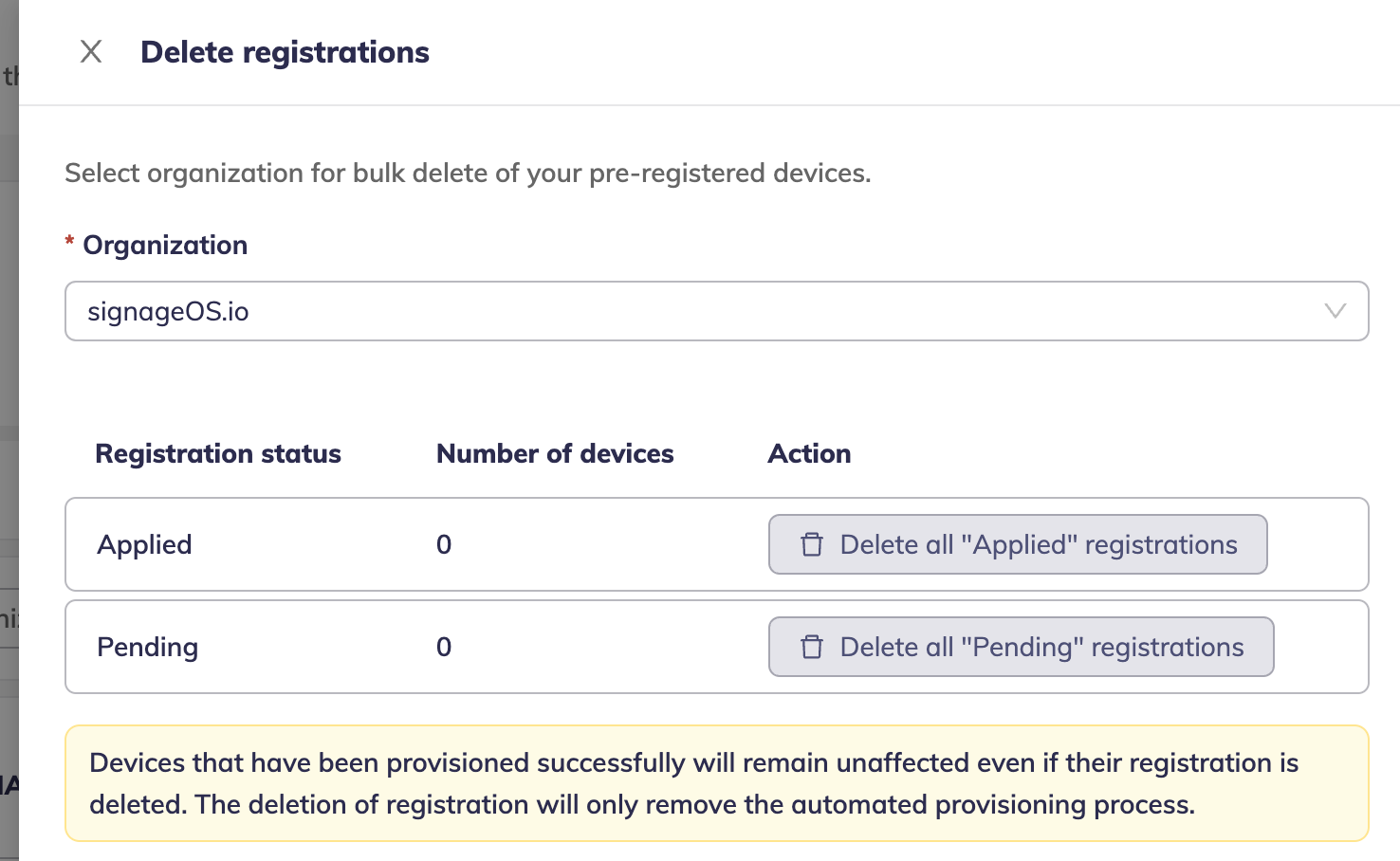
Registrations can be deleted no matter the state - Applied or Pending. Devices that have been provisioned successfully will remain unaffected even if their registration is deleted. The deletion of registration will only remove the automated provisioning process.
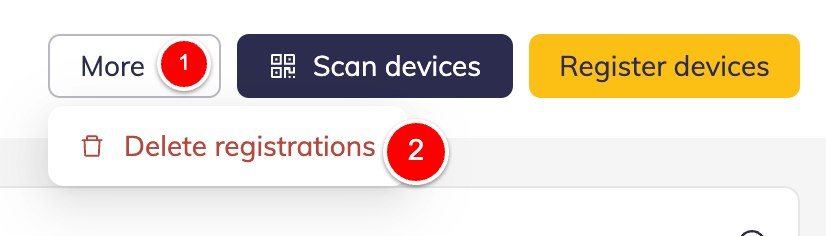
To delete registration, select More and Delete registration:
In the follow-up side menu select Organization and delete all Applied or Pending registrations:
Recipe States
Once you have created your recipe they can appear in several states, these are:
- Pending
- Pending state indicates that the recipe has not yet been used, this means that the recipe is waiting for its' device to come online and report to our system to finish provisioning, once this is done, the state will switch to Applied
- Applied
- As the name implies, the applied state means that recipe has successfully provisioned a device and you can now find the device under your organization with all additional setting applied during the recipe creation
- Invalid
- The recipe is marked as invalid in case that any of the settings selected during the creation of recipe have been deleted, these include Tags, Locations or Policies as they no longer can be applied to the provisioned device, Invalid state will require you to remedy these issues
- Failed
- In case the recipe fails to apply for any other reason you should see an indication of this on the bulk provisioning page, in such case, it is recommended to remove the recipe and re-applying the settings
FAQ
What happens if there are duplicate devices?
signageOS prevents creating duplicate devices within an Organization. If there are duplicate devices placed in different Organizations, signageOS will not execute the provisioning and signageOS support team will reach out to Organization managers for validation.